A powerful desktop computer can still feel frustrating when the monitor sits too low, cables cover the desk, and the mouse becomes uncomfortable after hours of use. Surprisingly, improving your workspace often requires smaller upgrades rather than replacing expensive hardware.
So, what are the most useful accessories for desktop computers? The best options include ergonomic keyboards, adjustable monitor arms, USB hubs, cable organizers, quality audio equipment, and reliable power protection.
The right combination depends on how you use your computer. A remote employee, competitive gamer, and video editor may benefit from very different accessories.
12 Desktop Computer Accessories That Make a Real Difference
1. Ergonomic Keyboard for Comfortable Typing
A keyboard is among the most frequently used desktop peripherals. Choosing the right design can make extended typing sessions more comfortable.
Ergonomic keyboards typically feature split layouts, adjustable angles, or compact designs that allow more natural arm positioning.
For office work, consider a quiet keyboard with responsive keys. Mechanical keyboards may appeal to programmers and gamers who prefer distinct tactile feedback.
However, mechanical switches are not automatically more ergonomic. Keyboard height, wrist positioning, and personal comfort matter more.
2. Vertical or Ergonomic Mouse
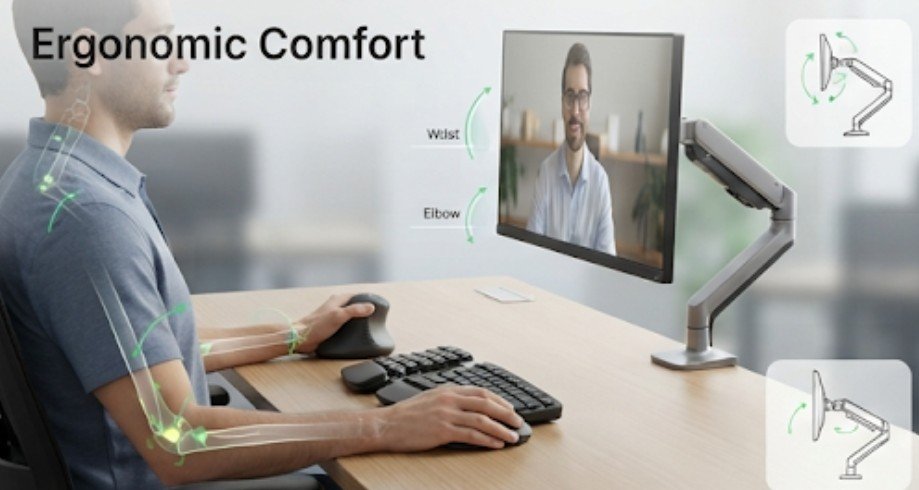
Traditional computer mice require a palm-down hand position that some users find uncomfortable during prolonged operation.
Vertical mice, including models such as the Logitech Lift, position the hand at a different angle.
Other possibilities include trackballs and adjustable gaming mice.
Choose based on hand size, grip preference, sensor accuracy, and button placement.
A vertical mouse may improve comfort for some people, but it is not a guaranteed solution for repetitive strain symptoms.
3. Adjustable Monitor Arm or Riser
Monitor positioning is one of the easiest workstation improvements.
An adjustable monitor arm lets users change screen height, viewing distance, and orientation without rearranging the entire desk.
Research-based Standford University ergonomic guidelines recommend positioning computer displays to avoid excessive neck bending.
Monitor risers offer a less expensive alternative, although they provide fewer adjustments.
Before purchasing an arm, verify your monitor’s VESA mounting pattern, weight, and desk compatibility.
4. USB Hub or Docking Station
Running out of ports becomes particularly inconvenient when connecting external drives, webcams, keyboards, and other peripherals.
USB hubs expand available connections, while docking stations may provide additional video outputs, Ethernet, and charging capabilities.
Advanced options, such as the Baseus Spacemate RD1 Pro, demonstrate how multiple connections can be consolidated into one desktop accessory. However, compatibility matters.
A USB-C connector does not automatically support video output or high-speed data transfers. Check the computer’s specifications before buying.
For gaming-focused systems, checking compatibility is equally important, so understanding how to choose compatible accessories for a gaming PC can help ensure that peripherals work properly with the hardware and available connections.
5. Cable Management Accessories
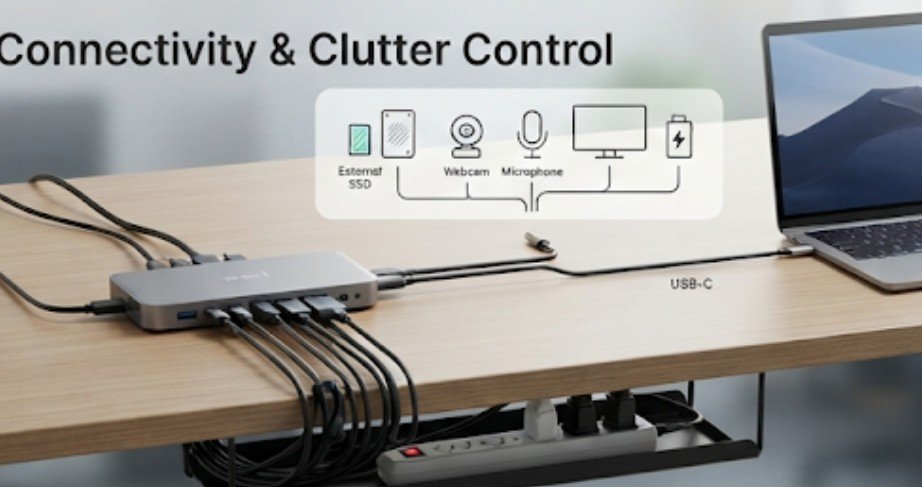
Cable trays, reusable ties, and adhesive clips eliminate unnecessary clutter without requiring expensive electronics.
An under-desk cable tray can hold excess cords and power equipment, while cable sleeves group connected wires.
For safety, avoid tightly bending cables or blocking ventilation.
Proper ventilation also helps prevent heat-related problems, so understanding why computer accessories overheat during extended use can help users maintain safer operating conditions and extend the lifespan of their equipment.
Consider labeling important connections before organizing everything. This makes future hardware upgrades and troubleshooting considerably easier.
6. Quality Webcam for Professional Communication
Desktop computers frequently lack built-in cameras, making external webcams essential for remote meetings, interviews, and online teaching.
A dependable 1080p webcam is sufficient for many video calls.
Higher-end options, including the Logitech BRIO 4K, provide additional resolution for recording and content creation.
Nevertheless, camera resolution is not everything.
Lighting, autofocus, microphone quality, and software compatibility often influence practical results more than advertised pixel counts.
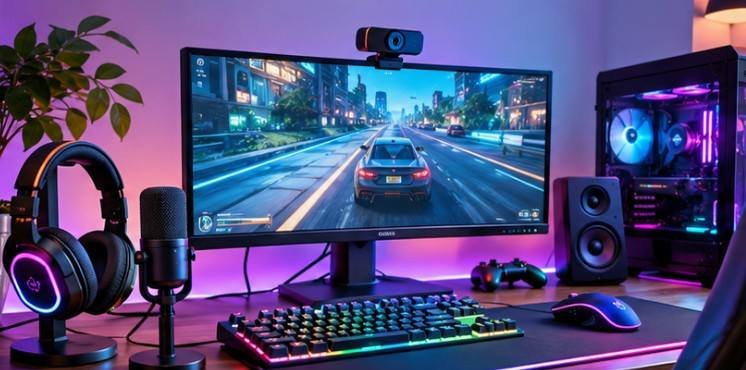
7. Desktop Speakers and USB Microphone
Clear audio improves virtual meetings, entertainment, gaming, and digital content production.
Compact desktop speakers offer an alternative to wearing headphones throughout the day.
A dedicated USB microphone is particularly valuable for podcasting, streaming, and frequent video conferences.
For ordinary meetings, a good headset may be more practical than purchasing separate audio equipment.
8. Desk Mat and Wrist Support
A quality desk mat protects surfaces, stabilizes keyboard placement, and provides consistent mouse movement.
Products such as the Logitech Desk Mat Studio Series combine practical surface protection with a cleaner workspace appearance.
Wrist rests may provide comfort during pauses, but avoid pressing your wrists firmly into them while typing.
A supportive footrest can also help users whose feet cannot comfortably reach the floor.
9. Surge Protector and Battery Backup
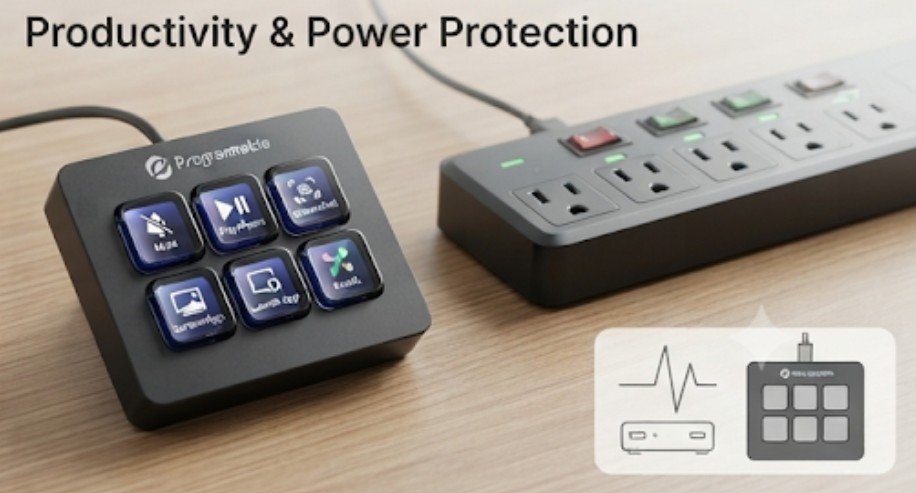
Power protection is often overlooked until an unexpected electrical problem interrupts important work.
The Electrical Safety Foundation International distinguishes ordinary power strips from actual surge-protection devices.
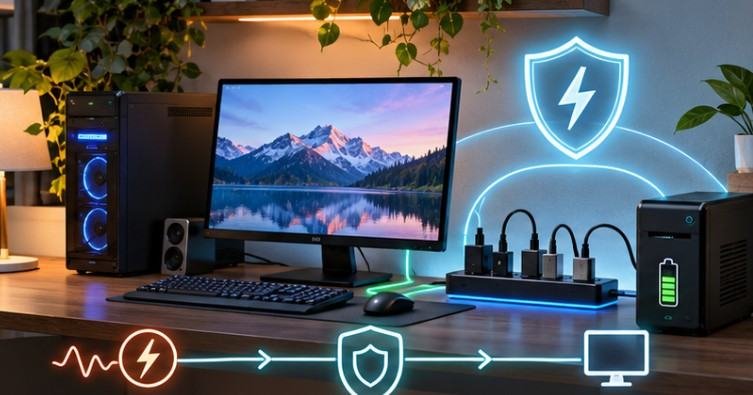
A surge protector helps defend connected equipment against certain electrical spikes. An uninterruptible power supply, or UPS, adds temporary battery power, allowing users to save work during an outage.
For desktop PCs, select a UPS according to the system’s actual power consumption and required backup time.
10. Adjustable Desk Lamp or Monitor Light
Insufficient workspace lighting can make reading documents and working during evening hours less comfortable.
An adjustable LED desk lamp provides targeted illumination without requiring bright overhead lighting.
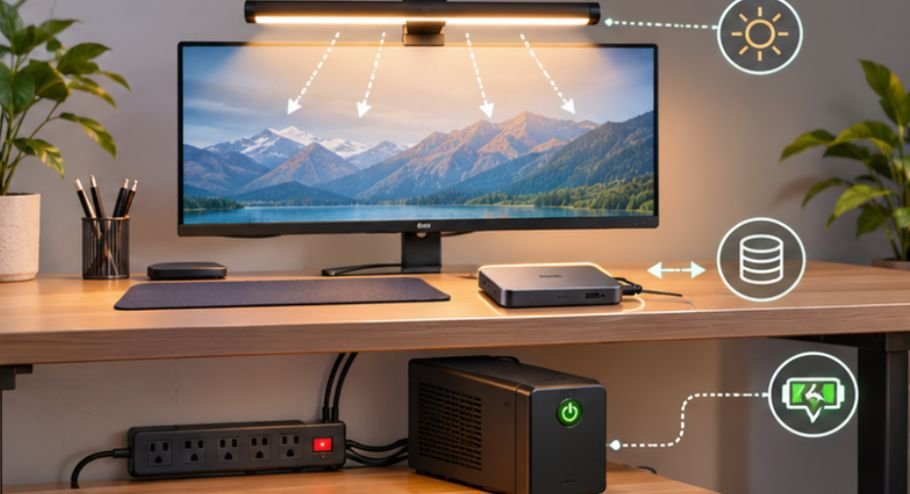
Monitor light bars can save desk space, although they must be positioned carefully to prevent screen reflections.
The American Optometric Association also recommends regular viewing breaks to help manage digital eye strain. Lighting improvements complement these habits rather than replacing them.
11. External SSD for Storage and Backups
External solid-state drives provide convenient storage for large projects, photographs, games, and video files.
They are particularly useful for transferring information between computers.
Look for sufficient capacity, compatible USB connections, and reliable manufacturer support.
However, an external SSD should not be your only backup location.
Important documents deserve multiple copies, ideally including one stored separately from the computer.
12. Programmable Shortcut Pad
Programmable macropads and devices such as Elgato Stream Decks allow users to execute frequent commands with dedicated buttons.
Video editors can assign editing shortcuts, while streamers can control recording software.
Office employees may automate repetitive application functions. These devices are useful when they replace genuinely repetitive actions, but unnecessary for people who rarely use keyboard shortcuts.
How to Choose Accessories Without Wasting Money
Before purchasing equipment, conduct a simple workstation audit.
- Identify the three activities you perform most frequently.
- Note recurring annoyances, including discomfort, slow connections, or limited desk space.
- Check hardware compatibility and available ports.
- Prioritize improvements that address daily problems.
- Test the upgraded setup before purchasing additional accessories.
For example, someone working primarily with spreadsheets may benefit more from a monitor arm and ergonomic mouse than expensive desktop speakers.
A video editor might prioritize external storage and a programmable shortcut pad.
Consider efficiency as well. ENERGY STAR explains how certified monitors meet energy-efficiency requirements across operating modes.
Which Accessories Should You Buy First?
Start with accessories that solve immediate problems rather than building an elaborate setup all at once.
For a typical office desktop, prioritize a comfortable keyboard and mouse, correct monitor positioning, cable organization, and dependable power protection.
Gamers may also benefit from responsive peripherals and improved audio equipment.
Content creators should consider microphones, webcams, external storage, and shortcut controllers. If you regularly switch between desktop and mobile workspaces, our guide to travel gadgets for long flights explores portable technology that complements a stationary setup.
Remember that expensive accessories do not automatically improve performance. A thoughtfully arranged budget workspace can be more practical than a premium setup filled with unnecessary gadgets.
Frequently Asked Questions
1. What are the most useful accessories for desktop computers used for work?
An ergonomic keyboard, comfortable mouse, monitor arm, USB hub, and quality webcam are particularly practical. Prioritize accessories that improve posture, communication, and everyday workflow.
2. Are expensive desktop accessories worth buying?
Premium accessories can offer better materials, adjustability, and additional features. However, affordable options often perform equally well for routine tasks when properly selected.
3. Do desktop computers need surge protectors?
Surge protectors are recommended for protecting electronics against certain voltage spikes. A UPS provides additional protection against interruptions by supplying temporary battery power.
4. Is a monitor arm better than a monitor stand?
A monitor arm usually offers greater positioning flexibility and desk clearance. A traditional riser is simpler and often cheaper, making either option suitable depending on available space.
Build a Desktop Setup That Works for You
A better desktop experience rarely depends on owning every accessory available. It comes from identifying small frustrations and addressing them with practical equipment.
Start with comfort, because an expensive computer provides little satisfaction if using it becomes physically uncomfortable. Next, organize connections, improve communication tools, and protect valuable hardware.
Think about how frequently an accessory will improve your work rather than how impressive it looks in photographs.
Ultimately, the best computer setup is not the one with the most gadgets. It is the one that lets you concentrate on your work without constantly noticing the equipment around you.