A wireless mouse that needs charging every few days may not have a defective battery. Its lighting effects, connection settings, and background activity could be consuming unnecessary power.
Learning how to extend battery life of wireless computer accessories starts with understanding where that energy goes. Simple changes, such as disabling RGB lighting, adjusting mouse polling rates, and activating sleep modes, can noticeably improve battery runtime.
I’ve found that small settings changes are often more practical than immediately replacing a device. Here’s how to make wireless keyboards, mice, headsets, and other accessories last longer between charges.
10 Practical Ways to Make Wireless Accessories Last Longer
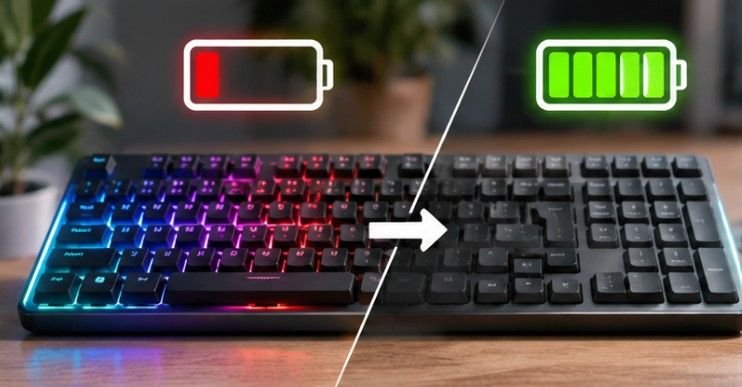
1. Disable RGB Lighting and Keyboard Backlighting
Decorative lighting is one of the easiest power-consuming features to control.
Wireless gaming keyboards and mice often include illuminated logos, reactive lighting patterns, and adjustable brightness.
Although attractive, these features draw additional electricity whenever activated.
Open your accessory’s configuration software and reduce brightness or disable unnecessary lighting.
For keyboards, consider activating automatic backlight timeouts so illumination switches off during inactivity.
2. Choose Bluetooth for Everyday Computer Tasks
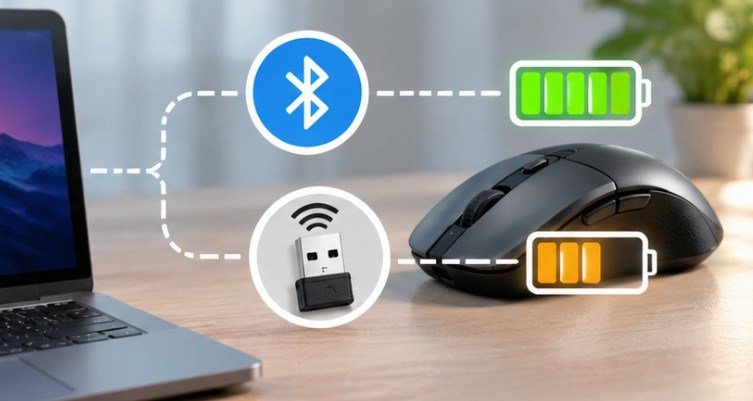
Many modern wireless accessories support both Bluetooth and proprietary 2.4GHz USB receivers.
Bluetooth Low Energy technology is specifically engineered for efficient wireless communication.
For office work, document editing, and web browsing, Bluetooth may provide better battery efficiency than a performance-focused wireless mode.
However, this depends on the device’s hardware and implementation.
Competitive gamers may prefer a manufacturer’s dedicated USB receiver because it can offer lower latency and more consistent responsiveness.
The best approach is to compare battery performance in both supported connection modes.
3. Reduce the Polling Rate on Gaming Mice
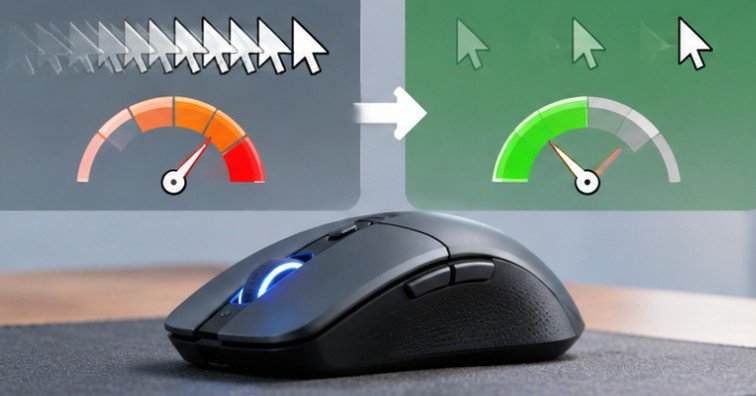
A mouse’s polling rate determines how frequently it reports movement information to the computer.
Higher rates improve input reporting frequency but may increase processor and wireless communication activity.
Consider these settings:
| Polling Rate | Reporting Interval | Recommended Use |
| 125Hz | 8 milliseconds | Basic office work |
| 500Hz | 2 milliseconds | Everyday gaming |
| 1,000Hz | 1 millisecond | Competitive gaming |
| 4,000Hz | 0.25 milliseconds | Specialized high-performance gaming |
Switching from 1,000Hz to 125Hz reduces the number of reports by 87.5%, although actual battery savings will be smaller and device-dependent.
I recommend maintaining separate productivity and gaming profiles rather than using maximum performance settings continuously.
4. Activate Automatic Sleep and Power-Saving Modes
Wireless keyboards and mice sometimes remain partially active even when nobody is using them.
Sleep modes reduce unnecessary energy consumption by limiting activity during idle periods.
Manufacturer applications may allow users to customize inactivity timers, power profiles, and automatic shutdown behavior.
The ENERGY STAR computer guidance emphasizes efficient power management and reduced consumption during inactive operation.
Although its certification guidance concerns computers, the same principle applies to compatible wireless peripherals.
Choose shorter sleep timers for accessories that spend extended periods unused.
5. Switch Accessories Off During Travel
A mouse inside a laptop bag can occasionally detect movement and repeatedly wake from sleep.
Likewise, keyboards may register accidental key presses while being transported.
Before packing accessories, use their physical power switches whenever available.
This simple habit is particularly useful for US commuters, business travelers, and remote workers who regularly transport equipment between locations.
6. Protect Rechargeable Batteries From Excessive Heat
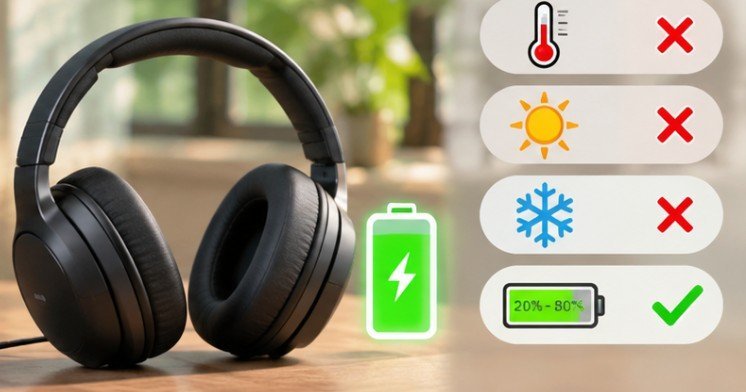
Heat can accelerate chemical deterioration inside lithium-ion batteries. The US Department of Energy explains that lithium-ion battery degradation increases with temperature and state of charge.
Avoid leaving rechargeable accessories inside hot vehicles, near radiators, or under direct sunlight. For long-term storage, moderate temperatures and partial charging are generally preferable.
A practical charging habit is to keep rechargeable devices roughly between 20% and 80% when convenient.
However, this is guidance rather than a strict requirement. Occasional full charging is acceptable, especially before travel.
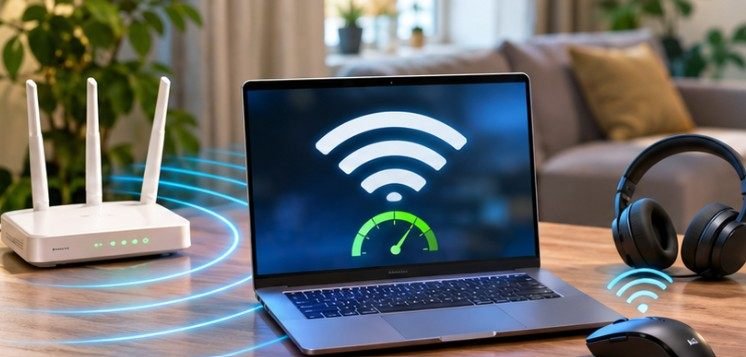
7. Improve Wireless Signal Reliability
Poor wireless connections can cause interruptions, repeated communication attempts, and inconsistent accessory performance.
Position USB receivers closer to their devices and avoid unnecessary obstructions. Keep receivers away from potential interference sources, including crowded USB 3.x connection areas.
A USB extension cable can sometimes improve receiver placement.
Better signal conditions primarily improve reliability; battery savings depend on how a specific device manages retransmissions and transmission power.
8. Optimize Wireless Headset Settings
Wireless headsets consume energy through audio playback, microphones, wireless radios, and additional processing features.
Lowering excessive volume may reduce power use, although the actual savings vary by headset.
Disable active noise cancellation when unnecessary, particularly in quiet environments.
Other useful adjustments include switching off decorative lighting, disabling unused microphone monitoring, and activating automatic shutdown.
Opt for improving laptop functionality with external accessories. For work-from-home calls, choose settings that preserve microphone clarity and communication reliability.
9. Use Suitable Batteries and Charging Equipment
Replaceable battery accessories require different maintenance practices from rechargeable devices.
Use the battery type specified by the manufacturer, and avoid mixing old and new batteries or different chemistries.
For rechargeable accessories, use manufacturer-approved charging equipment.
UL Research Institutes explains that poorly designed charging equipment can lack important protection against electrical and thermal problems.
Avoid charging accessories showing unusual swelling, excessive heat, or physical damage.
The US Environmental Protection Agency also provides guidance for handling and recycling different battery types.
10. Update Firmware and Maintain Accessories
Outdated firmware can occasionally contribute to connectivity problems or inefficient device behavior.
Check manufacturer software periodically for available updates, especially when release notes mention power management improvements.
Keep mouse sensors and surfaces clean to prevent tracking problems.
A consistent mouse pad can improve optical tracking reliability, although claims that particular surfaces dramatically reduce battery consumption are not universally supported.
Clean battery contacts carefully according to manufacturer instructions, and inspect replaceable cells for corrosion.
Frequently Asked Questions
1. How can I make my wireless mouse battery last longer?
Disable RGB lighting, reduce polling rates for office work, enable sleep mode, and switch the mouse off during travel. Keep its firmware updated and maintain a reliable wireless connection.
2. Does Bluetooth use less battery than a USB receiver?
Bluetooth Low Energy can consume less power in some accessories, particularly during everyday tasks. However, efficiency depends on device design, connection settings, and manufacturer optimization.
3. Is it bad to charge a wireless keyboard every day?
No. Modern rechargeable keyboards generally support frequent charging. Avoid unnecessary heat, use compatible charging equipment, and follow manufacturer recommendations for maintaining battery health.
4. Why does my wireless headset lose battery power quickly?
High audio volume, active noise cancellation, microphone processing, lighting, and prolonged standby activity can increase battery consumption. Battery aging may also reduce runtime between charges.
Small Changes Deliver Better Battery Efficiency
The most effective way to reduce wireless accessory battery consumption is to eliminate features that provide little everyday value.
I recommend starting with three adjustments: disable unnecessary lighting, activate automatic sleep, and select connection and performance settings appropriate for your tasks.
Then evaluate your results over several days.
For rechargeable devices, remember that temperature management and sensible charging habits also influence long-term battery health.
You don’t need to sacrifice responsiveness, audio quality, or convenience to improve efficiency. The goal is simply to stop wasting battery power on functions you’re not actively using.