A computer accessory that suddenly stops working isn’t necessarily broken. Sometimes, the culprit is a loose cable, an overloaded USB hub, an outdated driver, or an incorrect system setting.
Understanding how to troubleshoot common computer accessory problems can save you unnecessary replacement costs and hours of frustration. Whether your wireless mouse keeps disconnecting, your monitor displays a black screen, or your webcam disappears during meetings, the smartest approach is to identify the underlying cause before attempting complicated repairs.
Most accessory problems can be investigated through a few straightforward tests involving connectivity, power, software, and hardware compatibility.
Start With a Five-Minute Accessory Diagnostic
Before reinstalling software or purchasing replacement hardware, complete these initial checks.
- Disconnect the malfunctioning accessory and reconnect it securely.
- Try another compatible USB port, preferably directly on the computer.
- Restart the computer completely rather than leaving it in sleep mode.
- Check batteries, charging indicators, and external power connections.
- Test the accessory on another compatible computer.
These steps help separate hardware failures from temporary connection problems.
If basic troubleshooting doesn’t resolve the issue, checking whether your computer itself is struggling with limited memory, slow storage, or outdated hardware can help identify the real cause. Learn how to improve computer performance with hardware upgrades before deciding whether your accessories or the computer need replacing.
For example, if a keyboard functions on another laptop but not your desktop, the keyboard itself is probably operational. The issue may involve your desktop’s USB controller, driver, or port.
The Dartmouth College’s device connection guidance identifies loose, damaged, and disconnected cables as potential causes of peripheral problems.
Fix USB Accessories That Are Not Recognized
USB connection failures commonly affect keyboards, external storage devices, webcams, and docking stations.
Inspect Ports and Cables
Examine cables for bent connectors, visible damage, or unusual looseness. Remove the accessory, inspect the port with a flashlight, and reconnect it carefully. If dust is visible, power down the computer and use an appropriate electronics-safe cleaning method.
Avoid inserting metal objects or liquids into USB ports. A damaged connector may require professional repair rather than repeated reconnection attempts.
Check USB Hub Power and Compatibility
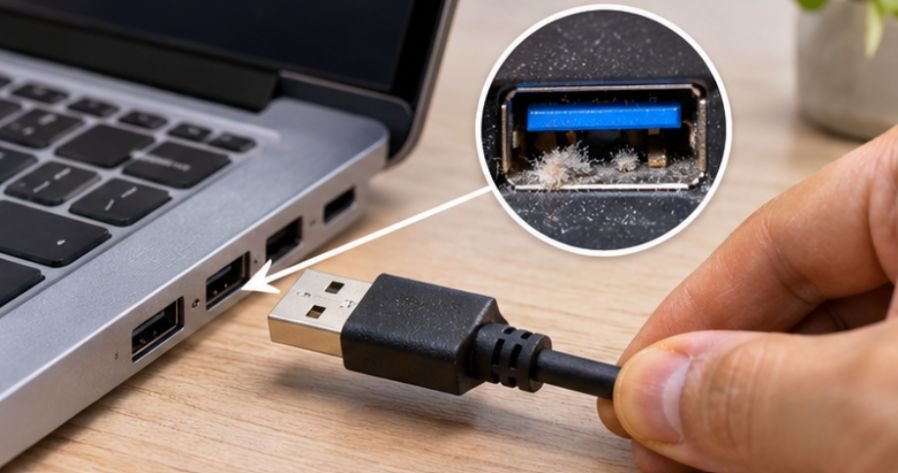
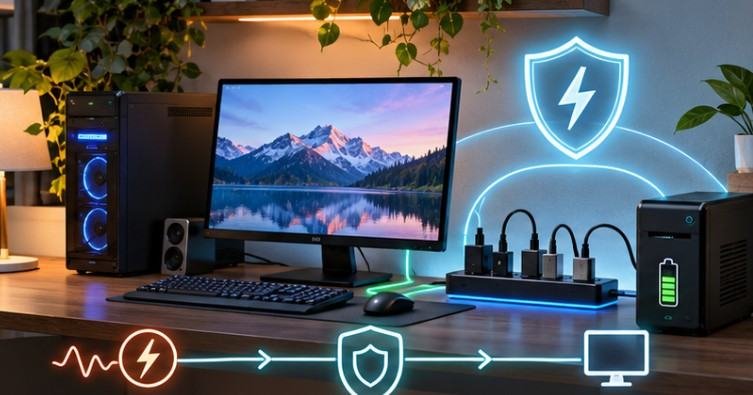
Not every USB hub provides sufficient power for multiple connected accessories.
External hard drives, webcams, and other demanding peripherals may perform unreliably when sharing an unpowered hub.
Disconnect unnecessary devices and connect the problematic accessory directly to the computer.
Also remember that USB-C describes a connector shape, not guaranteed support for video output, charging, or every data feature.
Resolve Wireless Mouse and Keyboard Problems
Wireless accessories generally communicate through Bluetooth or dedicated USB receivers. Each connection type requires slightly different troubleshooting.
Repair Bluetooth Pairing Issues
Start by charging the accessory or replacing its batteries. On Windows 11, open Settings, select Bluetooth & devices, and locate the accessory. If necessary, remove the device and pair it again.
On macOS, open System Settings and select Bluetooth to manage connected devices. Make sure the accessory is not already connected to another nearby computer or tablet.
Understanding how wireless gadgets connect to laptops and computers can also help identify pairing issues, connection limitations, and compatibility problems when setting up Bluetooth accessories or wireless peripherals.
Investigate Wireless Interference
Interference can cause delayed typing, cursor freezing, and intermittent disconnections. Move USB receivers away from crowded ports, metal obstacles, and nearby wireless equipment. A short USB extension cable can sometimes improve receiver placement.
If you’re using a dedicated receiver, disconnect it briefly before reconnecting. However, Bluetooth devices do not always require or support separate USB receivers.
Troubleshoot Monitor and Display Problems
A black screen does not automatically mean the monitor has failed. First, verify that the monitor receives power and that its brightness is not set unusually low. Next, select the correct input source, such as HDMI or DisplayPort.
Diagnose a No-Signal Message
A no-signal notification usually indicates that the monitor is powered on but is not receiving a usable video signal.
Try another compatible display cable or computer output.
On Windows, press Windows + P to check projection settings. On macOS, review Displays under System Settings.
If an external monitor works through one connection but not another, the cable, adapter, docking station, or output port may be responsible.
Repair Audio, Webcam, and Printer Issues
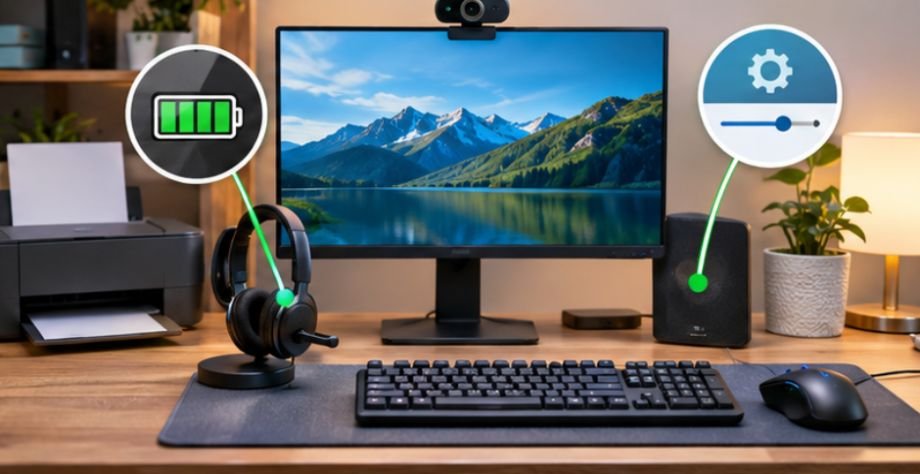
Some accessories appear connected while remaining unavailable inside individual applications.
Having the right equipment can help prevent some of these issues in the first place. Choosing essential gadgets for a home office setup with reliable connectivity, compatibility, and practical functionality can make everyday computer use more convenient and dependable.
Fix Missing Sound or Microphone Input
Check system audio settings and confirm that the intended speaker, headset, or microphone is selected.
Video conferencing applications may maintain separate audio selections. Test the accessory in another application before assuming it is defective.
Restore Webcam Access
Check whether the camera has a physical privacy shutter. Review camera permissions in Windows or macOS, then close applications that might already be using the webcam.
A webcam that functions in the system camera application but fails in a browser may have an application permission problem.
Get an Offline Printer Working
Verify that the printer is powered on, contains paper, and displays no error messages.
For wireless printers, confirm that the computer and printer can communicate over the intended network.
Clear stalled print jobs and restart the printer if necessary.
Avoid repeatedly submitting documents while troubleshooting, because queued jobs may print together when communication returns.
Update Drivers Without Creating New Problems
Drivers allow operating systems to communicate with hardware.
An incompatible or corrupted driver can prevent an otherwise functional accessory from working properly.
On Windows, open Device Manager and look for warning symbols beside affected devices.
Check Windows Update or the manufacturer’s official website for compatible drivers.
If an accessory stopped working immediately after a driver update, consider rolling back the driver when that option is available.
For macOS, check system updates and manufacturer compatibility instructions rather than assuming Windows driver procedures apply.
The University of Idaho’s wired-device troubleshooting guide provides additional diagnostic guidance for Windows peripherals. Avoid installing drivers from unfamiliar download websites.
Know When Cleaning, Repair, or Replacement Makes Sense
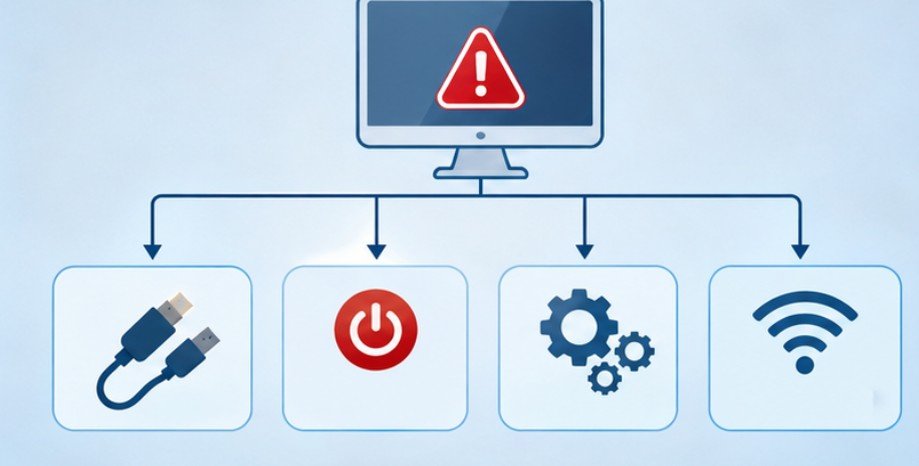
Physical damage cannot always be corrected through software. Sticky keyboard keys, blocked mouse sensors, and dirty connectors may benefit from careful cleaning.
Use a microfiber cloth and follow the manufacturer’s cleaning instructions. Disconnect power before performing maintenance.
For damaged components, iFixit’s computer hardware repair guides can help you assess whether a repair is practical.
Stop using accessories with exposed wiring, overheating components, battery swelling, or burning odors.
Before paying for remote assistance, verify the provider independently. The Federal Trade Commission’s tech support scam guidance warns about fraudulent support services that exploit computer problems.
Prevent Accessory Problems Before They Interrupt Work
Preventive maintenance reduces the likelihood of unexpected failures.
Keep operating systems updated, avoid excessive cable bending, and regularly inspect frequently used connectors.
Use powered hubs where appropriate, maintain adequate battery charge, and store replacement cables for critical accessories.
For home offices, periodically test webcams, microphones, and external displays before important meetings.
Documenting recurring failures can also reveal patterns, such as a particular USB port disconnecting whenever multiple devices are attached.
Frequently Asked Questions
1. What is the fastest way to troubleshoot common computer accessory problems?
Check power, reconnect cables, restart the computer, and test another port. If the accessory still fails, try it on another computer to distinguish device failure from system-related problems.
2. Why does my computer stop recognizing USB accessories?
Possible causes include damaged ports, insufficient hub power, incompatible drivers, faulty cables, or temporary operating system errors.
3. Can outdated drivers cause wireless accessories to disconnect?
Yes. Outdated or incompatible drivers can contribute to connection failures, although weak batteries, interference, and pairing problems can cause similar symptoms.
4. Should I repair or replace a malfunctioning computer accessory?
Consider repair when the problem is minor and replacement parts are affordable. Replacement may be preferable when damage is extensive, electrical safety is compromised, or repair costs approach the price of a new device.
A Smarter Approach to Accessory Troubleshooting
The most frustrating computer accessory failures often have surprisingly simple explanations. A disconnected cable can resemble a hardware breakdown, while an incorrect audio setting can make an expensive headset seem unusable.
Rather than replacing equipment immediately, start with power, connections, and basic device testing. Then investigate operating system settings, drivers, and physical damage.
I recommend changing one variable at a time and observing the result. This prevents unnecessary adjustments and makes recurring failures easier to diagnose.
A few minutes of systematic troubleshooting can protect your equipment, reduce repair expenses, and keep your computer setup dependable.