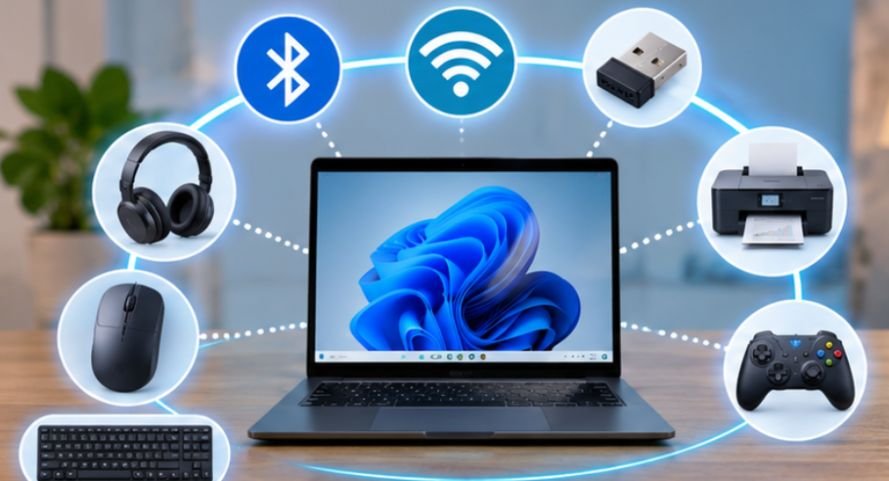
A wireless mouse can respond to your movements almost instantly, even though there is no cable connecting it to your computer. The secret is radio communication, which allows devices to exchange information through invisible signals.
So, how do wireless gadgets connect to laptops and computers without physical connections? Most rely on Bluetooth, dedicated USB receivers, or Wi-Fi networks. Each technology handles communication differently, affecting speed, battery consumption, compatibility, and connection stability.
Understanding these differences makes choosing accessories easier and helps troubleshoot problems when wireless devices suddenly stop responding.
The Technology Behind Wireless Computer Connections
Wireless gadgets contain miniature radio transmitters and receivers that exchange digital information with compatible computers.
Instead of sending information through cables, these devices convert commands into radio signals. Your computer receives those signals, interprets the information, and performs the corresponding action.
For example, moving a wireless mouse generates movement data that travels to the computer. The operating system translates that information into cursor movement.
According to the Institute of Electrical and Electronics Engineers (IEEE), Bluetooth operates in the 2.4 GHz frequency band and enables short-range communication between electronic devices.
However, not every wireless accessory uses Bluetooth. Different technologies are designed for different communication requirements.
Three Ways Wireless Gadgets Communicate With Computers
1. Bluetooth: Direct Connections Without Extra Hardware
Bluetooth is among the most common wireless communication technologies for personal computer accessories.
It creates a short-range connection between compatible devices without requiring an internet connection or wireless router.
Typical Bluetooth accessories include keyboards, headphones, mice, speakers, and smartphones.
Bluetooth technology generally operates in the 2.4 GHz band and uses techniques such as frequency hopping to reduce interference.
There are two major Bluetooth radio types:
- Bluetooth Classic commonly supports traditional wireless audio and continuous data communication.
- Bluetooth Low Energy (BLE) focuses on reducing power consumption and supports compatible peripherals, sensors, and other devices.
Modern laptops usually include built-in Bluetooth hardware. Desktop computers without Bluetooth may need a USB Bluetooth adapter.
2. USB Wireless Receivers: Dedicated Device Communication
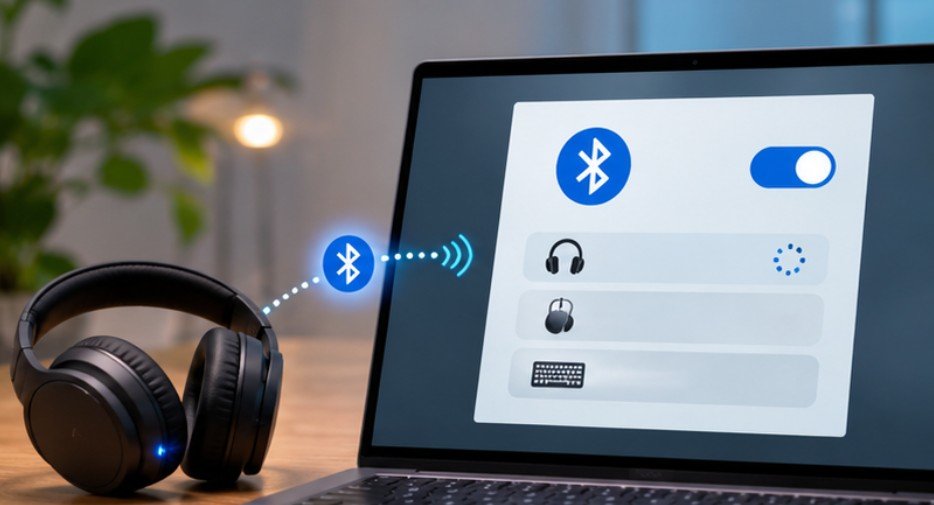
Some wireless gadgets include a small USB receiver, often called a dongle.
The receiver plugs into the computer and communicates with the matching accessory through a dedicated wireless protocol.
Many wireless mice, keyboards, gaming headsets, and controllers use this approach.
A typical connection works like this:
- Insert the supplied receiver into a compatible USB port.
- Switch on the wireless accessory.
- Allow the computer to recognize the receiver.
- Complete any manufacturer-specific pairing instructions.
Many accessories connect automatically because their receivers are already paired.
Dedicated receivers can provide responsive communication, particularly for gaming peripherals. However, performance depends on the hardware and protocol rather than the USB receiver alone.
Importantly, a proprietary 2.4 GHz receiver is not necessarily interchangeable with a standard Bluetooth adapter.
3. Wi-Fi: Communication Through Wireless Networks
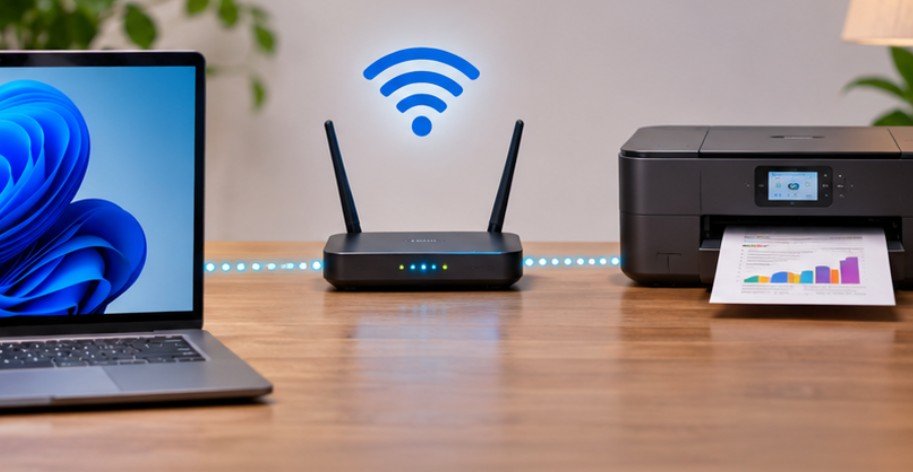
Wi-Fi connects devices using wireless networking technology, commonly through a router or access point.
Unlike Bluetooth, which usually connects nearby personal devices, Wi-Fi supports communication across broader local networks.
Common Wi-Fi accessories include wireless printers, smart displays, network storage devices, and compatible cameras.
For example, a wireless printer can receive documents from multiple computers connected to the same accessible network.
Some devices also support direct wireless communication through technologies such as Wi-Fi Direct, depending on hardware compatibility.
Wi-Fi often provides greater data-transfer capacity than Bluetooth, making it suitable for large files and streaming.
How to Connect Bluetooth Devices to Windows and Mac
Bluetooth pairing is straightforward once both devices are discoverable.
Connecting Bluetooth Accessories to Windows
Follow these steps on a Windows 11 computer:
- Open Settings and select Bluetooth & devices.
- Turn Bluetooth on.
- Activate pairing mode on the accessory.
- Select Add device, followed by Bluetooth.
- Choose the accessory from the available devices.
- Confirm any pairing request or matching code.
Your computer should remember the device for future connections.
Pairing Devices With a Mac
On a Mac, open System Settings and select Bluetooth.
Enable Bluetooth, place the accessory in pairing mode, and select Connect beside its name.
If a keyboard displays a pairing code, follow the instructions to confirm it.
The Florida Atlantic University technology support guide also describes Bluetooth audio pairing and troubleshooting procedures for Windows and Mac users.
Once paired, compatible accessories usually reconnect automatically when powered on and within range.
Bluetooth vs. Wi-Fi vs. USB Receivers: Which Is Better?
The right wireless connection depends on the accessory and its intended purpose.
| Connection | Best suited for | Main consideration |
| Bluetooth | Headphones, keyboards, mice | Broad compatibility and low-power options |
| USB receiver | Gaming mice, keyboards, headsets | Dedicated receiver may be required |
| Wi-Fi | Printers, displays, network storage | Network configuration and access |
| Wi-Fi Direct | Compatible direct device connections | Both devices must support the feature |
For everyday typing and browsing, Bluetooth is usually sufficient. Competitive gamers may prefer dedicated wireless peripherals designed for low latency, while shared office printers often benefit from Wi-Fi networking.
Before purchasing accessories, verify operating-system support, wireless standards, USB availability, and charging requirements.
These considerations also matter when selecting travel gadgets for long flights, particularly when minimizing cables and conserving laptop ports.
Why Wireless Connections Sometimes Fail
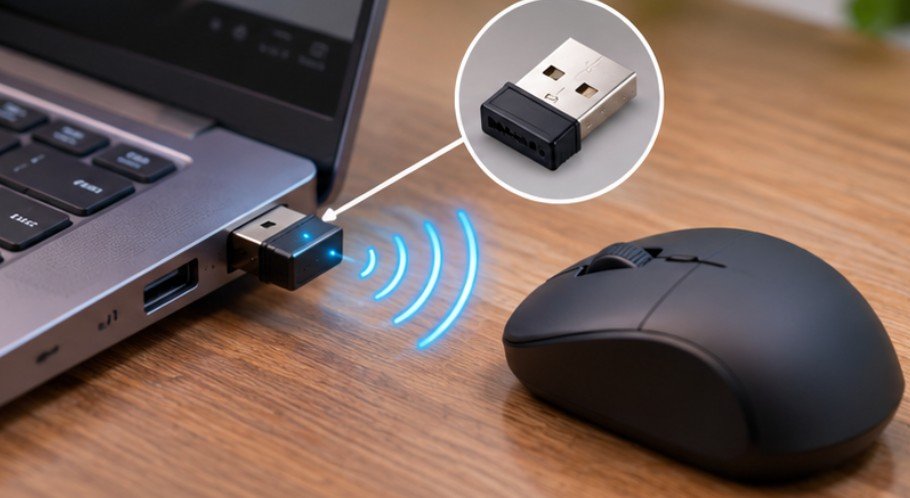
Wireless devices are convenient, but their signals can be affected by environmental conditions and software problems.
Interference From Nearby Electronics
Bluetooth and many wireless receivers share the 2.4 GHz frequency band with other household equipment.
Nearby routers, wireless accessories, and certain electronic appliances can contribute to interference.
Northern Arizona University’s wireless interference guidance identifies Bluetooth devices and other 2.4 GHz equipment as potential interference sources.
Moving a USB receiver closer to its accessory or increasing separation between competing devices may improve performance.
Low Battery or Outdated Drivers
Weak batteries can cause interruptions, delayed responses, and unexpected disconnections.
Battery issues are not the only concern during prolonged use; understanding why computer accessories overheat during extended use can also help users recognize heat-related problems that may affect device performance and reliability.
Outdated drivers or firmware may also create compatibility problems.
Check battery levels, install trusted software updates, and restart the accessory before attempting more complicated repairs.
Incorrect Pairing or Network Settings
A Bluetooth accessory may remain connected to another nearby device, preventing a new connection.
Similarly, Wi-Fi printers may be unreachable when computers and printers use isolated networks.
Removing an old Bluetooth pairing and reconnecting the accessory often resolves recognition problems.
For audio accessories, inspect the selected output device before assuming the wireless connection has failed.
If a phone’s speaker produces distorted sound, the issue may be physical rather than wireless. Our guide to water in a phone speaker explains another possible cause of audio problems.
A Quick Wireless Connection Troubleshooting Test
Use this sequence before replacing an accessory:
- Check power: Charge the device or replace its batteries.
- Reduce distance: Move the accessory closer to the computer.
- Confirm compatibility: Verify that both devices support the same connection method.
- Restart connections: Toggle Bluetooth or reconnect the USB receiver.
- Remove interference: Test away from crowded wireless equipment.
- Pair again: Delete the previous pairing and reconnect the accessory.
Test one change at a time to identify the actual cause.
If the gadget works on another computer, investigate the original computer’s settings, drivers, or wireless adapter.
Keeping Wireless Accessories Secure
Wireless convenience also introduces security considerations. The National Institute of Standards and Technology’s Bluetooth security guidance examines Bluetooth security capabilities and recommends protective configuration practices.
Users should avoid pairing with unknown devices, confirm unexpected connection requests, and keep firmware updated.
For Wi-Fi-connected accessories, use strong network passwords and modern encryption.
The Federal Trade Commission’s connected-device security advice also recommends securing devices and reviewing equipment connected to home networks.
These habits are particularly important for wireless gadgets handling sensitive files or personal information.
Frequently Asked Questions
1. Do wireless gadgets need internet access to connect?
No. Bluetooth and dedicated USB receivers work without internet access. Wi-Fi devices can also communicate locally without internet service when their supported network features allow it.
2. Can one laptop connect to multiple Bluetooth gadgets?
Yes. Most modern laptops support several Bluetooth connections simultaneously, although practical limits depend on hardware, device types, and available wireless bandwidth.
3. Why is my wireless mouse connected but not working?
Possible causes include low batteries, signal interference, outdated drivers, or an incorrect connection mode. Restart the mouse, inspect its receiver, and reconnect it.
4. Are Bluetooth devices slower than wired accessories?
Some Bluetooth devices have higher latency than wired alternatives. However, actual responsiveness depends on the device, Bluetooth implementation, operating system, and workload.
Making Wireless Connections Work Better
Understanding how do wireless gadgets connect to laptops and computers helps explain why some accessories connect immediately while others require additional setup.
Bluetooth offers convenient connections for everyday peripherals, dedicated USB receivers support specialized accessories, and Wi-Fi enables communication across local networks.
I recommend choosing accessories according to compatibility, responsiveness, power consumption, and intended use rather than assuming every wireless product operates identically.
A stable connection also depends on regular software updates, careful pairing, and reducing interference.
Ultimately, the smartest wireless setup is not the one with the most gadgets. It is the one where every device connects reliably and performs its intended job.