A computer that takes several minutes to start doesn’t always need replacing. Sometimes, a relatively inexpensive storage or memory upgrade can make an aging PC feel noticeably faster. The challenge is knowing which component is responsible for the slowdown.
Understanding how to improve computer performance with hardware upgrades starts with identifying what your computer struggles to do. A solid-state drive can reduce loading delays, additional RAM can improve multitasking, and a stronger graphics card can transform gaming performance.
However, buying the most expensive component rarely guarantees the best results. The smartest approach is to measure performance first and upgrade only what matters.
Identify the Hardware Problem Before Spending Money

Before purchasing components, examine how your computer behaves during everyday tasks.
Check Resource Usage in Windows
Windows includes a diagnostic tool that helps identify performance limitations.
- Press Ctrl + Shift + Esc to open Task Manager.
- Select the Performance tab.
- Monitor CPU, memory, disk, and GPU activity.
- Open the applications that normally cause slowdowns.
- Watch which resource approaches its maximum capacity.
A processor consistently near 100% utilization during demanding work may indicate a CPU limitation. High memory consumption accompanied by heavy paging suggests insufficient RAM.
Disk activity remaining saturated during file operations may point toward a slow storage device.
GPU utilization near its limit during gaming can indicate that graphics processing is the primary constraint.
These measurements are clues rather than definitive diagnoses. Background processes, software problems, and overheating can produce similar symptoms.
When evaluating your setup, consider peripheral connectivity too, as understanding the difference between wired and wireless computer accessories can help you choose devices that suit your performance, responsiveness, and workspace requirements.
Upgrade Storage for Faster Loading and Better Responsiveness
Replacing a traditional hard disk drive with a solid-state drive is often one of the most noticeable upgrades for an older computer.
Mechanical drives use moving components to retrieve information. SSDs store data electronically, reducing access delays.
SATA SSD vs. NVMe SSD
A SATA SSD commonly delivers sequential transfer speeds around 500–550 MB/s, while modern NVMe drives can achieve several thousand MB/s, depending on their PCIe generation and configuration.
However, higher advertised speeds do not always translate into equally dramatic improvements in everyday activities.
The UC Davis College of Engineering emphasizes the substantial performance difference between mechanical storage and SSD technology.
For ordinary browsing, office applications, and Windows startup, moving from an HDD to almost any quality SSD can make a significant difference.
NVMe becomes particularly valuable when transferring large files, editing high-resolution footage, or handling storage-intensive projects.
Make the Most of Your Storage Upgrade
Install the operating system and frequently used applications on the SSD.
Keep approximately 10–20% of its capacity available as a practical precaution, particularly on heavily used drives. This is a guideline, not a universal requirement.
Before purchasing, verify whether your motherboard supports SATA, M.2 SATA, or NVMe storage. An M.2 slot does not automatically support every M.2 drive.
Increase RAM to Handle More Applications Simultaneously
Insufficient system memory can cause frustrating interruptions when switching between browser tabs, documents, and software.
Once physical RAM becomes heavily occupied, the operating system may move less frequently used data into storage. This process can create noticeable delays.
How Much RAM Is Actually Necessary?
For many users, the following capacities provide sensible starting points:
- 8 GB: Basic browsing, email, and lightweight office tasks.
- 16 GB: Everyday productivity, moderate gaming, and multitasking.
- 32 GB: Content creation, demanding applications, and heavier workloads.
- 64 GB or more: Specialized professional software, large datasets, and extensive virtualization.
The University of Pennsylvania’s desktop recommendations also highlight measurable performance benefits from supported dual-channel memory configurations.
Check RAM Compatibility
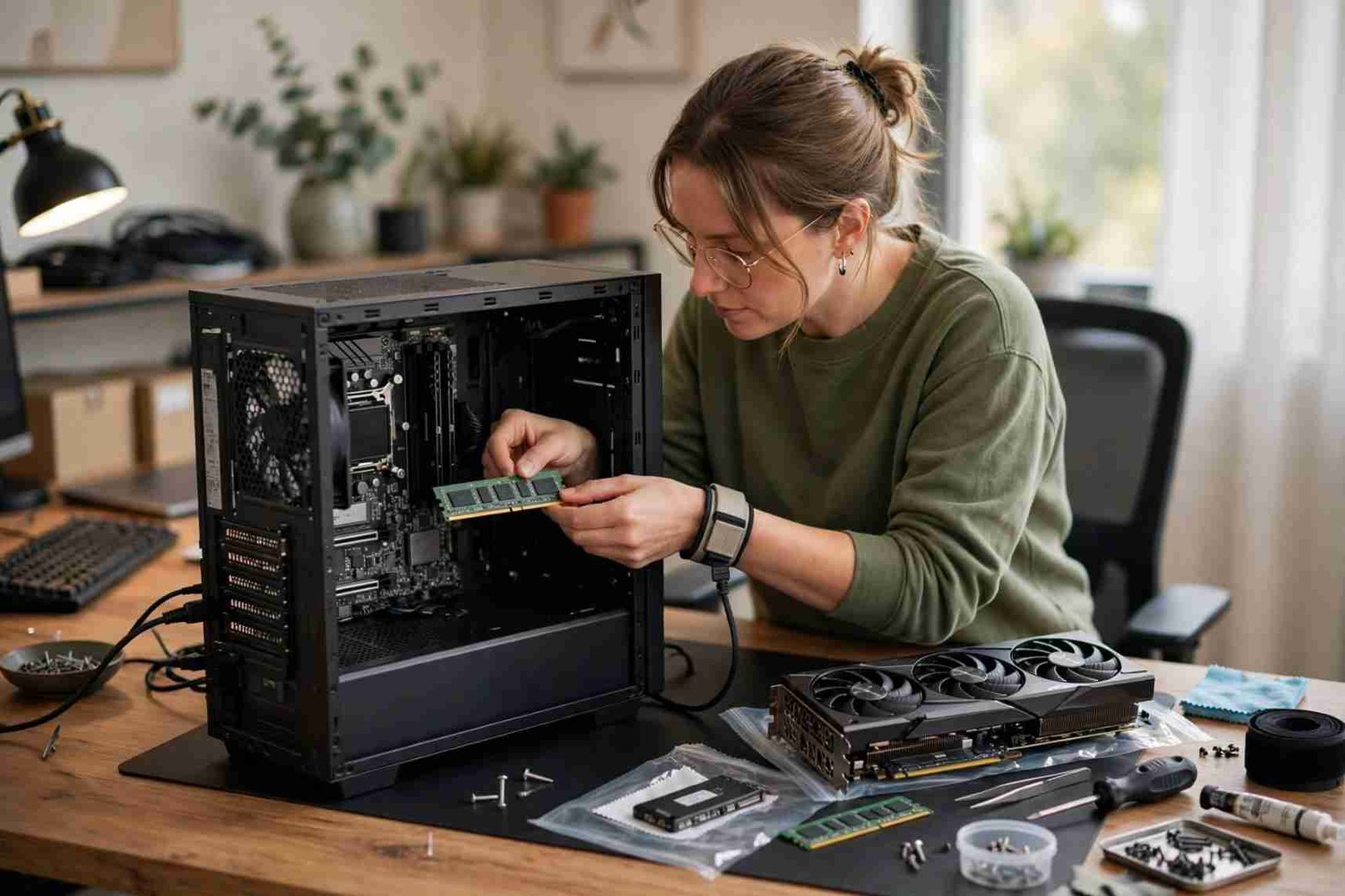
Before upgrading, identify the motherboard’s supported memory generation, capacity limits, available slots, and operating speeds.
DDR4 and DDR5 are not interchangeable.
Compatible systems may also support XMP, EXPO, or DOCP memory profiles through BIOS or UEFI settings. Enabling an appropriate profile can allow memory to operate at its advertised settings, although stability and manufacturer support should be verified.
More RAM will not significantly accelerate applications that already have sufficient available memory.
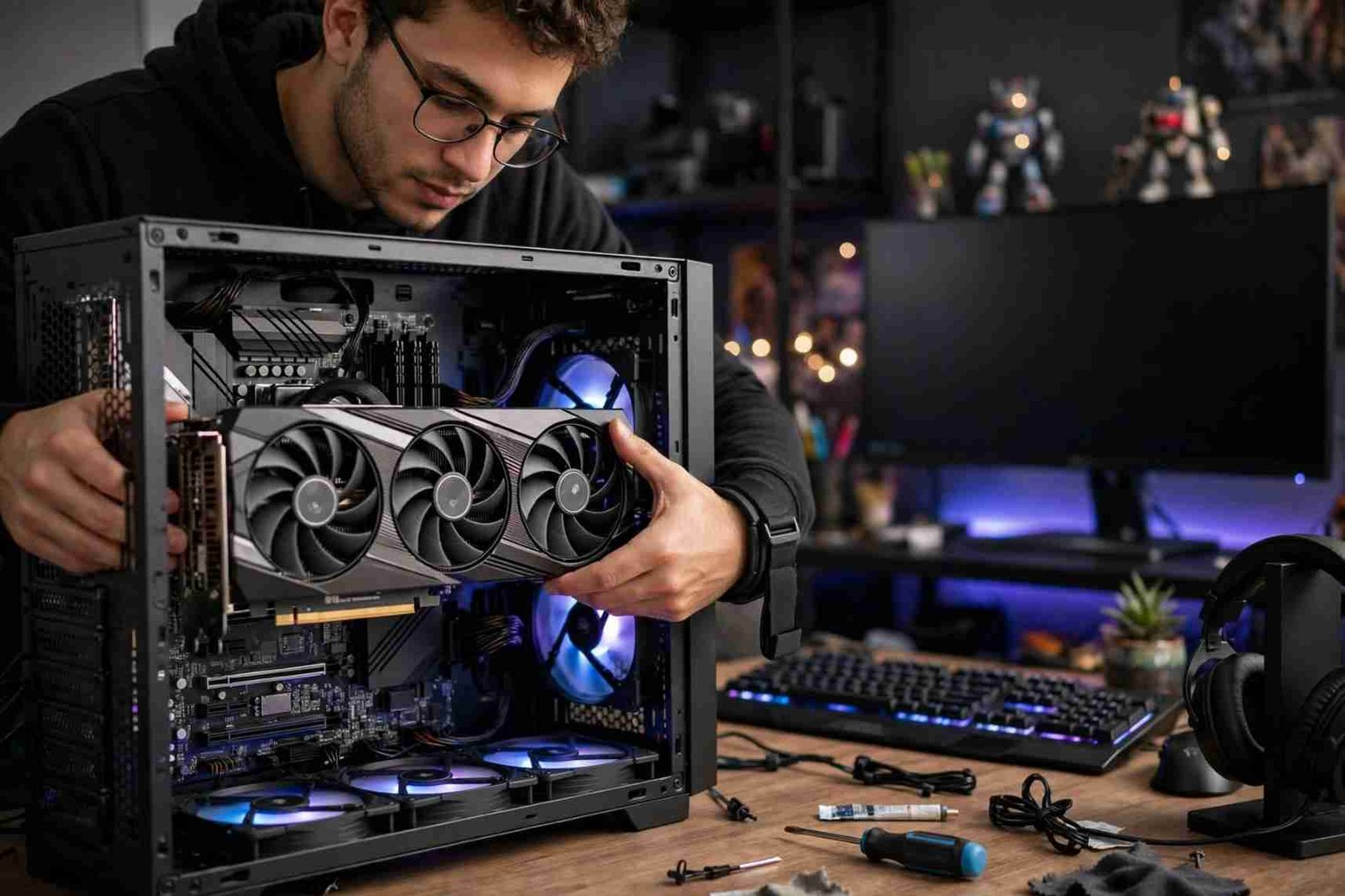
Replace the Graphics Card for Gaming and Creative Work
A graphics processing unit handles complex visual calculations, making it particularly important for gaming, animation, 3D modeling, and certain video-editing workflows.
Upgrading a limited GPU can improve frame rates, rendering performance, and supported hardware acceleration. However, the results depend on the workload.
Choose a GPU Based on Your Display and Applications
A 1080p gaming setup generally has different requirements from a workstation processing high-resolution video or gaming at 4K.
Consider graphics memory capacity, software compatibility, monitor resolution, and power consumption.
Before installation, confirm that the graphics card fits inside the case and that the power supply provides sufficient capacity and appropriate connectors.
The Consumer Reports desktop buying guide explains how graphics capabilities, processing power, memory, and storage serve different computing requirements.
For users who mainly browse websites or manage documents, an expensive dedicated GPU may offer little practical improvement.
Beyond internal hardware, choosing the right gadgets for a computer setup can also improve everyday usability, particularly when selecting monitors, keyboards, mice, and other accessories that complement your system’s capabilities.
Upgrade the Processor When Computing Power Is the Limitation
The CPU influences calculations, software execution, multitasking, and many productivity applications.
A faster processor can reduce completion times for tasks such as compiling code, processing large spreadsheets, or exporting media.
However, CPU replacement involves more compatibility considerations than upgrading storage.
Verify Your Motherboard Before Buying a CPU
Check the processor socket, chipset support, BIOS version, and cooling requirements.
A processor may physically fit a socket yet still require a BIOS update or remain unsupported by that particular motherboard.
Compare actual application benchmarks rather than relying solely on clock speed or core count.
For some older computers, replacing the motherboard, CPU, and RAM together becomes necessary. At that point, comparing upgrade expenses with a replacement system is worthwhile.
Improve Cooling to Recover Lost Performance
Overheating can cause a computer to reduce operating speeds automatically, a protective mechanism known as thermal throttling.
This means a capable processor may perform poorly simply because its cooling system cannot dissipate heat effectively.
Start by inspecting fans, heatsinks, ventilation openings, and accumulated dust.
Clean components carefully with the machine powered off and unplugged. Avoid allowing fans to spin uncontrollably when using compressed air.
If temperatures remain excessive, investigate fan operation, case airflow, cooler mounting, and thermal paste condition.
Better cooling can restore sustained performance when overheating is the actual problem. It cannot make a CPU exceed its architectural capabilities.
Frequently Asked Questions
1. What is the best first upgrade for a slow computer?
If the computer still uses a mechanical hard drive, installing an SSD is often the best starting point. Otherwise, diagnose memory, processor, and storage usage before buying.
2. Can adding RAM make a computer faster?
Yes, particularly when insufficient memory causes frequent paging or sluggish multitasking. Adding RAM provides limited benefits when existing capacity already meets the workload.
3. How do hardware upgrades improve gaming performance?
GPU upgrades generally improve graphics performance, while CPU upgrades can help processor-limited games. Adequate RAM, fast storage, and effective cooling support smoother overall operation.
4. Is upgrading an old computer cheaper than buying a new one?
Often, especially for SSD and RAM replacements. However, major CPU, motherboard, and power supply upgrades can make purchasing a newer system more economical.
The Smartest Upgrade Is the One You Actually Need
Learning how to improve computer performance with hardware upgrades is ultimately about making informed decisions rather than purchasing the latest technology.
An aging computer struggling with startup delays may only need an SSD. A multitasking workstation might benefit more from additional memory, while a gaming PC could require stronger graphics hardware.
I recommend recording performance measurements, checking compatibility, and comparing the total cost before replacing components.
Beyond internal components, choosing the right peripherals can also improve everyday usability, so explore the most useful accessories for desktop computers when planning a more practical and efficient workstation.
Start with the limitation you can demonstrate, not the specification that looks most impressive.
A successful upgrade should deliver something measurable: less waiting, smoother work, or faster completion of the tasks that matter.