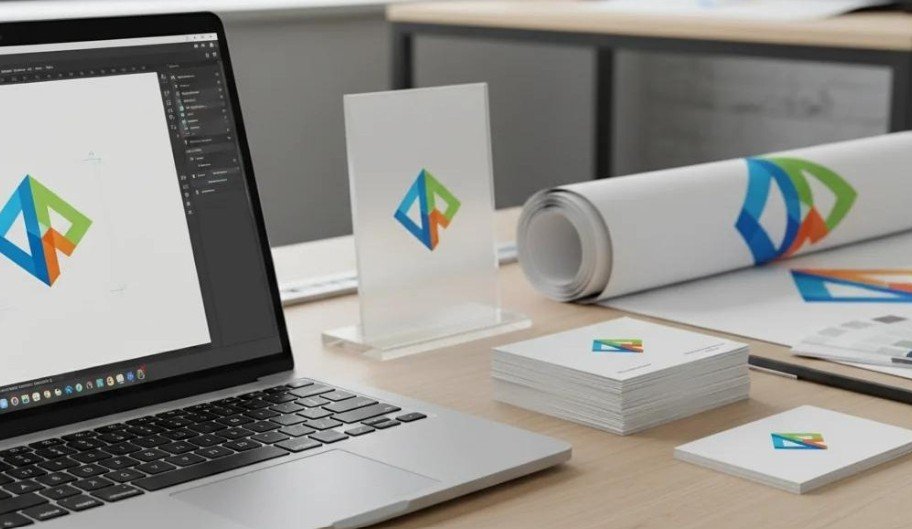

Learning how to use Adobe Illustrator for beginners starts with understanding vector graphics, setting up your workspace, and mastering essential drawing tools. Unlike pixel-based software, Illustrator creates artwork using mathematical paths, allowing you to resize designs without losing sharpness.
When I first opened Adobe Illustrator, its numerous panels and tools seemed complicated. However, I discovered that learning basic shapes, colors, and selection tools made everything easier. Today, I’ll walk you through the same practical approach, from creating your first document to exporting finished artwork.
What Is Adobe Illustrator and Why Should Beginners Learn It?
Adobe Illustrator is a professional vector graphics application used for creating logos, icons, typography, business cards, illustrations, and marketing materials.
Unlike Adobe Photoshop, which primarily edits pixel-based images, Illustrator uses mathematically defined paths. This allows designers to enlarge artwork for everything from small business cards to billboards without losing vector quality.
For beginners interested in graphic design, Illustrator provides an excellent foundation for creating scalable digital and print artwork.
However, choosing the right design tool also depends on your project requirements and experience level, so comparing Adobe Illustrator vs Canva for logo design can help you understand which platform offers better flexibility, ease of use, and creative control.
How Do You Set Up Your First Adobe Illustrator Document?
Before experimenting with Illustrator tools and functions, I recommend configuring your document correctly.
Step 1: Choose the Right Document Size
Launch Illustrator and click New File on the home screen.
For web or digital design, choose a suitable preset, such as Web Large (1920 × 1080 pixels), and select RGB color mode.
For print projects, select US Letter (8.5 × 11 inches) or another suitable print size, such as A4, and choose CMYK when your printing workflow requires it.
The artboard acts as your digital sheet of paper. You can also create multiple artboards to manage different designs within one Illustrator document.
Step 2: Customize Your Workspace
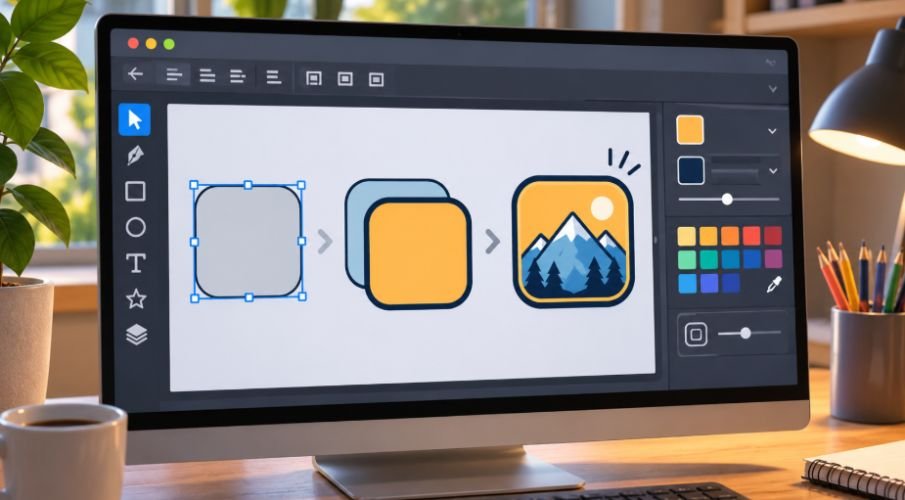
Navigate to Window > Workspace > Essentials Classic, if available, to access a familiar layout with essential tools and panels.
The toolbar typically appears on the left, while panels such as Properties and Layers appear on the right.
I recommend keeping the Properties panel visible because it provides quick access to colors, dimensions, and object adjustments.
How Do You Navigate and Zoom Around the Illustrator Workspace?
Learning to move around your artboard makes designing considerably easier.
To zoom in or out, use Ctrl + Plus/Minus on Windows or Command + Plus/Minus on Mac. You can also use the Zoom Tool (Z).
To move around your artwork, hold the Spacebar and drag with your mouse. This temporarily activates the Hand Tool.
Depending on your mouse and application preferences, Alt or Option with the scroll wheel may also provide zoom controls.
These navigation techniques become especially useful when working with detailed vector illustrations.
What Are the Five Essential Adobe Illustrator Tools for Beginners?
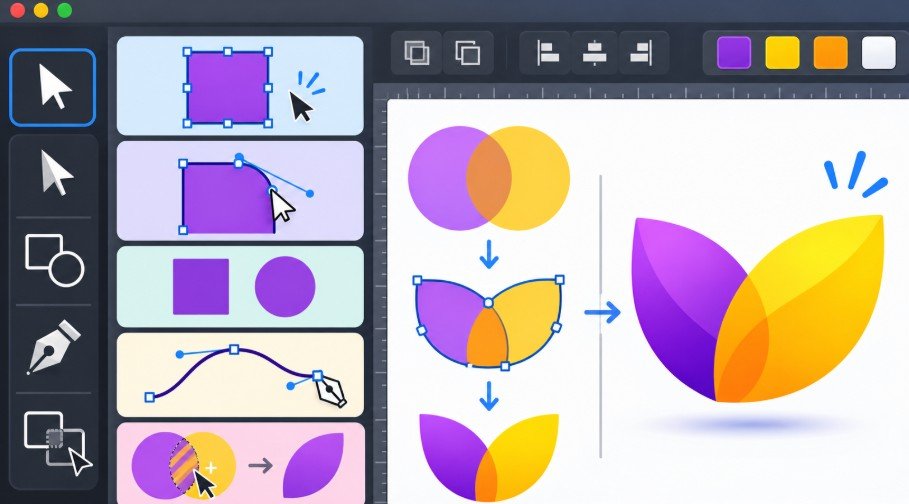
You don’t need to master every Illustrator feature immediately. I suggest starting with these five tools.
Once you’re comfortable with Illustrator’s basic tools, exploring AI tools in Adobe Illustrator can help you simplify creative workflows, experiment with design variations, and speed up artwork creation without replacing the fundamentals you’ve learned.
1. Selection Tool (V)
The Selection Tool, represented by a black arrow, allows you to select, move, resize, and rotate entire objects. Hold Shift while dragging a corner handle when you need constrained proportions.
2. Direct Selection Tool (A)
The white-arrow Direct Selection Tool helps you modify individual anchor points, path segments, and corners.
3. Rectangle and Shape Tools (M)
The Rectangle Tool creates rectangles and squares. Click and hold its toolbar icon to access related tools such as Ellipse, Polygon, and Star.
Hold Shift while drawing to create perfect squares or circles.
4. Pen Tool (P)
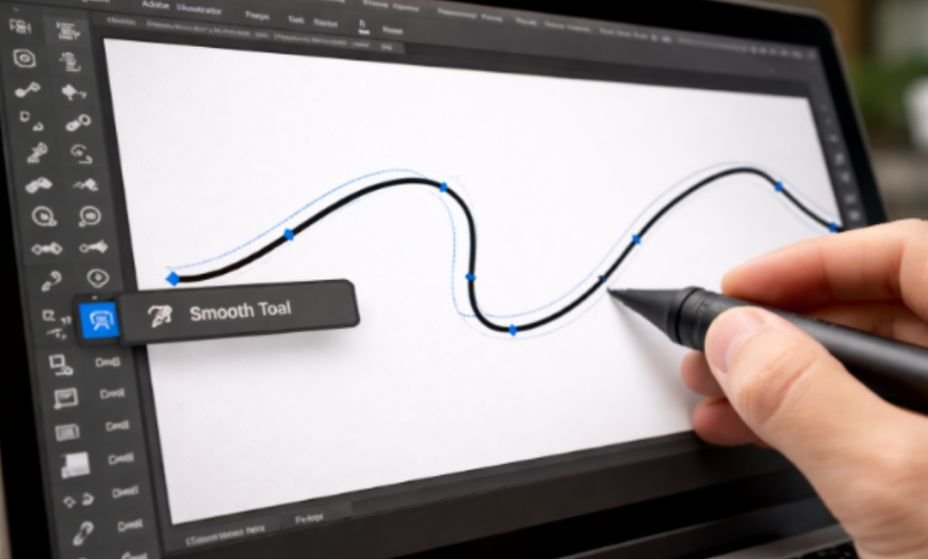
The Pen Tool lets you create custom shapes by placing anchor points. Click for straight segments or click and drag to create curved paths.
5. Shape Builder Tool (Shift + M)
The Shape Builder Tool combines or removes regions of overlapping selected shapes.
Drag across regions to merge them. Hold Alt on Windows or Option on Mac while clicking unwanted regions to remove them.
How Do You Change Fill and Stroke Colors in Illustrator?
Every vector shape has two important appearance properties.
Fill controls the interior color of an object, while Stroke controls its outline.
Select an object and locate the Fill and Stroke settings in the Properties panel or toolbar.
For example, I might create a blue rectangle with a white interior and a 3-point blue stroke.
You can adjust stroke weight, remove outlines, or experiment with different colors to improve your design.
How Do You Create Your First Design in Adobe Illustrator?

A simple rounded-square badge is an excellent Adobe Illustrator beginner exercise.
Step 1: Draw and Color a Square
Press M to activate the Rectangle Tool. Hold Shift while dragging to draw a square on your artboard.
Press V to select the shape, then use the Properties panel to change its fill to your preferred color.
Step 2: Round the Corners
With the live shape selected, locate the small circular corner widgets inside its corners.
Drag a widget inward to round the corners. This technique helps create modern icons and interface graphics.
Step 3: Duplicate Your Shape
Hold Alt on Windows or Option on Mac while dragging the selected square to create a duplicate.
Resize the new shape and position it over the original. Experiment with contrasting colors and alignment.
Step 4: Add Text and Organize Layers
Press T to activate the Type Tool. Click on the artboard and enter a short word, such as CREATE.
Adjust the font, size, and color using the Properties panel.
Open Window > Layers to organize your background, shapes, and typography. Clear layer names make future editing easier.
Once you become comfortable adding and styling text, you can explore more advanced typography techniques, such as learning how to curve text in Adobe Illustrator, to create circular logos, decorative lettering, and more dynamic designs.
Step 5: Save and Export Your Artwork
Select File > Save As to preserve your editable Adobe Illustrator (.AI) document.
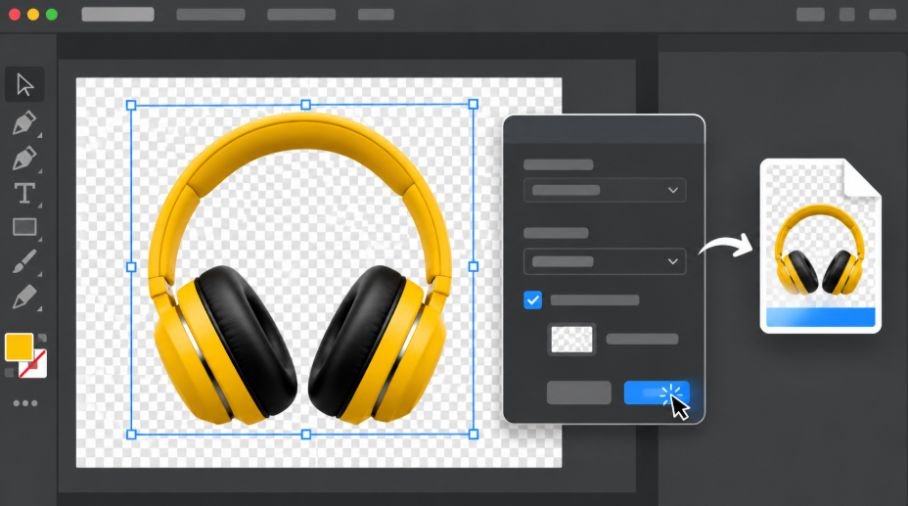
For digital images, choose File > Export > Export As and select PNG or JPG.
SVG works well for scalable web graphics, while PDF is commonly used to share artwork and prepare print materials.
Which Adobe Illustrator Keyboard Shortcuts Save the Most Time?
Some useful Adobe Illustrator keyboard shortcuts include V for Selection, A for Direct Selection, P for Pen, M for Rectangle, L for Ellipse, and T for Type.
Use Ctrl + Z on Windows or Command + Z on Mac to undo actions. Ctrl/Cmd + S saves your document, while Ctrl/Cmd + G groups selected objects.
I recommend practicing these shortcuts while creating simple designs rather than memorizing them separately.
What Common Adobe Illustrator Mistakes Should Beginners Avoid?
One frequent mistake involves choosing the wrong color mode. RGB generally suits digital graphics, while CMYK is commonly used for print production.
Another problem is creating too many anchor points with the Pen Tool. Fewer, carefully positioned points usually produce smoother paths.
Beginners also overlook layers or export images without saving editable AI files.
I suggest keeping your artwork organized, saving regularly, and checking the intended output format before exporting.
Frequently Asked Questions
1. Is Adobe Illustrator Difficult for Beginners?
Illustrator has a learning curve, but basic drawing, editing, and exporting become manageable with regular practice and simple projects.
2. Can I Learn Adobe Illustrator Without Graphic Design Experience?
Yes. You can begin with basic shapes and gradually learn typography, color theory, alignment, and vector illustration techniques.
3. How Long Does It Take to Learn Adobe Illustrator Basics?
Many beginners can understand essential tools within several days or weeks of consistent practice. Advanced design skills require more experience.
4. What Is the Easiest Illustrator Project for a Beginner?
A simple icon, rounded-square badge, or basic logo is an excellent starting project because it introduces shapes, colors, alignment, and typography.
Final Thoughts
Learning Adobe Illustrator as a beginner becomes easier when you focus on practical exercises instead of trying to learn every feature immediately.
I’ve found that creating simple projects, experimenting with shapes, and practicing keyboard shortcuts can gradually build confidence.
Start with a basic design, learn how to organize your artwork, and explore more advanced features as your skills improve. With consistent practice, you can create professional-looking vector graphics for personal, academic, or business projects.