Learning how to use AI tools in Adobe Illustrator can save hours of design work while helping you create professional vector graphics. With Adobe Firefly integration, Illustrator lets you generate editable illustrations, recolor artwork, create seamless patterns, and expand designs using simple text prompts.
When I started exploring Illustrator’s generative AI features, I discovered that I could develop creative concepts much faster without sacrificing control over the finished artwork.
In this guide, I’ll explain the essential AI features, where to find them, and how to use them for logos, merchandise, social media graphics, and other professional projects.
What AI Tools Are Available in Adobe Illustrator?
Adobe Illustrator offers several AI-powered tools that simplify graphic design.
Text to Vector Graphic generates scalable vector illustrations from written descriptions. Generative Shape Fill creates artwork within existing shapes, while Generative Recolor produces alternative color palettes.
Text to Pattern generates repeating designs, and Generative Expand extends artwork beyond its original boundaries.
Illustrator also includes AI Assistant (beta), which can help automate editing and production tasks.
These features are especially useful for US-based graphic designers, freelancers, small businesses, and creative agencies.
How Do You Enable AI Tools in Adobe Illustrator?
First, open Adobe Creative Cloud and update Illustrator to the latest compatible version.
Launch Illustrator, sign in to your Adobe account, and create a document using File > New.
For digital graphics, I generally use RGB color mode. For commercial printing, I check the printer’s requirements and choose an appropriate CMYK workflow.
Many generative features appear in the Contextual Task Bar when you select compatible artwork. You can also access specific tools through the Object menu or Properties panel.
An internet connection is required for cloud-based generation. Some features consume Adobe generative credits, depending on your subscription and selected model.
How to Use Text to Vector Graphic in Illustrator
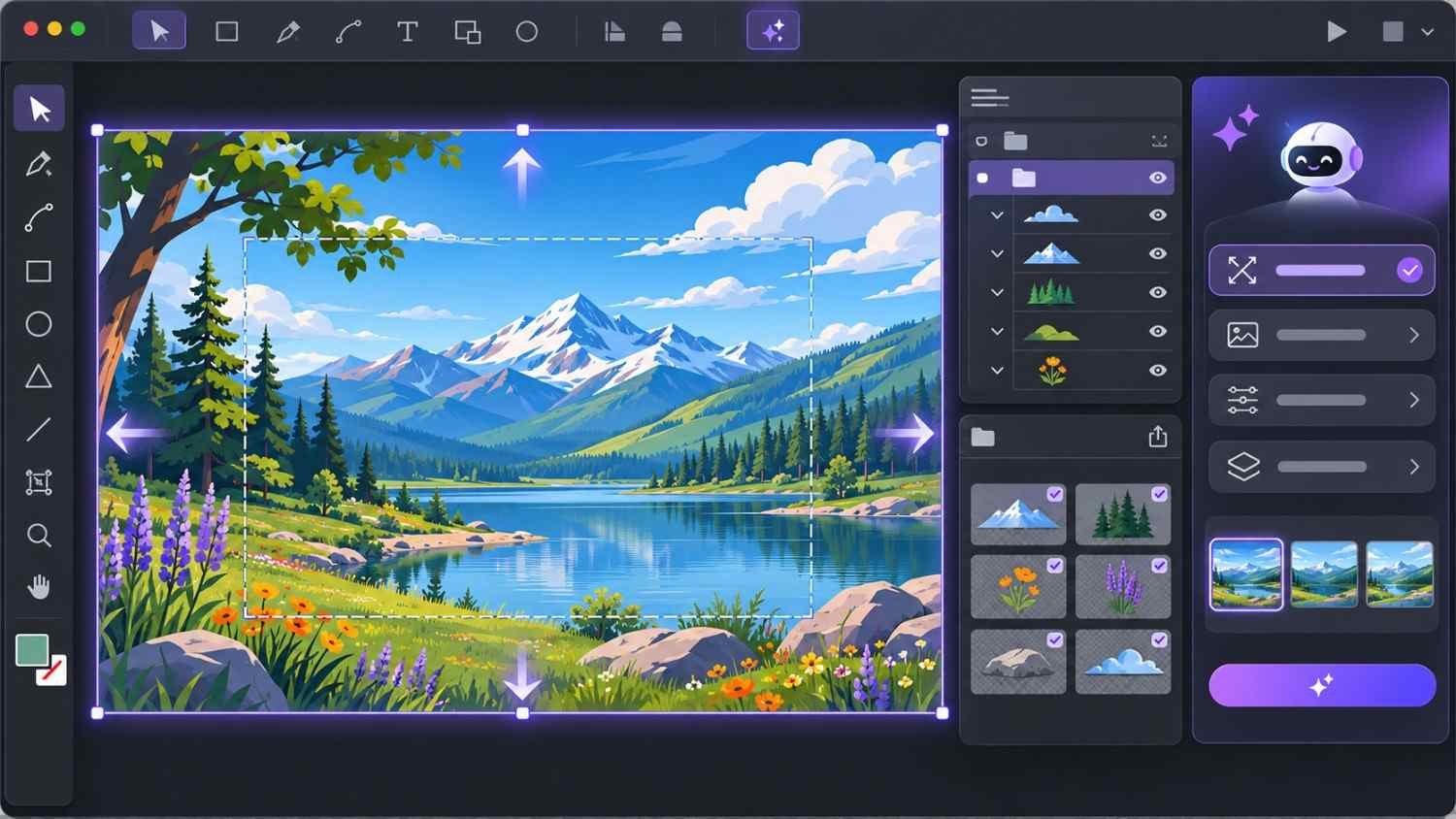
Text to Vector Graphic creates editable vector artwork using natural-language prompts.
How Do You Generate Vector Graphics From Text?
Open Window > Text to Vector Graphic in versions that provide this panel, or select Generate Vectors from the Contextual Task Bar.
Choose the generation type that matches your project.
Subject generates an isolated object or character. Scene creates a complete illustration, while Icon produces simplified graphics suitable for websites and applications.
For repeating designs, use the Pattern generation workflow, which is also available through Illustrator’s dedicated pattern tools.
Next, enter a descriptive prompt such as:
“Retro mechanical robot, clean vector line art, neon blue and orange colors, geometric shapes, no background.”
Click Generate to create artwork variations. Depending on the feature and version, Illustrator displays several results you can preview.
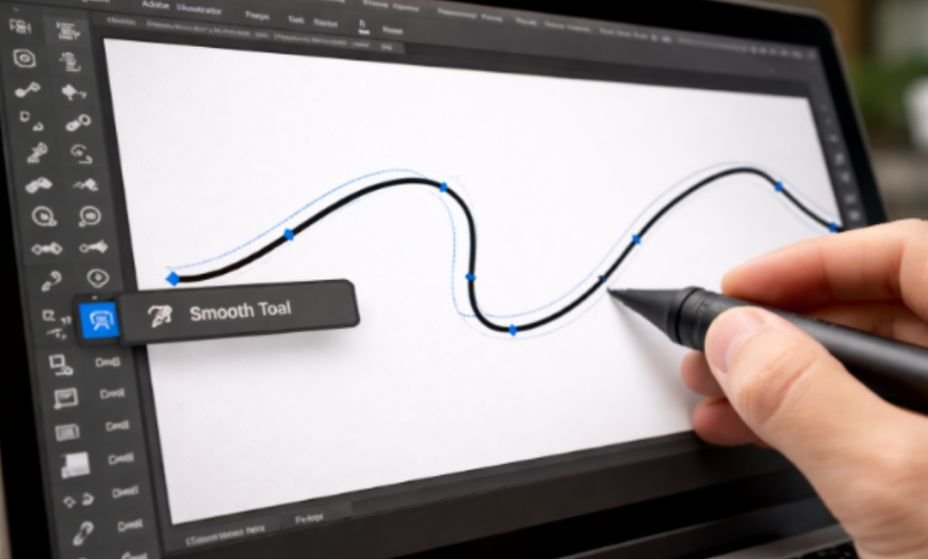
Select your preferred variation, then use the Direct Selection Tool (A) to modify anchor points, paths, and individual shapes.
How Do You Match AI Artwork to an Existing Design?
Use the Style Picker or available style-reference controls to guide the generated artwork using an existing illustration.
This helps maintain consistent colors and artistic styles across branding projects.
I recommend this technique when creating coordinated icons, marketing illustrations, or graphics for a small business website.
How to Use Generative Shape Fill in Illustrator
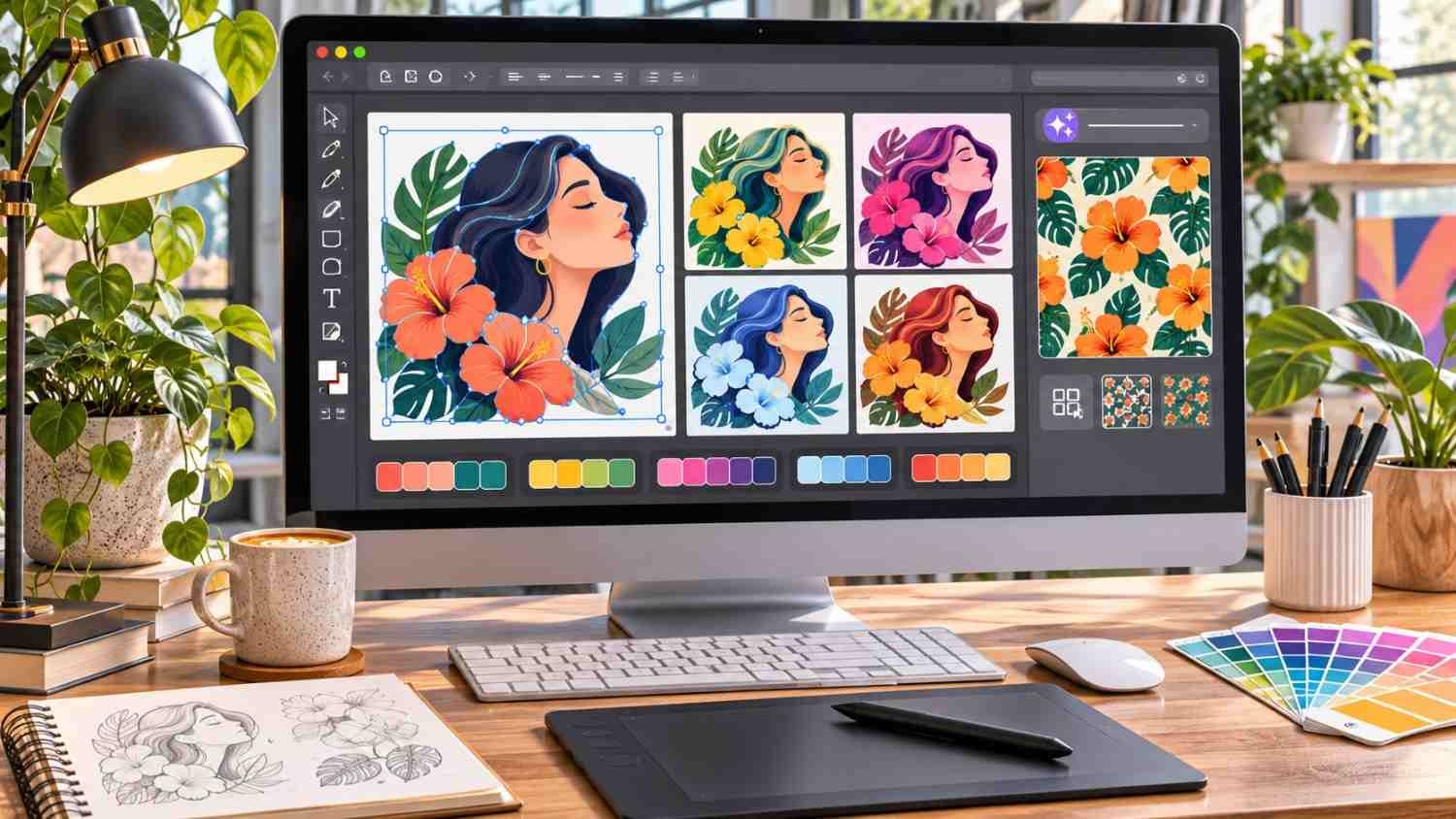
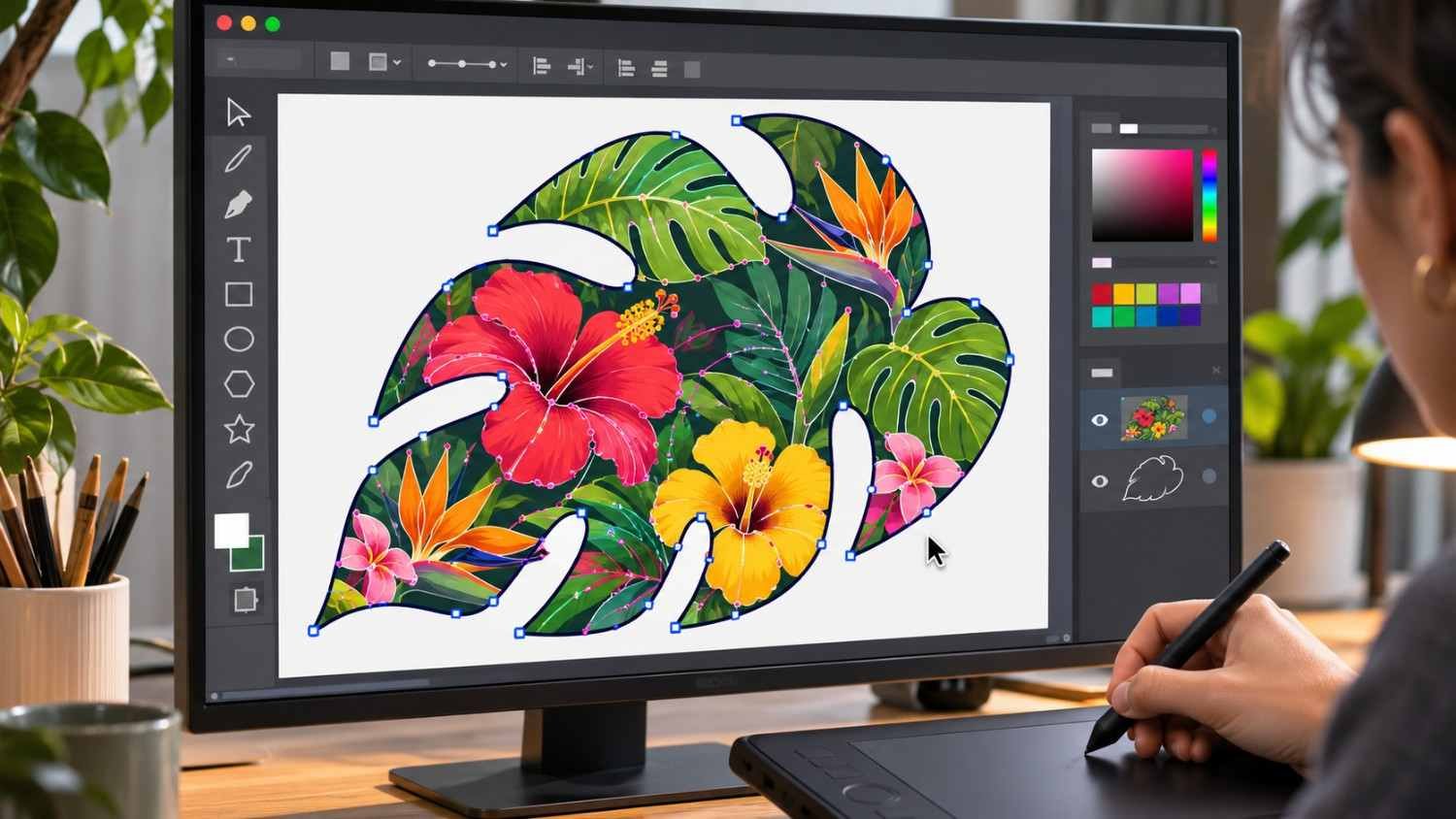
Generative Shape Fill creates intricate vector graphics inside a selected shape while preserving its overall silhouette.
Start by drawing a rectangle, circle, or custom shape using the Pen Tool.
Select your shape and click Generative Shape Fill in the Contextual Task Bar. You can also find the feature through Object > Generative in supported versions.
Enter a prompt such as:
“Colorful tropical flowers, detailed leaves, modern flat vector style, vibrant complementary colors.”
Click Generate and compare the results.
Illustrator creates artwork guided by your original shape’s boundaries.
I find this particularly helpful for packaging illustrations, decorative designs, stickers, and custom merchandise.
How to Change Colors With Generative Recolor
Generative Recolor lets you transform the mood of an illustration without manually adjusting individual color swatches.
Select your artwork and navigate to Edit > Edit Colors > Generative Recolor.
Enter a prompt describing your preferred palette, such as “muted autumn morning” or “futuristic cyberpunk colors.”
Click Generate and compare the suggested color combinations.
Choose a result that complements your design, then refine individual colors if necessary.
For example, a US retail business could use this feature to create seasonal advertising variations while maintaining a consistent illustration style.
How to Create Seamless Patterns With Illustrator AI
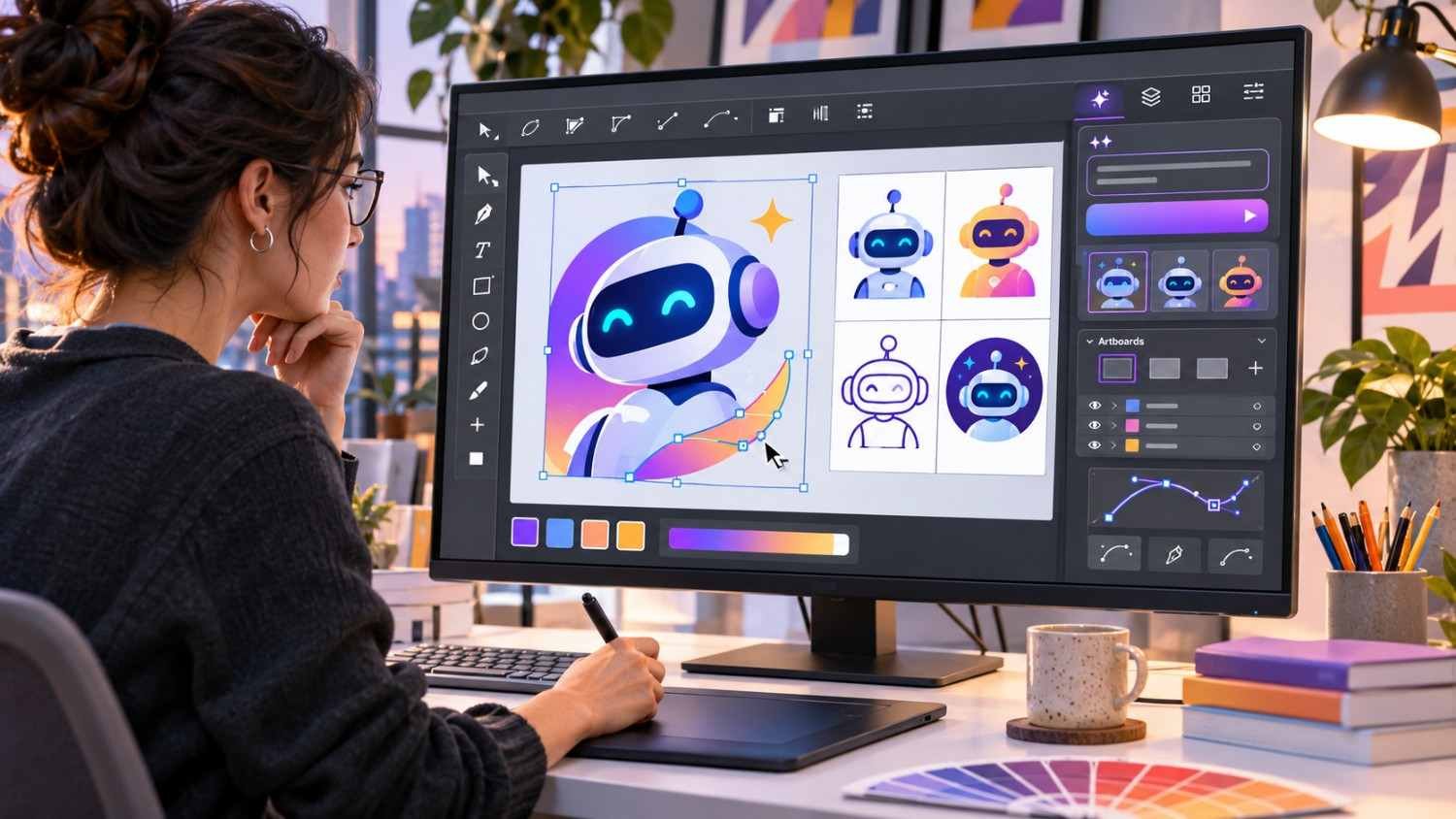
Text to Pattern generates repeating vector designs suitable for backgrounds, apparel, and packaging.
Open Object > Generative > Generate Patterns and enter a description.
For example:
“Seamless pattern of small autumn leaves, warm orange and brown colors, minimalist vector illustration.”
Generate several variations and select your favorite pattern swatch.
Apply it to a shape and adjust its scale to suit your project.
I recommend inspecting the pattern at different sizes before using it on printed merchandise or product packaging.
How to Extend Artwork With Generative Expand
Generative Expand allows you to extend vector artwork beyond its original boundaries.
Select compatible artwork and activate Generative Expand from the Contextual Task Bar.
Drag the expansion frame outward to increase the artwork area.
Leave the prompt blank when you want Illustrator to infer how the existing illustration should continue. Alternatively, describe specific elements you want added.
Click Generate and review the variations.
For example, you could expand a landscape illustration to create a wider website banner or fill a print bleed area.
Always inspect the generated edges for inconsistencies before exporting.
How Do You Use Adobe Illustrator AI Assistant?
AI Assistant (beta) introduces natural-language editing and workflow automation.
Open AI Assistant from Illustrator’s application bar and enter an instruction such as:
“Organize these objects into clearly named layers and prepare the artwork for SVG export.”
The assistant supports various tasks involving artwork generation, recoloring, vectorization, document organization, and exporting.
Review the changes carefully because AI Assistant remains a beta feature.
What Are the Best AI Prompts for Adobe Illustrator?
Once you understand how to use AI tools in Adobe Illustrator, writing effective prompts becomes essential.
I recommend describing the subject, visual style, color palette, composition, and level of detail.
Instead of writing “coffee logo,” try:
“Minimal coffee cup icon, steam forming a leaf, geometric line art, forest green and cream colors, modern café branding.”
Specific prompts generally provide better creative direction.
However, always refine AI-generated artwork manually, especially when preparing commercial logos or brand identities.
Why Are Adobe Illustrator AI Tools Not Working?
If AI tools aren’t responding, start by checking your internet connection and Creative Cloud subscription.
Update Illustrator, confirm that you’re signed in, and verify that your selected artwork supports the feature.
If the Generate button remains unavailable, check your generative credit balance and feature eligibility. You can also use image trace in Illustrator as an alternative for converting existing raster images into editable vector artwork without relying on generative AI features.
I also recommend restarting Illustrator and testing the feature in a new document.
Frequently Asked Questions (FAQs)
1. Is Adobe Illustrator AI Free to Use?
Illustrator generally requires a paid subscription. Eligible plans provide access to generative features, although credit allowances and usage limits vary.
2. Can Adobe Illustrator AI Create Editable Vector Graphics?
Yes. Features such as Text to Vector Graphic and Generative Shape Fill produce editable vector paths that you can modify using Illustrator’s standard drawing tools.
3. Can You Use Illustrator AI Artwork Commercially?
Adobe generally permits commercial use of eligible non-beta Firefly outputs, subject to its terms. Always review applicable model restrictions, intellectual property concerns, and licensing requirements.
4. Which Illustrator AI Tool Is Best for Beginners?
I recommend Text to Vector Graphic because it creates editable illustrations from simple written descriptions. Generative Recolor is another accessible starting point.
Final Thoughts
Understanding how to use AI tools in Adobe Illustrator makes it easier to create vector graphics, experiment with colors, and streamline repetitive design tasks.
I recommend starting with Text to Vector Graphic, then exploring Generative Shape Fill, Generative Recolor, and Generative Expand as your skills improve.
AI can accelerate the creative process, but thoughtful editing and attention to detail remain essential for producing professional artwork.