A productive home office doesn’t require expensive furniture or a desk crowded with electronics. A well-positioned monitor, comfortable keyboard, and reliable docking station can make a bigger difference than a collection of premium accessories.
If you’re wondering what are the essential gadgets for a home office setup, start with equipment that improves comfort, connectivity, communication, and organization. The best choices solve problems you experience every working day.
The Centers for Disease Control and Prevention (CDC) recommends arranging home workstations to reduce awkward postures and visual discomfort. That makes thoughtful equipment selection more important than simply buying the latest technology.
10 Essential Gadgets Worth Adding to Your Home Office
1. USB-C Docking Station
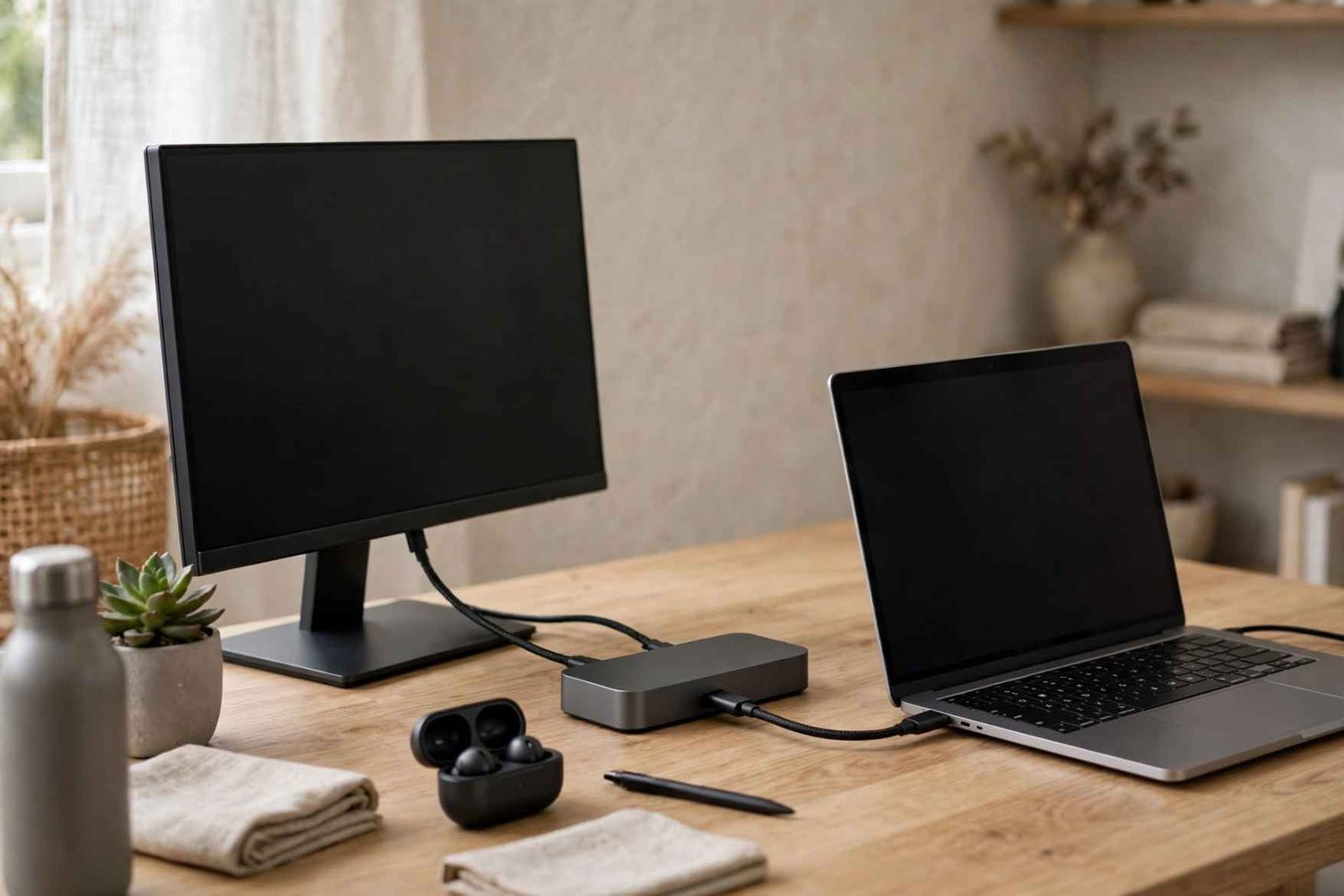
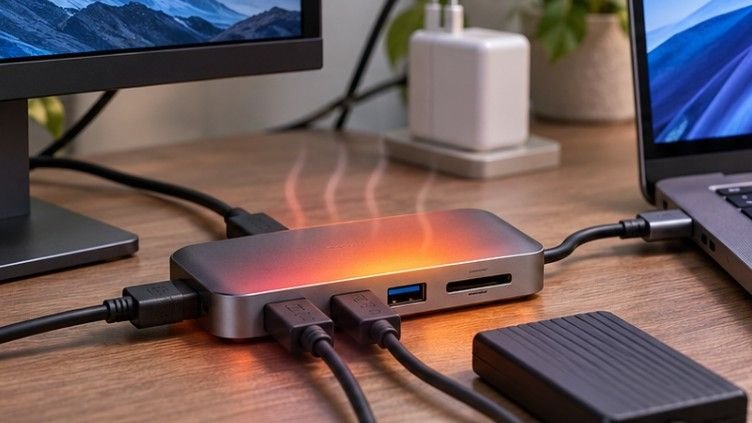
A docking station connects monitors, keyboards, storage devices, and other peripherals through one laptop connection.
The Belkin Thunderbolt 3 Dock Core illustrates how compact docks can simplify laptop-based offices. Before purchasing, verify display support, charging wattage, operating-system compatibility, and available ports.
2. External Computer Monitor
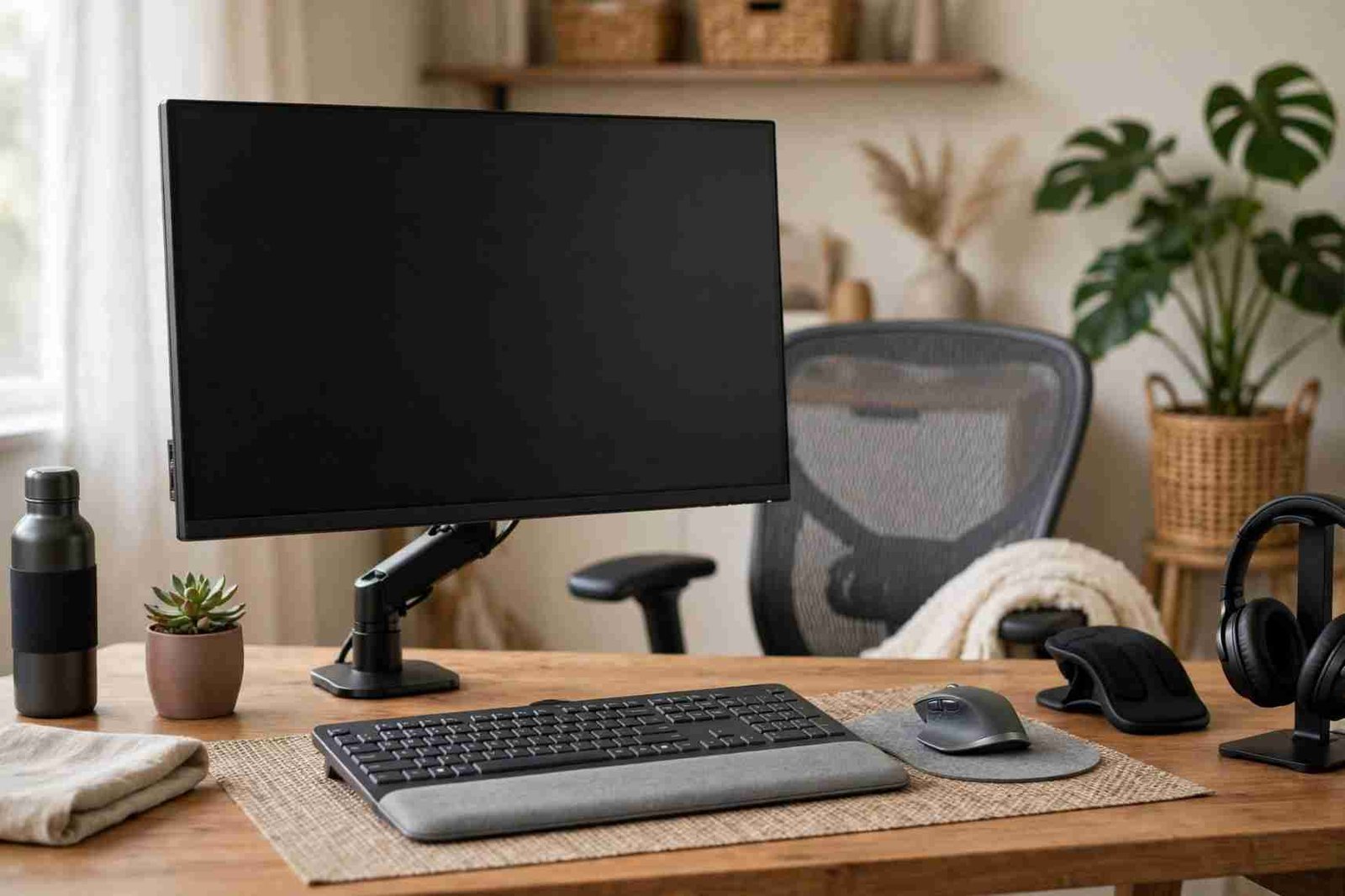
A 24- to 27-inch display provides additional workspace for spreadsheets, research, writing, and video meetings.
Models such as the Dell S2725QC offer a useful example of a higher-resolution display. Consider screen resolution, adjustable height, connectivity, and text clarity before choosing a monitor.
3. Adjustable Monitor Arm
A monitor arm frees up desk space while allowing flexible screen positioning.
The Ergotron LX is one recognizable example. Check monitor weight, VESA mounting compatibility, and desk thickness before buying.
The Occupational Safety and Health Administration recommends positioning monitors directly ahead, with the screen’s top around eye level or slightly below.
4. Ergonomic Keyboard and Mouse
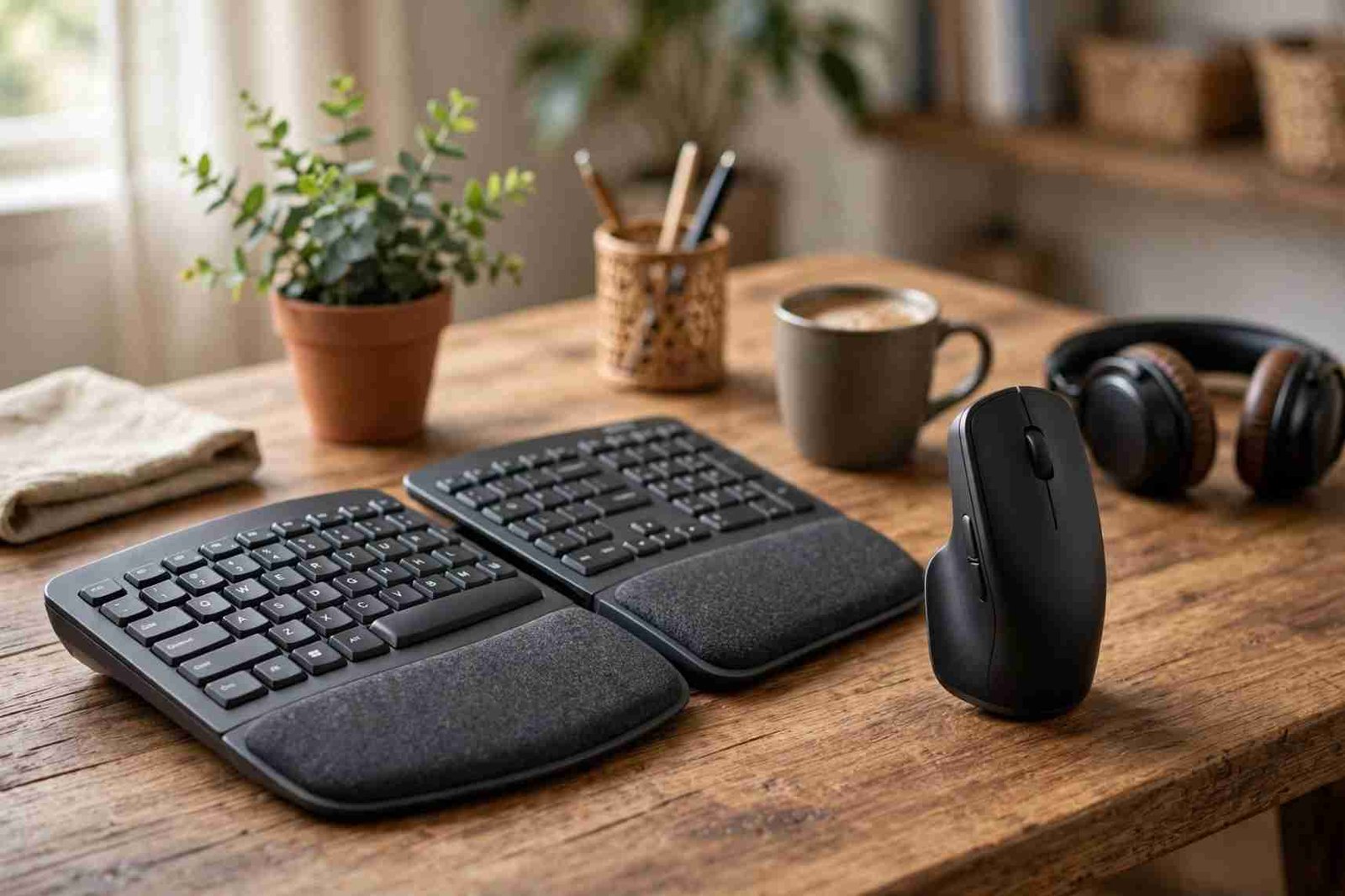
Comfortable input devices are especially valuable for people who type or navigate documents for several hours daily.
A compact keyboard can reduce excessive reaching, while a vertical mouse, such as the Logitech Lift, provides an alternative hand position.
However, ergonomic products aren’t universally comfortable. Test size, wrist alignment, and button placement before committing.
When choosing wireless peripherals for a cleaner workspace, understanding how wireless gadgets connect to laptops and computers can help you select compatible keyboards, mice, headsets, and other accessories.
5. High-Definition Webcam

A separate webcam can improve framing and image quality when a laptop’s built-in camera performs poorly.
The Logitech Brio 500 demonstrates useful features such as 1080p video, automatic exposure adjustment, and flexible framing.
Prioritize reliable autofocus and performance in ordinary indoor lighting rather than resolution alone.
6. USB Microphone or Quality Headset
Clear audio often matters more than perfect video during remote meetings.
A dedicated microphone, including options in Shure’s MV7 family, can provide greater recording control. However, a comfortable headset with a boom microphone may work better in shared or noisy households.
Look for voice clarity, adjustable microphone placement, and compatibility with your meeting software.
7. Adjustable LED Task Light
Poor lighting makes reading printed documents and viewing screens less comfortable.
A monitor-mounted light bar, such as the BenQ ScreenBar Halo series, preserves desk space. Alternatively, an adjustable desk lamp works well for handwritten notes.
Choose dimming controls and position the light to avoid reflections on your display.
8. Surge Protector and Charging Station
A quality surge protector organizes power connections and helps protect electronics from certain voltage spikes.
Desk-mounted charging solutions, including Anker’s clamp-style power strips, make frequently used outlets more accessible.
Choose a safety-certified product with suitable electrical ratings. The National Fire Protection Association explains the safety standards applicable to relocatable power taps. Never daisy-chain power strips.
9. External SSD for File Storage
An external solid-state drive provides fast, portable storage for large projects, photographs, and working files.
For routine office documents, a 500GB or 1TB model may be sufficient. Video editors and designers might need substantially more capacity.
Remember that external storage alone isn’t a complete backup strategy. Maintain another independent copy of important files.
10. Uninterruptible Power Supply
A UPS supplies temporary battery power during an outage, giving users an opportunity to save work and shut down safely.
It is particularly useful for desktop computers, networking equipment, and locations experiencing occasional power interruptions.
Select capacity according to actual equipment wattage and required runtime. Battery backup isn’t a substitute for a generator during extended outages.
How to Choose Gadgets Without Overspending
Not every home office requires all ten devices. Buying priorities should reflect your workload, current equipment, and daily frustrations.
When comparing different accessories, exploring these gadgets for a computer setup can help you identify practical additions that improve functionality, connectivity, and everyday convenience.
Match Accessories to Your Work
- Writers and analysts benefit from external monitors, comfortable keyboards, and reliable storage.
- Designers and editors should prioritize color accuracy, screen resolution, and sufficient connectivity.
- Remote managers may value webcams, microphones, and comfortable headsets most.
- Shared-space workers often benefit from noise-isolating headphones and compact accessories.
For most laptop users, an external keyboard and mouse paired with a raised screen provide a practical foundation.
Single Monitor or Multiple Screens?
A single 27-inch monitor may be enough for everyday productivity. Two monitors can help when comparing documents or monitoring several applications simultaneously.
Ultrawide displays eliminate the central bezel between screens but demand adequate desk width. Very wide layouts may also encourage repetitive head turning. The best arrangement keeps frequently viewed information directly ahead.
Small Improvements That Make Expensive Upgrades Unnecessary
A laptop stand, cable clips, and better desk organization can solve problems that might otherwise lead to unnecessary purchases.
Keeping your accessories clean, checking cables regularly, and avoiding unnecessary wear are simple ways to maintain computer gadgets for long-term use while ensuring they remain reliable and functional.
For example, raising an existing monitor with a sturdy stand may eliminate the immediate need for a premium monitor arm.
Similarly, switching off unnecessary peripherals can reduce electricity use. The Department of Energy recommends power strips and smart plugs to help manage energy consumed by connected electronics.
There are limitations, however. A basic USB hub cannot necessarily support multiple high-resolution monitors, and a vertical mouse cannot correct every source of wrist discomfort.
The American Psychological Association also reports research connecting videoconference fatigue with psychological and social factors. Better cameras cannot resolve every difficulty associated with remote meetings.
Ultimately, choose equipment based on a specific problem rather than a promised productivity transformation.
Frequently Asked Questions
1. What are the essential gadgets for a home office setup on a budget?
Start with an external keyboard, mouse, monitor or laptop stand, and appropriate task lighting. Add a USB-C hub and headset if your work requires multiple devices or frequent calls.
2. Is a docking station necessary for working from home?
Not always. A docking station is useful when connecting several peripherals or monitors, but a basic USB-C hub may be enough for simpler laptop setups.
3. Is one monitor sufficient for a home office?
Yes. One properly positioned monitor can handle most office tasks. Additional displays are helpful when your workflow involves frequent comparisons between documents or applications.
4. Should I prioritize a webcam or microphone?
Prioritize whichever currently performs worse. For frequent professional calls, clear speech is often more useful than upgrading from an adequate camera to a premium one.
The Best Home Office Is Built Around Your Needs
A better home office isn’t measured by the number of gadgets on your desk. It’s measured by how comfortably and reliably you can work.
Start by correcting screen height, keyboard placement, and lighting. Then consider upgrades such as docking stations, webcams, and battery backups when your everyday tasks justify them.
You don’t need to purchase every accessory immediately. A gradual approach helps identify which improvements actually deliver value.
The smartest investment is often the least exciting one: a simple device that removes a recurring frustration and makes each working day noticeably easier.