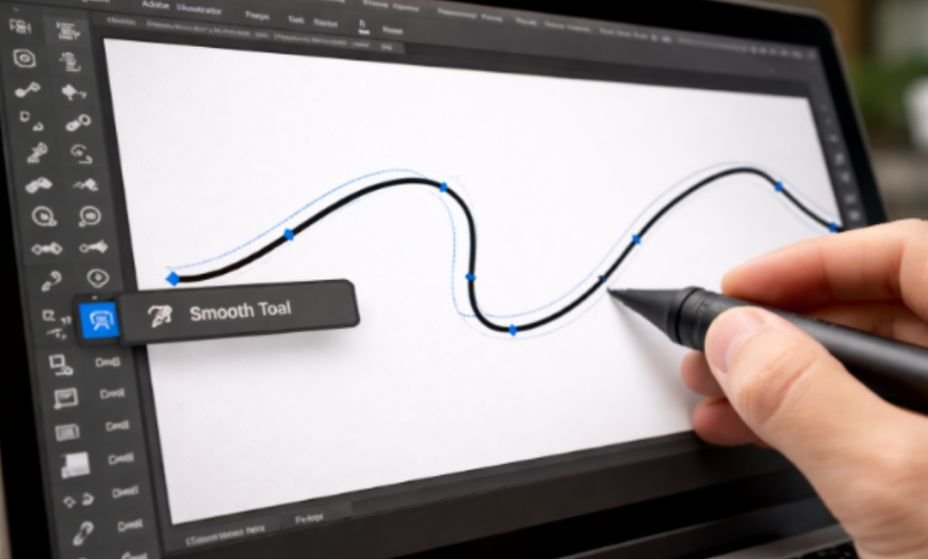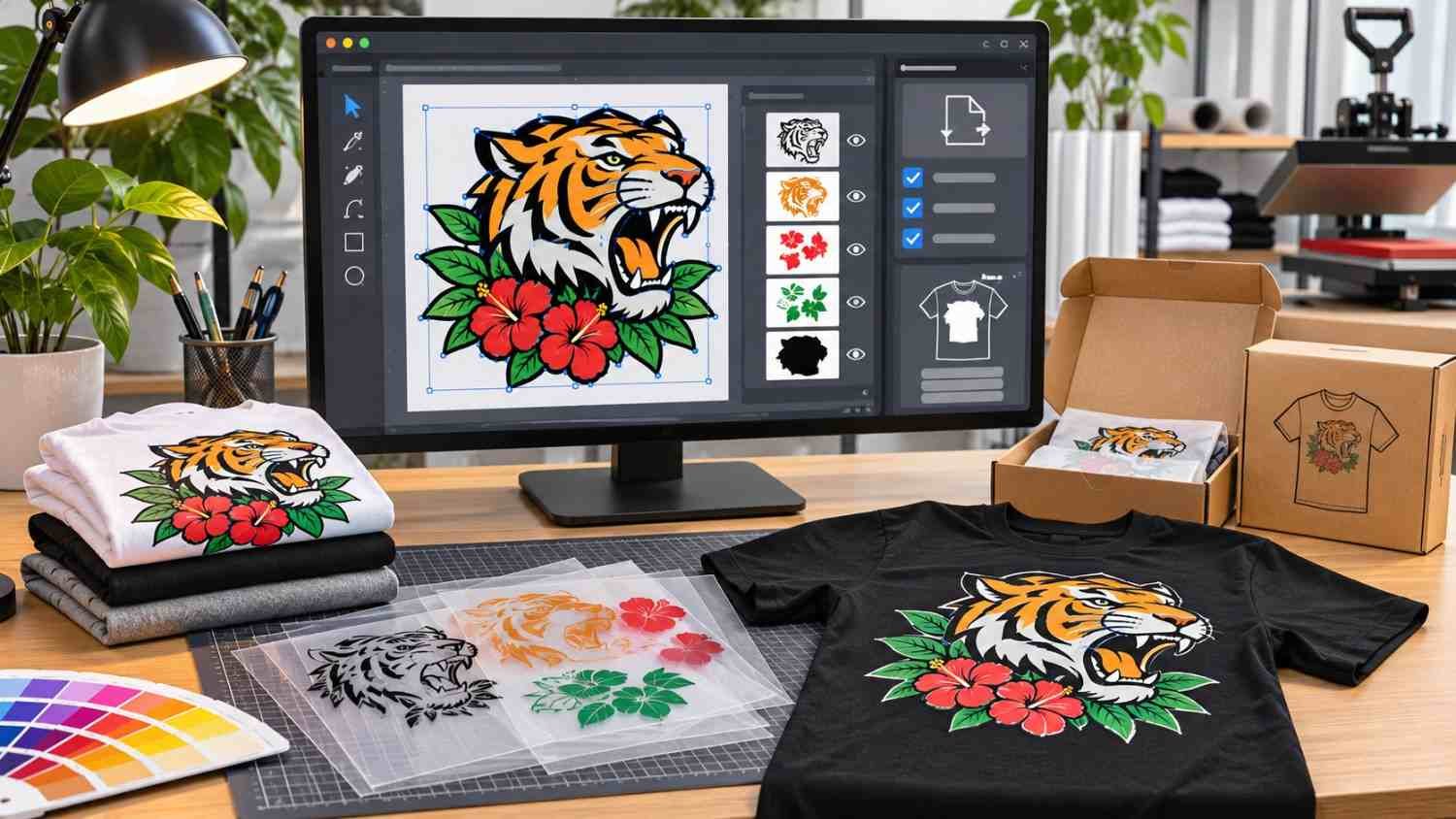
Learning how to curve text in Adobe Illustrator is easier than you might think. You can use the Type on a Path tool to position lettering along a custom curve, apply Warp effects for instant arches, or use Envelope Distort to create dramatic typography.
When I first explored curved typography, I realized that each method worked better for different designs. Circular business logos needed precise alignment, while retro T-shirt graphics looked better with distorted lettering.
In this guide, I’ll explain three simple methods, how to customize curved text, and how to fix common problems without compromising your design.
What Is Curved Text in Adobe Illustrator?
Curved text is typography that follows an arc, circle, wave, or custom vector path instead of a straight line.
Designers use it for business logos, promotional banners, product packaging, T-shirt graphics, and social media designs.
Illustrator offers three useful approaches.
| Method | Best For | Text Appearance |
| Type on a Path | Logos, circular badges, custom curves | Letters rotate along a path without changing their basic shapes |
| Effect > Warp | Headlines, banners, decorative typography | Text bends using an adjustable live effect |
| Envelope Distort | Retro T-shirts, creative lettering | Letters stretch and distort with an envelope |
I prefer Type on a Path for professional logos and Warp or Envelope Distort for creative typography.
How to Curve Text in Illustrator Using Type on a Path
The Type on a Path tool creates clean, professional curves by positioning individual characters along a vector line.
Step 1: Draw a Curved Path
Open Illustrator and create a document using File > New.
Select the Ellipse Tool (L), Arc Tool, or Pen Tool (P) to draw your desired curve.
For a circular logo, hold Shift while dragging with the Ellipse Tool to create a perfect circle.
I recommend using a visible stroke and removing the fill while preparing your path. Illustrator automatically removes the original path’s stroke and fill when you convert it into a type-on-path object.
Step 2: Select the Type on a Path Tool

Click and hold the Type Tool in the toolbar to reveal additional options.
Choose the Type on a Path Tool, then click directly on your curved line.
Start typing your desired text. Illustrator automatically arranges the letters along the path.
Step 3: Adjust Text Position and Alignment
Select your text with the Selection Tool (V).
You’ll notice small brackets at the beginning, center, and end of the text.
Hold Ctrl on Windows or Command on Mac while dragging the center bracket to reposition your lettering along the path.
Drag the center bracket across the curve to flip the text to the opposite side.
For precise control, navigate to Type > Type on a Path > Type on a Path Options.
Here, you can adjust Baseline, Center, Ascender, or Descender alignment, modify spacing, and choose effects such as Rainbow or Skew.
How to Warp Text in Illustrator Using the Arc Effect
If you want curved text without drawing a custom path, Illustrator’s Warp effect offers a quick solution.
Step 1: Create and Select Your Text
Choose the Type Tool (T) and enter your desired wording.
I recommend using a bold, readable font for promotional banners or marketing graphics.
Select the text object with the Selection Tool.
Step 2: Apply the Arc Effect
Navigate to Effect > Warp > Arc.
Illustrator opens a dialog containing Bend, Horizontal Distortion, and Vertical Distortion settings.
Enable Preview to see your adjustments immediately.
Step 3: Customize the Curve
Move the Bend slider toward positive or negative values to change the curvature.
For example, I often start around 20% Bend when creating moderately arched headlines.
Experiment with Arc, Arch, and other available Warp styles to find the desired appearance.
Click OK to apply the effect.
This method preserves editable text through a live appearance effect, making it convenient for designs requiring revisions.
How to Curve Text Using Envelope Distort in Illustrator
Envelope Distort provides another way to bend, stretch, and reshape typography.
It’s particularly useful for retro T-shirt designs, vintage advertisements, and decorative lettering.
Step 1: Select Your Text Object
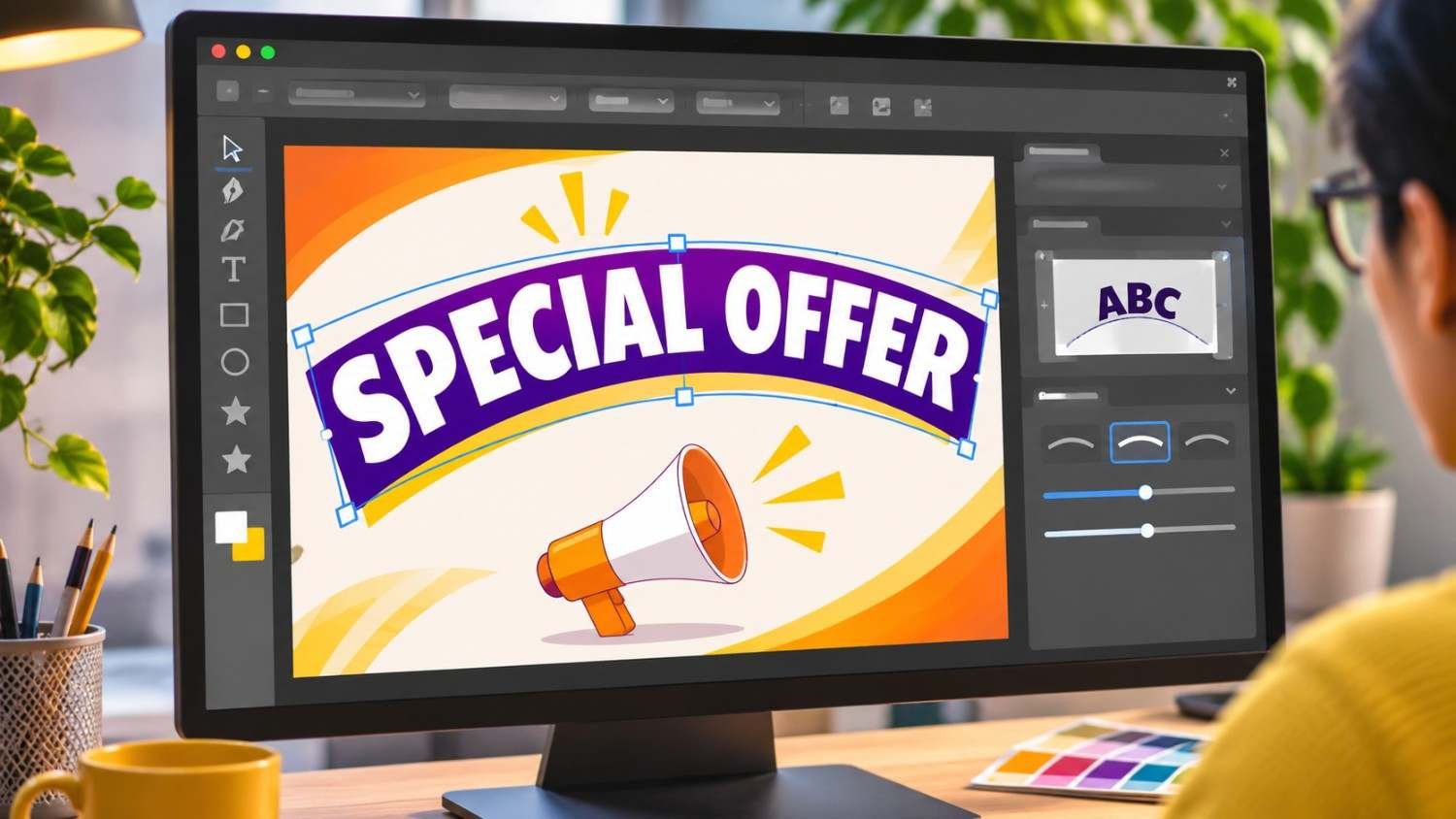
Create your text using the Type Tool and select the entire text object.
Make sure your font, size, and initial spacing are suitable for the intended design.
Step 2: Open Make with Warp
Navigate to Object > Envelope Distort > Make with Warp.
A Warp Options dialog appears with several transformation presets.
Choose Arc for a sweeping curve or Arch for a different curved shape.
Step 3: Adjust Bend and Distortion
Move the Bend slider to control how dramatically the text curves.
Use Horizontal and Vertical Distortion to stretch or compress the lettering.
I recommend using moderate values initially because excessive distortion can reduce readability.
Click OK when the design looks balanced.
To change the wording afterward, select Object > Envelope Distort > Edit Contents.
If you need to convert the envelope into regular vector artwork, use Object > Envelope Distort > Expand. Save an editable copy first because expanding removes the live envelope.
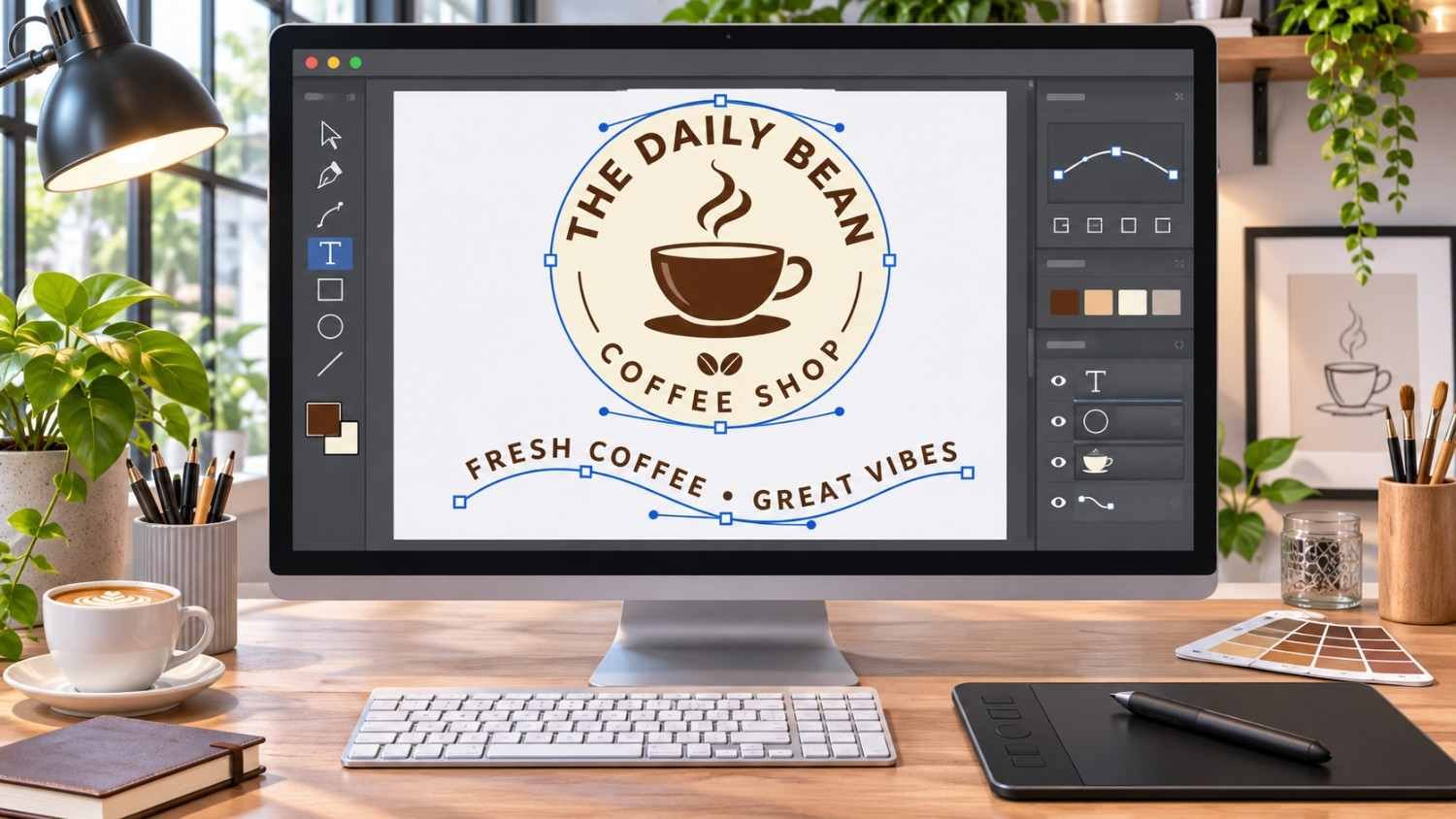
How Do You Curve Text Around a Circle in Illustrator?
Circular typography works particularly well for coffee shop logos, sports emblems, product labels, and business badges. You can also use image trace in Illustrator to convert existing raster designs into editable vector graphics that complement your curved text.
Start by drawing a circle with the Ellipse Tool while holding Shift.
Select Type on a Path and click the circular outline. Enter your business name or promotional message.
Use the text brackets to position the wording around the upper section.
For bottom lettering, I prefer creating a separate circular path so I can control its placement independently.
If the lower text appears upside down, drag its center bracket across the path or enable Flip under Type on a Path Options.
Adjust tracking in Window > Type > Character to maintain consistent spacing.
How Can You Edit Curved Text Without Losing Quality?
The easiest way to maintain professional typography is to keep your text editable throughout the design process.
Open the Character panel to adjust font size, tracking, and spacing.
For precise circular lettering, use Type on a Path Options to control alignment.
Avoid converting text into outlines until the final production stage.
If your US-based printing provider requests outlined vector artwork, save the original Illustrator file before using Type > Create Outlines on ordinary text.
For Envelope Distort artwork, expand the envelope only when necessary.
Why Is My Curved Text Not Working in Illustrator?
Why Is My Curved Text Upside Down?
Your text may be positioned on the opposite side of its path. Drag the center bracket across the line or enable Flip in Type on a Path Options.
Why Is Part of My Curved Text Missing?
The path might be too short for your wording. Reduce the font size, modify spacing, or extend the available path area.
Why Does My Curved Text Look Stretched?
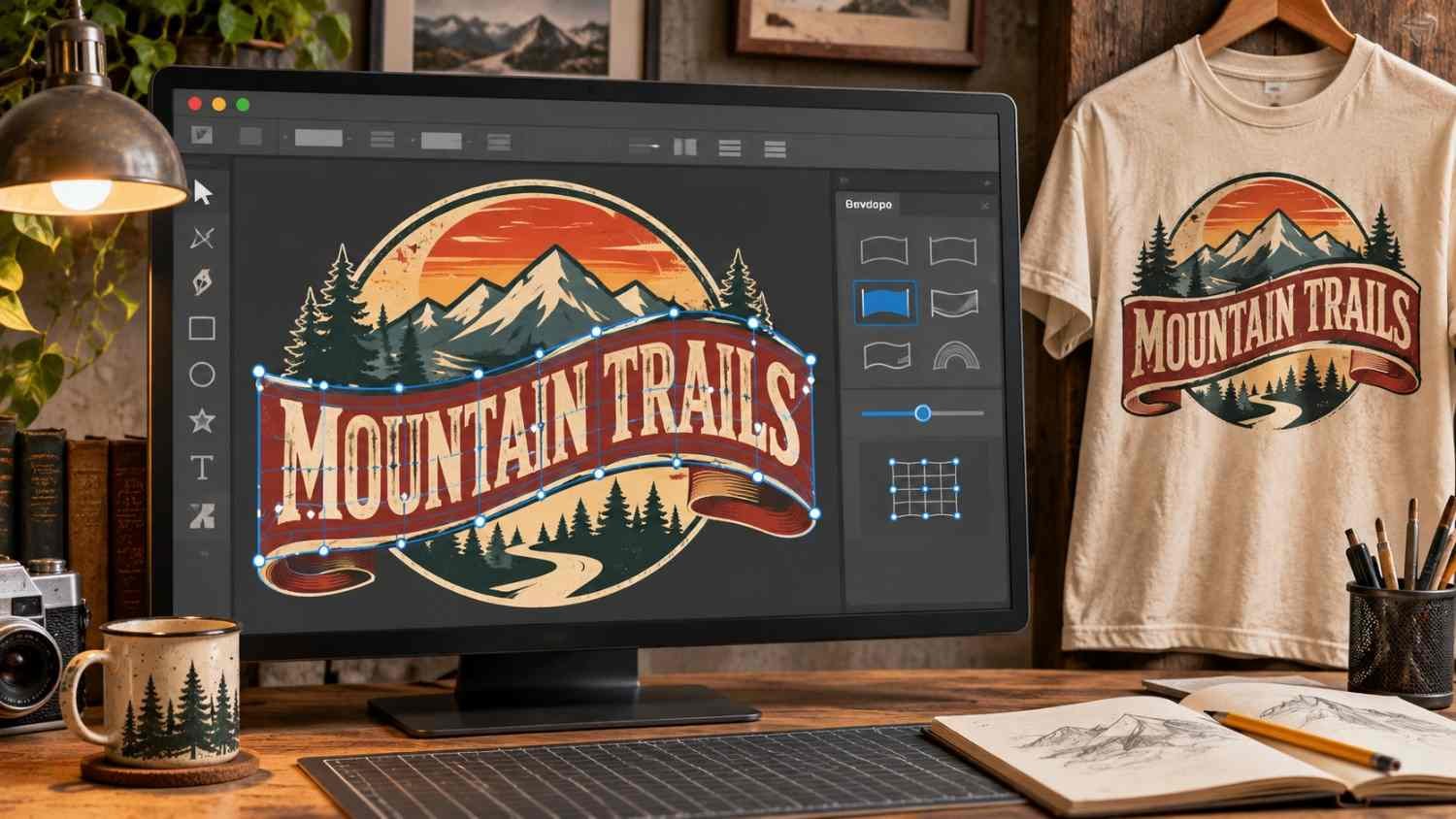
Excessive Warp or Envelope Distort settings can alter letter proportions. Reduce Bend and distortion values, or switch to Type on a Path for cleaner typography.
Frequently Asked Questions (FAQs)
1. Can I Curve Text Without Distorting Letters in Illustrator?
Yes. Type on a Path follows a vector line while preserving individual letterforms. This makes it ideal for professional logos and readable circular text.
2. How Do I Curve Text Upward or Downward in Illustrator?
Select your text, choose Effect > Warp > Arc, and adjust the Bend slider to produce upward or downward curvature.
3. Can I Edit Curved Text After Applying Envelope Distort?
Yes. Choose Object > Envelope Distort > Edit Contents to modify the original wording while preserving the envelope transformation.
4. What Is the Easiest Way to Curve Text in Adobe Illustrator?
For a quick arch, I recommend Effect > Warp > Arc. For circular logos or precise custom curves, Type on a Path provides better positioning control.
Final Thoughts
Understanding how to curve text in Adobe Illustrator makes creating professional typography much easier.
I recommend starting with Type on a Path for clean logos, experimenting with Warp for quick arches, and using Envelope Distort for more dramatic effects.
Whether you’re designing a local business logo, promotional banner, or custom T-shirt, these techniques help you create scalable, polished artwork while maintaining creative control.