A $30 laptop stand can sometimes improve your daily computer experience more than a $300 accessory. The difference isn’t technology. It’s whether the purchase solves an actual problem.
Understanding how to choose the right gadgets for a computer setup begins with identifying what slows you down, causes discomfort, or makes everyday tasks unnecessarily complicated.
From ergonomic keyboards to USB-C docking stations, the best accessories should improve comfort, compatibility, or productivity. Here’s how to build a smarter workstation without filling your desk with equipment you’ll rarely use.
Start With Your Daily Computer Activities
Before buying accessories, consider how you spend most of your computer time. A graphic designer, remote employee, and competitive gamer need different equipment.
For Office Work and Remote Professionals
A productivity-focused workstation benefits from accessories that improve comfort and communication.
Consider these essentials:
- An ergonomic keyboard and comfortable mouse for extended typing sessions.
- A 24- to 27-inch monitor for spreadsheets, documents, and multitasking.
- A webcam and noise-reducing headset for video conferences.
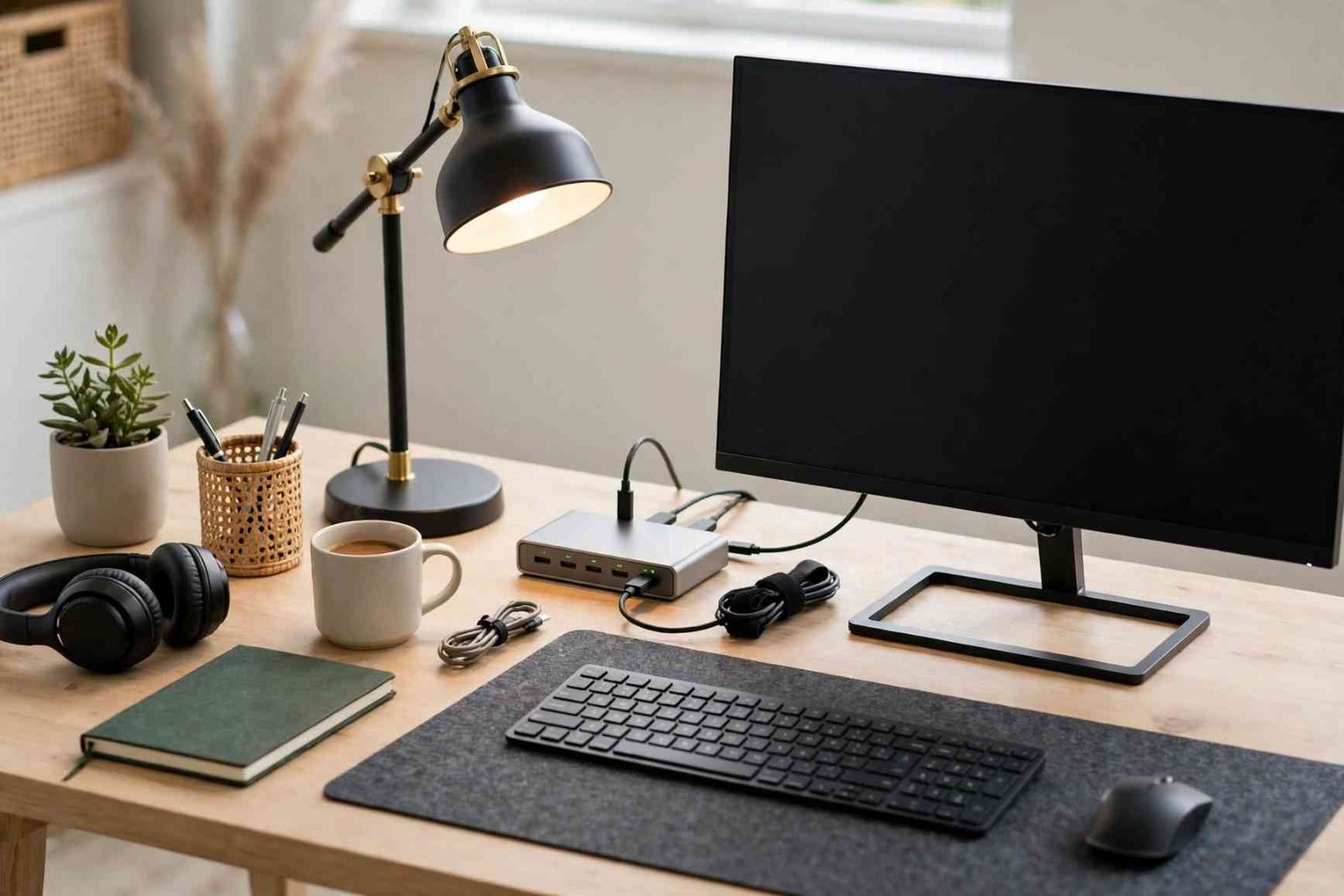
- A docking station for connecting laptops to desktop peripherals.
For example, someone working with multiple spreadsheets may benefit more from additional screen space than an expensive mechanical keyboard.
For Gaming and Entertainment
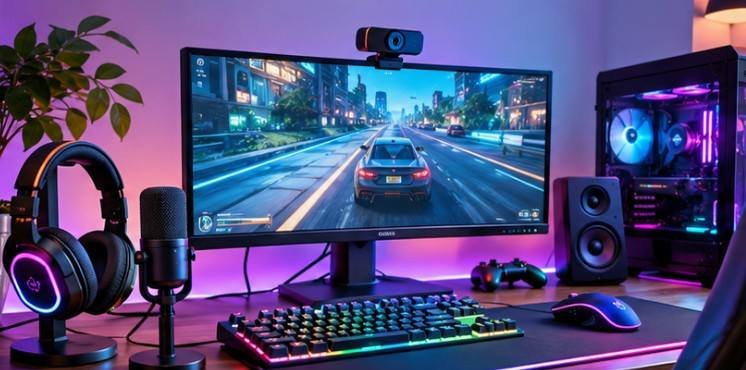
Gaming accessories should complement the computer’s actual performance.
A monitor supporting 144Hz or higher can display smoother motion when the graphics hardware produces enough frames. However, purchasing a 240Hz display makes little sense if your system consistently delivers substantially fewer frames.
Consider mouse sensitivity, input latency, headset comfort, and keyboard responsiveness before decorative lighting.
For Creative Professionals
Video editors, photographers, and designers should prioritize color accuracy, display resolution, and fast storage.
A color-accurate monitor may provide greater value than additional RGB accessories. External SSDs can improve project portability, while graphics tablets offer more precise control for certain illustration tasks.
Build Comfort Into Your Setup Before Adding Features
Ergonomics should influence purchasing decisions because even expensive equipment becomes frustrating when positioned incorrectly.
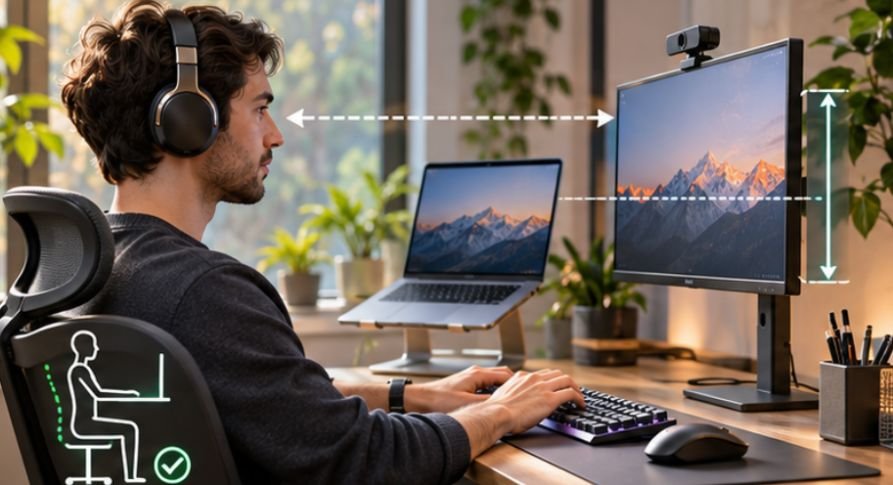
The Occupational Safety and Health Administration recommends positioning monitors directly in front of users, with the top of the screen at or below eye level.
Choose Adjustable Monitor Accessories
Monitor arms provide height, tilt, and distance adjustments while creating additional desk space.
Laptop stands can also raise displays into more comfortable positions. However, elevated laptops generally work best with separate keyboards and mice.
A monitor arm must support your display’s weight and mounting pattern, usually identified through VESA specifications.
Test Your Keyboard and Mouse Fit

A suitable keyboard should allow relaxed shoulders and reasonably straight wrists.
Mouse shape matters just as much as technical specifications. Vertical mice may feel more comfortable for some users, but they aren’t automatically better for everyone.
Research indexed in the National Library of Medicine identified associations between computer vision syndrome and factors including poor posture, prolonged screen use, and insufficient breaks.
These findings reinforce an important principle: workstation comfort involves equipment, positioning, and daily habits—not accessories alone.
Check Compatibility Before Purchasing Computer Accessories
Compatibility problems can turn an otherwise useful gadget into an expensive drawer ornament.
Understand USB-C and Thunderbolt Connections
USB-C describes a connector shape, not a guarantee of identical capabilities.
Depending on the computer, a USB-C connection may support charging, data transfer, video output, or a combination.
The USB Implementers Forum provides specifications and certification information for USB cables and connectors.
Before purchasing a dock, verify:
- Available USB-C, USB-A, HDMI, and DisplayPort connections.
- External monitor resolution and refresh-rate support.
- Laptop charging requirements and dock power delivery.
- Operating-system compatibility and driver requirements.
- Required data-transfer speeds.
A basic USB hub works well for connecting a mouse, keyboard, and flash drive. More demanding multi-monitor workstations may require a compatible Thunderbolt or USB4 dock.
Consider Multiple-Computer Accessories
People alternating between personal and workplace computers can benefit from USB switches or KVM switches.
A USB switch shares supported peripherals between computers. A KVM switch can additionally manage video connections, depending on its specifications.
Check monitor refresh rates, display resolution, cable requirements, and supported connection standards before purchasing.
When choosing peripherals for multiple devices, understanding the difference between wired and wireless computer accessories can help you compare connectivity, convenience, performance, and compatibility before buying.
Choose Accessories That Improve Your Desk Environment
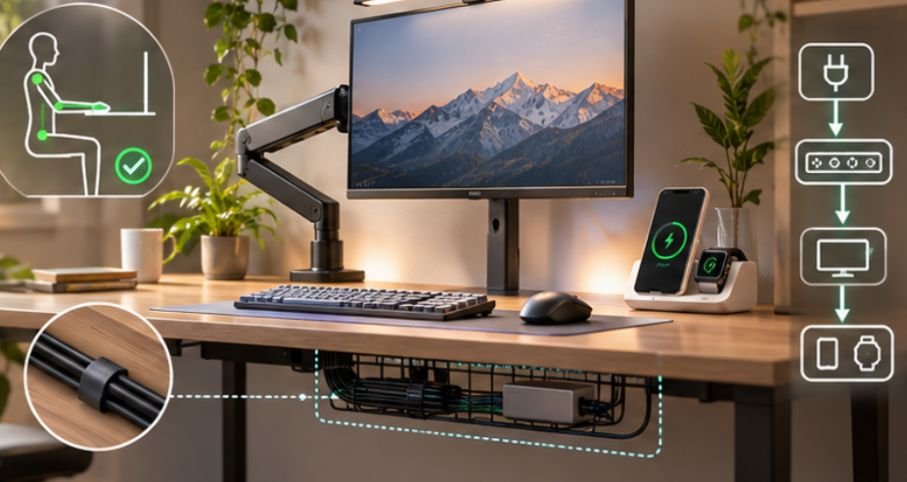
A functional computer setup should remain comfortable throughout changing lighting conditions and daily activities.
Lighting Matters More Than Decorative Effects
Monitor light bars and adjustable desk lamps can illuminate keyboards and paperwork without occupying much space.
However, a light bar isn’t automatically glare-free. Its design and positioning determine whether reflections appear on your display.
Position lighting away from reflective screen angles and adjust brightness to suit the room.
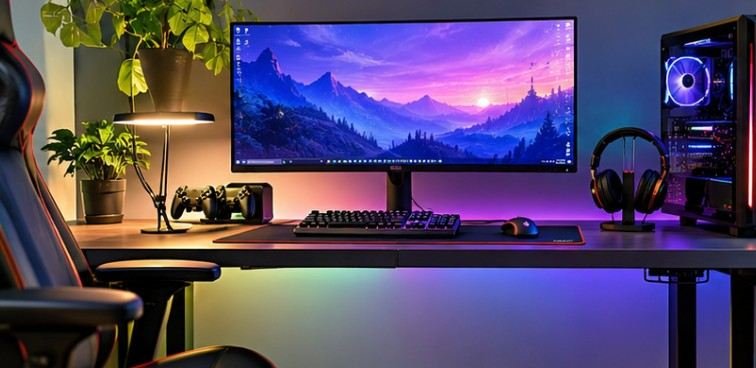
Decorative RGB lighting can improve atmosphere, but it shouldn’t replace practical task lighting.
Manage Cables Without Creating Electrical Risks
Cable trays, reusable ties, and under-desk organizers can prevent tangled cords from interfering with daily activities.
For electrical safety, avoid overloading outlets or connecting multiple power strips together. The National Fire Protection Association provides guidance on household electrical hazards.
Use appropriately rated, safety-certified power accessories and keep damaged cords out of service.
Evaluate Long-Term Value Instead of Purchase Price
The cheapest gadget isn’t necessarily the most economical choice. A poorly constructed accessory that requires frequent replacement may cost more over several years than a durable alternative.
Use a Simple Cost-Per-Use Calculation
Consider two hypothetical accessories:
- Gadget A costs $60 and receives 300 uses annually.
- Gadget B costs $120 and receives 1,500 uses annually.
Their first-year costs per use are $0.20 and $0.08, respectively.
This calculation doesn’t measure productivity or quality, but it reveals why frequently used equipment deserves a larger share of your budget.
Energy consumption also matters for always-connected devices.
When comparing frequently used peripherals, it’s also worth understanding why computer accessories overheat during extended use, since heat buildup can affect device reliability, performance, and long-term value.
The Department of Energy recommends considering display efficiency and enabling power-management features to reduce unnecessary electricity consumption.
Look for appropriate ENERGY STAR certifications when comparing eligible equipment.
Try the Seven-Day Gadget Purchase Test

Before ordering another accessory, assess your workstation for one week.
Days 1–2: Identify Daily Frustrations
Document recurring issues such as neck discomfort, insufficient ports, poor call quality, or clutter.
Avoid purchasing anything until you identify the problems.
Days 3–4: Test Free Adjustments
Reposition your monitor, organize existing cables, adjust keyboard placement, and improve room lighting.
Some problems disappear without additional spending.
Days 5–6: Compare Practical Solutions
Evaluate three possible products using these criteria:
- Compatibility with existing hardware.
- Frequency of expected use.
- Comfort or productivity improvement.
- Warranty, durability, and return policy.
- Total cost, including cables and adapters.
Day 7: Make One Meaningful Upgrade
Buy the accessory addressing your most frequent unresolved frustration.
Use it regularly before purchasing another. This prevents unnecessary upgrades and makes improvements easier to evaluate.
Know Which Computer Gadgets Can Wait
Not every popular desk accessory provides meaningful benefits.
RGB desk decorations, expensive macro controllers, oversized mousepads, and premium speakers may be worthwhile for specific users, but they aren’t universal necessities.
A dedicated streaming controller makes sense for someone managing broadcasts daily. It provides considerably less value to someone who primarily checks email.
DIY electronics enthusiasts may also enjoy experimenting with creative spy gadget projects, but hobby equipment should remain separate from essential workstation purchases.
Remember that accessories cannot compensate for insufficient computer processing power, limited RAM, or outdated graphics hardware.
Sometimes upgrading the computer itself is the better investment.
Frequently Asked Questions
1. What gadgets are essential for a basic computer setup?
A comfortable keyboard, reliable mouse, suitable monitor, and adequate lighting cover most needs. Laptop users may also benefit from a stand, external peripherals, and a USB hub.
2. How much should I spend on computer accessories?
Set a budget based on daily requirements rather than arbitrary spending targets. Prioritize comfort, display quality, and connectivity before optional accessories.
3. Are wireless computer gadgets better than wired alternatives?
Wireless accessories reduce cable clutter and improve flexibility. Wired devices avoid battery maintenance and may offer simpler connectivity. The better option depends on performance requirements and personal preferences.
4. Should I buy a docking station or USB hub?
Choose a USB hub for basic peripheral connections. Consider a compatible docking station when you need external displays, laptop charging, Ethernet, and multiple high-speed connections.
Build a Setup That Works, Not Just Looks Good
A thoughtfully designed computer workstation doesn’t need dozens of gadgets or a luxury budget.
The most effective improvements often come from solving small, repetitive frustrations: a poorly positioned screen, uncomfortable mouse, unreliable connection, or crowded workspace.
Start by observing your habits, testing inexpensive adjustments, and purchasing equipment that addresses measurable needs. Consider compatibility, ergonomics, durability, and energy efficiency before committing to expensive upgrades.
Ultimately, the best computer setup isn’t the one containing the most accessories. It’s the one that makes your work easier without constantly reminding you that the equipment is there.