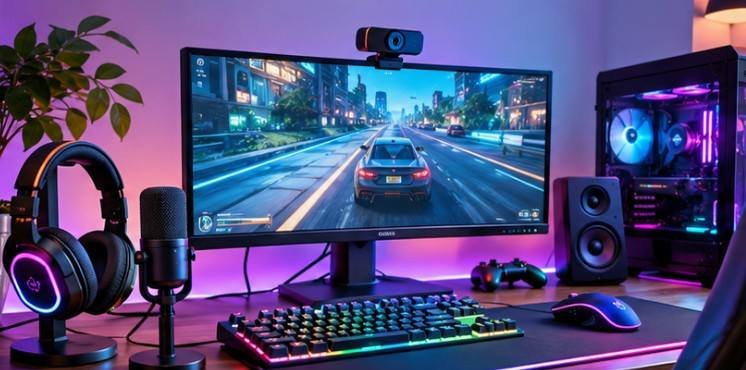
A dusty keyboard can develop sticky keys, an unclean mouse sensor can cause erratic tracking, and improper screen cleaning can permanently damage a monitor’s protective coating. Surprisingly, the wrong cleaning method can cause more harm than the dirt itself.
Understanding how to clean and maintain computer peripherals safely starts with three simple precautions: disconnect the power, choose materials compatible with each device, and prevent moisture from reaching electronic components.
I’ve found that regular, gentle cleaning is more effective than aggressive scrubbing after months of neglect. Whether you use a gaming setup, home office, or shared workstation, these practical methods can help protect your equipment.
What Supplies Should You Use to Clean Computer Accessories?
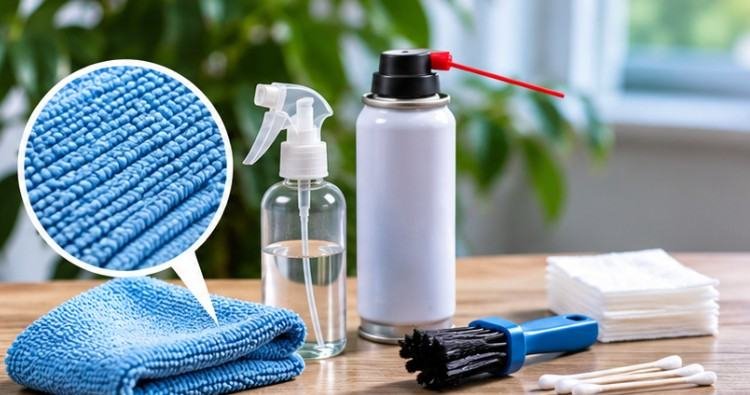
Before cleaning, gather materials specifically suited to delicate electronics.
| Cleaning Supply | Recommended Use |
| Microfiber cloth | Screens, keyboards, and mouse surfaces |
| Soft-bristle brush | Keyboard gaps and external crevices |
| Compressed-air duster | Removing loose dust from accessible areas |
| Cotton swabs | Small exterior spaces and sensor surroundings |
| Screen-safe cleaning solution | Fingerprints and display smudges |
| Device-approved alcohol wipes | Compatible hard, nonporous surfaces |
Avoid bleach, ammonia-based glass cleaners, abrasive sponges, and excessively wet cloths unless the manufacturer explicitly approves a particular product.
According to Colgate University’s electronics cleaning guidance, selecting appropriate cleaning materials is essential for protecting sensitive equipment.
A useful rule is to begin with the gentlest method and introduce additional cleaning products only when necessary.
The Five-Minute Safety Check Before Cleaning
Learning how to clean and maintain computer peripherals safely also requires preparing the equipment correctly.
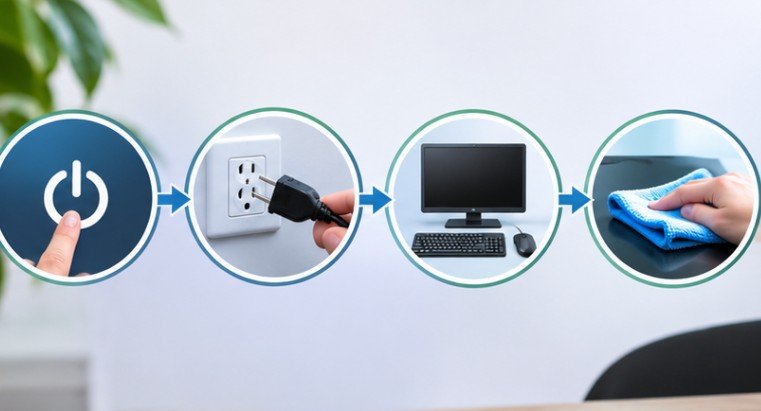
Follow these steps before touching any electronic accessory.
- Shut down the computer and turn off connected peripherals.
- Disconnect wired accessories and unplug monitors from electrical outlets.
- Remove replaceable batteries when the device manufacturer recommends doing so.
- Inspect cables, connectors, and housings for visible damage.
- Choose a clean, dry workspace with adequate ventilation.
Never apply liquid cleaners directly to powered electronics.
If you’re using compressed air, follow the product’s instructions, keep aerosol cans upright, and avoid prolonged blasts against delicate components.
The goal is to loosen dust without introducing liquid, excessive pressure, or mechanical damage.
How to Clean Different Computer Peripherals Without Damage
Each peripheral has different construction materials and vulnerable components. A cleaning technique suitable for plastic keycaps may not be appropriate for a coated display.
1. Keyboards: Remove Debris Before Wiping
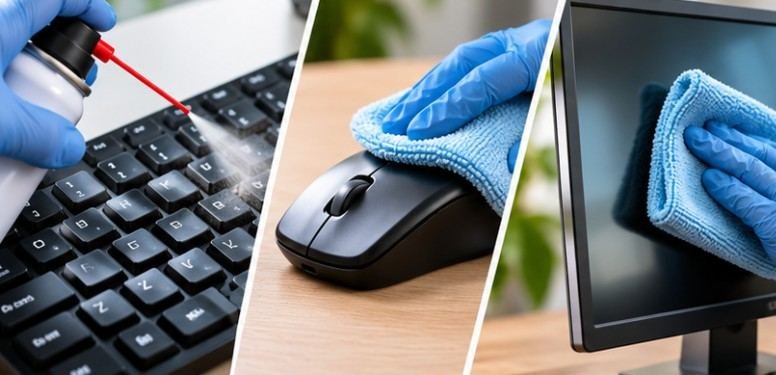
Start by disconnecting the keyboard and gently turning it upside down.
Light tapping can dislodge crumbs and loose particles. Next, use a soft brush or controlled bursts of compressed air between the keys.
Wipe accessible keycaps with a microfiber cloth lightly dampened with a manufacturer-approved cleaner.
For stubborn residue, use a minimally moistened cotton swab without allowing liquid beneath the keys.
Mechanical keyboard keycaps may be removable, but check the manufacturer’s instructions before attempting disassembly.
2. Computer Mice: Protect the Optical Sensor
A mouse that suddenly skips or moves unpredictably may have debris near its sensor.
Turn off the mouse and wipe its outer shell, buttons, and scroll wheel.
Use a dry cotton swab or soft brush to remove visible debris around the optical sensor. Avoid pressing against the sensor window.
Also inspect the mouse feet for accumulated dirt.
If tracking remains inconsistent, test the mouse on another suitable surface before assuming the sensor is defective.
3. Monitors: Preserve Delicate Screen Coatings
Monitor displays require particularly careful handling.
First, power down the display and allow it to cool. Remove loose dust using a clean, dry microfiber cloth. For fingerprints, lightly dampen the cloth with an approved screen-cleaning solution and wipe gently.
Avoid paper towels, window cleaners, and excessive pressure. The University of Tennessee’s equipment-cleaning guidance cautions against aerosol sprays, abrasive cleaners, and bleach on computer equipment.
Always prioritize the display manufacturer’s specific instructions, especially for anti-glare, OLED, and specialized coated screens.
4. Headsets, Webcams, and Speakers
Headsets accumulate skin oils and moisture around ear cushions and headbands.
Clean hard exterior surfaces with an appropriate microfiber cloth. Removable fabric cushions should be maintained according to their care instructions.
For webcams, gently clean the lens with a suitable lens cloth. Avoid touching the glass directly with your fingers.
Speakers typically need exterior dusting, but their grilles should not be saturated or scrubbed aggressively.
5. USB Ports, Cables, and Connectors
Dusty connectors can interfere with reliable connections, but inserting inappropriate tools into ports introduces additional risks.
Disconnect cables before cleaning their exteriors.
Use a dry, soft brush for accessible debris around openings. Never insert wet cotton swabs, metal objects, or sharp tools into electrical contacts.
Inspect cables for exposed wiring, damaged insulation, and bent connectors.
Replace visibly damaged cables rather than attempting temporary repairs with ordinary tape.
Cleaning vs. Disinfecting: Know the Difference
Disinfecting isn’t always necessary for a personal workstation, but shared keyboards and mice may require additional attention.
The Environmental Protection Agency (EPA) explains that disinfectants must satisfy effectiveness requirements and be used according to their labels.
Importantly, disinfectants require a specified contact time to work. However, keeping a sensitive electronic device wet for that duration may conflict with its manufacturer’s instructions. Choose only products compatible with the device and approved for the intended application.
Never assume that a stronger alcohol concentration produces better results. Some plastics, rubber coatings, adhesives, and screen finishes can deteriorate when exposed to unsuitable chemicals.
Frequently Asked Questions
1. Can I use rubbing alcohol to clean my keyboard?
Yes, if the manufacturer approves it. A lightly dampened cloth containing suitable isopropyl alcohol can clean compatible hard surfaces. Avoid soaking keys or allowing liquid inside the keyboard.
2. How often should computer peripherals be cleaned?
Light weekly cleaning works for many personal setups. Shared equipment, heavily used keyboards, and accessories exposed to dust or food may need more frequent attention.
3. Is compressed air safe for computer accessories?
Generally, yes, when used according to the manufacturer’s instructions. Keep aerosol cans upright, use controlled bursts, and avoid forcing dust into sensitive openings.
4. What is the safest way to clean a computer monitor?
Power off the monitor, remove dust with a dry microfiber cloth, and use a manufacturer-approved screen cleaner on the cloth for stubborn marks.
Protect Your Equipment With Simple Habits
Knowing how to clean and maintain computer peripherals safely is less about purchasing expensive cleaning products and more about developing careful maintenance habits.
A few minutes spent removing dust, wiping frequently touched surfaces, and checking cables can help prevent avoidable problems.
I recommend keeping a dedicated microfiber cloth and soft brush near your workspace so cleaning becomes part of your regular routine.
Remember that each accessory has different materials and cleaning limitations. Manufacturer instructions should always take priority over generalized advice.
The simplest principle is also the most effective: clean gently, keep moisture under control, and never sacrifice device safety for a spotless appearance.