A wireless mouse can lag even when its battery is full. A laptop may show strong Wi-Fi bars while video calls keep freezing. These frustrating problems often come from invisible radio interference rather than defective hardware.
Understanding what factors affect the performance of wireless computer devices helps explain why connection quality changes between rooms, devices, and even different times of day.
From signal strength and router placement to network congestion and outdated drivers, several variables influence wireless reliability. The good news is that many performance problems can be corrected without buying expensive equipment.
1. Distance Between Devices Weakens Signal Strength
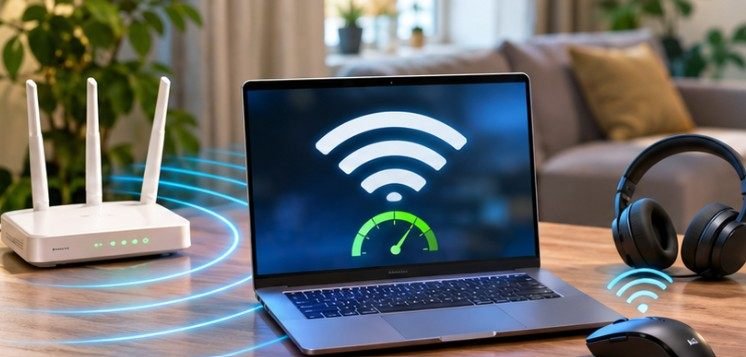
Wireless signals generally become weaker as the distance between transmitting and receiving devices increases. A laptop positioned near a router may maintain excellent connectivity. Moving it upstairs or into another room introduces distance and additional obstacles.
As signal quality declines, devices may switch to slower transmission rates or retransmit lost information. For Bluetooth accessories, excessive distance can cause delayed responses, intermittent disconnections, and inconsistent audio playback.
How to improve performance: Keep wireless accessories within their manufacturer’s recommended operating range. Position computers and receivers closer together, especially when troubleshooting connection problems.
2. Walls, Furniture, and Building Materials Block Signals
Wireless signals do not travel equally well through every material. Drywall usually creates less interference than reinforced concrete, brick, or metal. Large appliances, filing cabinets, and metallic furniture can also reflect or weaken radio signals.
This matters particularly in American homes with finished basements, multiple floors, or detached home offices. A router placed inside a closed cabinet may deliver noticeably worse coverage than the same router positioned in an open area.
Research-based wireless design guidance from the University of California, San Francisco emphasizes managing radio-frequency interference and selecting suitable wireless frequencies. Place routers in elevated, unobstructed locations and avoid surrounding them with metal objects.
3. Nearby Electronic Devices Create Radio Interference
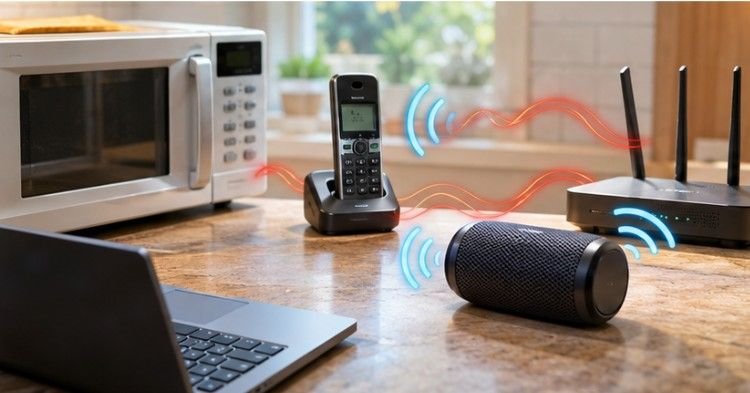
One frequently overlooked explanation for wireless instability is interference from other electronics. Bluetooth devices, microwave ovens, older cordless telephones, and certain wireless transmitters operate in or near commonly used radio-frequency bands.
The 2.4 GHz band is particularly vulnerable because numerous consumer devices share it. Cornell University’s wireless spectrum guidelines explain that consumer wireless equipment can introduce interference and create difficulties for managed networks.
For example, a Bluetooth mouse may occasionally stutter when its USB receiver sits beside a busy USB 3.0 hub or another wireless transmitter.
Move receivers away from potentially interfering electronics. Using a short USB extension cable can also improve receiver placement.
4. Frequency Bands Influence Speed and Coverage
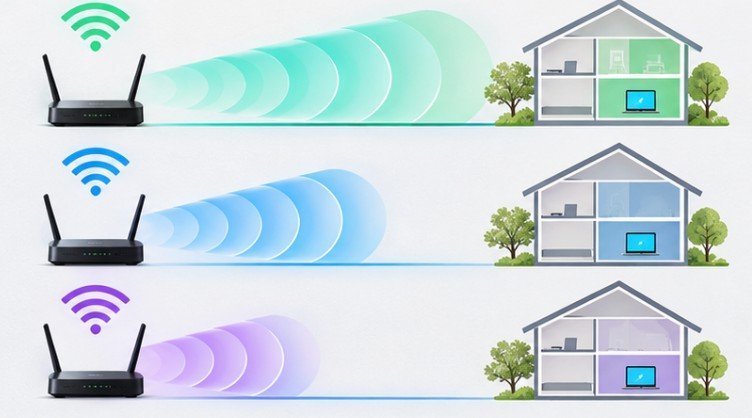
Not all wireless frequencies offer the same combination of range and performance. Modern Wi-Fi equipment may support 2.4 GHz, 5 GHz, and 6 GHz connections.
| Frequency | Main advantage | Main limitation |
| 2.4 GHz | Better range and wall penetration | More interference and congestion |
| 5 GHz | Higher potential speeds and more channel choices | Reduced range through obstacles |
| 6 GHz | More spectrum for compatible devices | Shorter practical coverage and compatibility requirements |
The best frequency depends on the environment. For a laptop close to the router, 5 GHz or 6 GHz may provide better performance. Devices farther away may benefit from 2.4 GHz.
Channel width also matters. Wider channels can increase potential throughput, but they occupy more spectrum and may perform poorly in crowded environments.
5. Network Congestion Reduces Available Bandwidth

Every active Wi-Fi device competes for a share of available wireless airtime. A household may simultaneously operate laptops, smartphones, security cameras, smart televisions, and gaming systems.
During heavy usage, downloads, cloud backups, and high-definition streaming can increase delays. The Internet Engineering Task Force’s RFC 8869 examines wireless network performance and explains how interference, transmission rates, and shared wireless resources influence throughput, packet loss, and delivery delays.
Importantly, the number of connected devices alone does not determine congestion. Their actual traffic and airtime usage matter more.
Pause unnecessary downloads, schedule large backups outside working hours, and enable Quality of Service settings when supported.
6. Router Hardware and Wireless Standards Limit Performance
Even an expensive internet plan cannot overcome every hardware limitation. Older Wi-Fi adapters may support fewer antennas, narrower channels, or less efficient wireless standards than newer equipment.
Technologies such as Wi-Fi 5, Wi-Fi 6, Wi-Fi 6E, and Wi-Fi 7 differ in supported frequencies, efficiency, and potential throughput.
However, upgrading only the router does not automatically give every computer the newest capabilities. Both devices must support compatible features.
Wireless mice and keyboards have their own hardware limitations, including receiver quality, polling rates, and radio design. Just choose the right gadgets for a computer setup.
Before purchasing replacements, compare device specifications, supported protocols, and operating-system compatibility.
7. Battery Levels and Power Management Affect Accessories
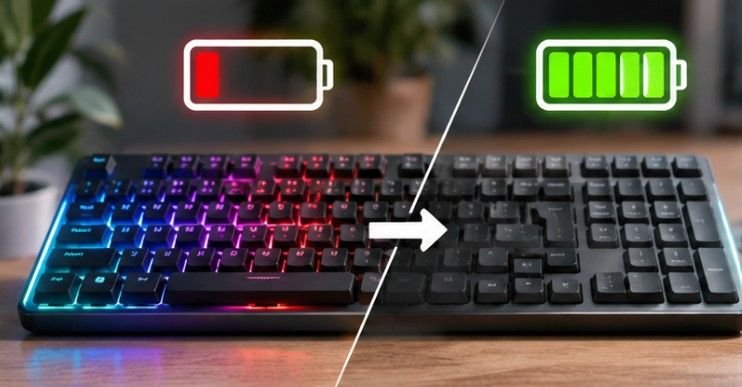
Wireless peripherals depend on consistent electrical power. Low batteries can cause interruptions, although the symptoms vary by device. Some accessories maintain normal operation until their batteries are nearly exhausted.
Aggressive power-saving settings may also temporarily suspend wireless adapters or connected peripherals. For example, a laptop might disconnect a Bluetooth accessory after waking from sleep.
Try fully charging the accessory, replacing disposable batteries, and reviewing relevant power-management settings. Avoid permanently disabling power-saving features unless testing confirms they are responsible.
8. Outdated Drivers and Firmware Cause Connection Issues
Wireless hardware relies on software to manage communication. Outdated network drivers, Bluetooth software, and router firmware may contain compatibility problems or unresolved bugs.
The Federal Trade Commission’s home Wi-Fi guidance recommends checking for router software updates and using appropriate wireless security settings.
For Windows computers, review wireless adapter updates through Windows Update or the hardware manufacturer’s support website.
Mac users should check macOS updates and accessory-specific software. Firmware updates should come from official manufacturers rather than unfamiliar download websites.
9. Latency, Packet Loss, and Retransmissions Create Lag
A wireless connection can have reasonable download speeds yet still feel unresponsive. Three measurements help explain this difference.
Latency measures how long information takes to travel between devices or network endpoints. Packet loss occurs when transmitted information fails to reach its destination. Jitter describes variation in packet delivery times. These problems become particularly noticeable during online gaming, video conferencing, and real-time audio.
Poor wireless conditions can trigger retransmissions, increasing delays and reducing effective throughput. A strong speed-test result therefore does not guarantee smooth performance for latency-sensitive applications.
10. Internet Service and Network Configuration Create Bottlenecks
Sometimes wireless hardware is functioning correctly, but another network component restricts performance. An overloaded router, slow internet subscription, faulty Ethernet cable, or limited mesh-network backhaul can reduce available speeds.
Incorrectly configured network bridges may also cause broadcast loops and severe network disruption. However, simultaneously enabling Wi-Fi and Ethernet on a computer does not automatically create a loop.
For accurate troubleshooting, distinguish between local wireless performance and internet-service limitations. A Bluetooth keyboard problem, for instance, will not be fixed by upgrading an internet subscription.
Frequently Asked Questions
1. What factors affect the performance of wireless computer devices most?
Distance, interference, physical barriers, network congestion, hardware capabilities, and outdated software are major influences. The dominant factor depends on the device and environment.
2. Why is my wireless mouse lagging despite a strong Wi-Fi connection?
Wireless mouse lag can result from receiver interference, low batteries, USB placement, Bluetooth problems, or device drivers. Strong Wi-Fi does not guarantee reliable mouse connectivity.
3. Does 5 GHz Wi-Fi always perform better than 2.4 GHz?
No. The 5 GHz band often provides higher speeds near the router, while 2.4 GHz generally delivers better coverage through walls and over longer distances.
4. Can too many connected devices slow down Wi-Fi?
Yes, particularly when several devices actively transfer large amounts of data. Network congestion increases competition for wireless airtime and can raise latency.
Final Thoughts
Wireless performance is rarely determined by a single specification. A powerful router cannot eliminate thick walls, and a premium headset cannot overcome every source of radio interference.
The most useful improvements often begin with simple changes: relocating receivers, adjusting router placement, reducing competing traffic, and updating device software.
Before replacing equipment, identify whether the problem involves wireless coverage, local peripherals, or the internet connection itself.
A few targeted tests can reveal the real bottleneck and prevent unnecessary spending. Ultimately, reliable wireless performance comes from understanding the surrounding environment as much as the technology inside the device.