
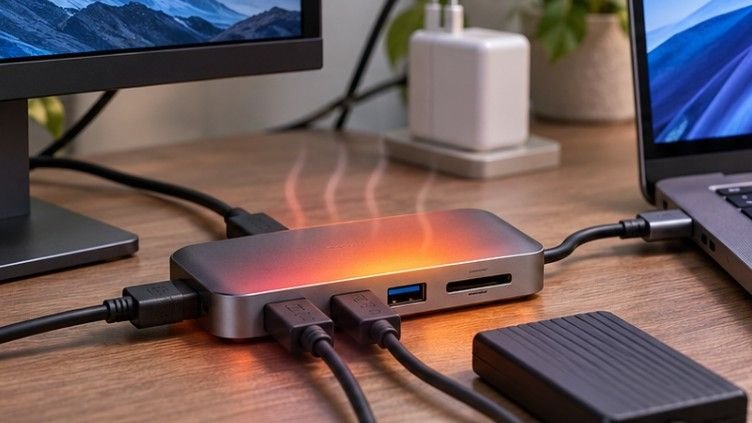
A USB-C hub can become surprisingly hot without having a single moving part. The same happens to external SSDs, charging adapters, wireless receivers, and docking stations after several hours of continuous operation. That heat isn’t always evidence of defective hardware.
So, why do computer accessories overheat during extended use? The main reasons are sustained electrical activity, inefficient power conversion, limited ventilation, and compact designs that struggle to release accumulated heat.
Understanding the difference between normal operating warmth and dangerous overheating can prevent unexpected disconnections, reduced performance, and premature hardware failure.
The Accessories Most Vulnerable to Overheating
Different computer accessories experience distinct thermal challenges. Identifying their underlying causes makes troubleshooting considerably easier.
USB Hubs and Docking Stations
USB hubs become hot when several connected peripherals draw power simultaneously.
Bus-powered hubs are particularly vulnerable to power limitations because they rely on electricity supplied through the computer’s USB connection.
A powered hub with a properly rated external adapter may handle multiple demanding devices more reliably.
The USB Implementers Forum maintains USB Power Delivery specifications that define how compatible equipment negotiates electrical power.
External SSDs and Storage Enclosures
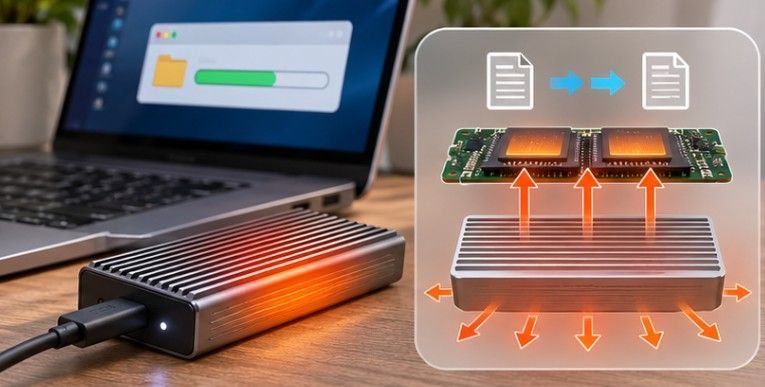
External solid-state drives generate heat during prolonged backups, large file transfers, and video-editing workloads.
NVMe SSDs can be especially demanding because their controllers process substantial amounts of data.
When internal temperatures exceed operating thresholds, some drives reduce performance through thermal throttling.
Poorly installed thermal pads can worsen the problem by preventing effective heat transfer between the drive and its enclosure.
Chargers and Power Adapters
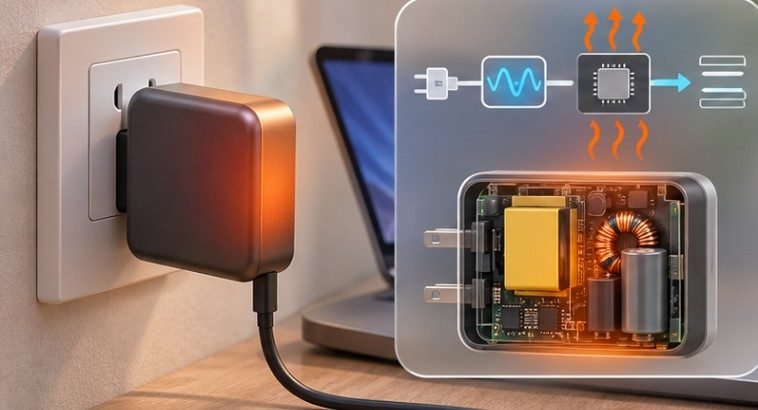
Charging adapters generate heat while converting incoming electricity into the voltage required by connected devices.
Higher charging loads increase thermal demands, although actual heat generation depends on conversion efficiency and design.
UL Research Institutes warns that low-quality and counterfeit chargers may lack adequate protections against overheating and excessive current.
This makes charger quality particularly important for equipment that remains connected throughout the workday.
Wireless Devices and Gaming Accessories
Wireless keyboards, gaming mice, headphones, and controllers contain electronic circuits that consume power during operation.
Their batteries may also generate heat while charging.
Unusual temperature increases, however, deserve attention. Wireless accessories operating normally should not become painfully hot or develop swelling, unusual odors, or visible damage.
Environmental Conditions That Make Overheating Worse
Sometimes the accessory isn’t the primary problem. Its surroundings prevent heat from escaping efficiently.
Poor Ventilation and Enclosed Workspaces
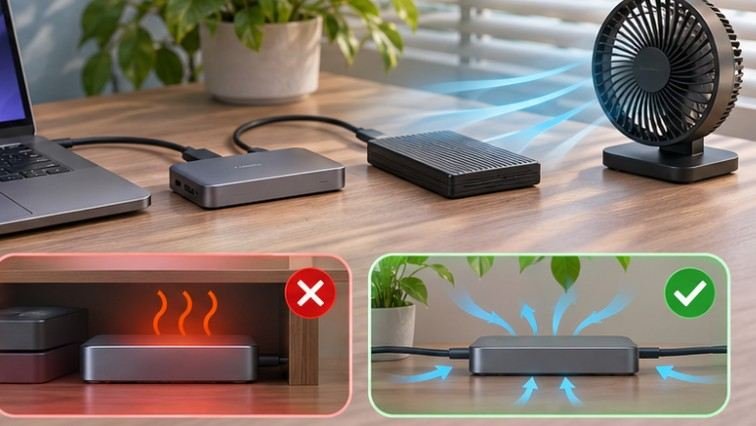
A docking station placed behind a monitor, beneath paperwork, or inside a crowded desk organizer may retain more heat than one resting on an open surface.
Air movement helps remove heat from electronic housings. Restricting airflow weakens that cooling process.
Keep heat-producing accessories separated and avoid covering their ventilation openings.
High Room Temperatures
Computer equipment relies partly on the temperature difference between its components and surrounding air to release heat.
An accessory operating in a cool, air-conditioned office generally has better cooling conditions than the same device sitting in direct sunlight.
This difference becomes especially important during extended gaming, content creation, or overnight data transfers.
Damaged Connections and Aging Components
Loose connectors, worn cables, contaminated contacts, and failing cooling fans can contribute to abnormal heating.
Electrical resistance at a damaged connection can create localized hot spots.
The National Fire Protection Association provides electrical safety guidance addressing defective cords, overheating hazards, and safe equipment use.
Never ignore melted connectors, discoloration, or burning smells.
How to Tell Normal Warmth From Dangerous Overheating
Not every warm accessory needs replacing. The most useful distinction is whether its temperature is accompanied by abnormal behavior.
| Observation | What it may indicate | Recommended action |
| Mild warmth during operation | Normal electrical losses | Continue monitoring |
| Hot housing during lengthy transfers | Heavy workload or passive cooling | Improve airflow and check specifications |
| Repeated USB disconnections | Power, connection, or thermal problem | Isolate connected devices |
| Slower SSD transfers after sustained activity | Possible thermal throttling | Check drive temperature and cooling |
| Burning smell, smoke, or deformation | Potential electrical failure | Stop using immediately |
Surface temperature alone cannot reliably establish whether an accessory is operating safely. Manufacturer limits, internal temperatures, and operating behavior matter more.
A Five-Step Test to Find the Actual Problem
Before replacing an overheating accessory, follow this practical diagnostic process.
- Reduce the workload. Disconnect unnecessary peripherals and pause intensive transfers. Observe whether the accessory becomes cooler.
- Improve its placement. Move the device onto a hard, open surface away from sunlight and nearby heat sources.
- Inspect cables and connectors. Check for visible damage, discoloration, loose fittings, or unusual warmth around connection points. Disconnect power before inspection.
- Verify power requirements. Compare the accessory’s rated input and output specifications with its charger, hub, or computer port.
- Repeat a controlled test. Reconnect devices individually and observe when unusual temperatures, slowdowns, or disconnections begin.
Avoid repeating tests if the equipment shows signs of electrical damage.
A Simple Power-Loss Calculation
Consider a hypothetical adapter delivering 60 watts at 90% efficiency.
Its approximate input is:
60 ÷ 0.90 = 66.7 watts
The difference, approximately 6.7 watts, represents conversion losses that ultimately become heat.
The example demonstrates why even an efficient charger can become warm during continuous use. Actual losses depend on the specific adapter and operating load.
Practical Ways to Keep Computer Accessories Cooler
Preventing overheating usually requires better equipment placement, sensible power distribution, and appropriate accessory selection.
Start by reducing unnecessary electrical demand. Disconnect unused external drives, avoid overloading unpowered hubs, and use power adapters that meet manufacturer requirements.
For storage devices, choose enclosures with effective thermal contact and adequate heat dissipation. For demanding desktop setups, prioritize docking stations with suitable power ratings and documented thermal protections.
Keep accessories away from carpets, bedding, direct sunlight, and enclosed spaces that restrict cooling.
Clean accessible ventilation openings periodically, but never open sealed power adapters or attempt internal electrical repairs.
When buying replacements, check manufacturer specifications, warranty support, compatibility, and credible third-party safety certifications.
Finally, remember that frequent disconnections are not always caused by overheating. Faulty drivers, incompatible cables, insufficient USB power, and damaged ports can produce similar symptoms.
Frequently Asked Questions
1. Why do computer accessories overheat during extended use even without heavy workloads?
Internal electronics continuously consume power and produce heat. Limited ventilation, warm surroundings, inefficient circuitry, or defective components can raise temperatures even during relatively light activity.
2. Can overheating permanently damage a USB hub?
Yes. Excessive temperatures can degrade electronic components, damage connectors, or trigger protective shutdowns. Repeated disconnections accompanied by abnormal heat justify further inspection or replacement.
3. Is it normal for an external SSD to become hot?
Some warmth is normal during sustained transfers. However, repeated performance drops, unexpected disconnections, or temperatures exceeding manufacturer limits may indicate inadequate cooling.
4. Will a cooling fan prevent accessory overheating?
Additional airflow can help remove heat, particularly from passively cooled equipment. It cannot correct damaged wiring, unsuitable power supplies, or defective electronic components.
Heat Is a Warning Worth Understanding
Computer accessories are expected to produce some heat, particularly during demanding, uninterrupted workloads. The real concern begins when thermal buildup affects performance, damages components, or creates electrical hazards.
The most effective approach isn’t complicated: maintain airflow, distribute power responsibly, inspect connections, and select equipment designed for your workload.
A warm docking station may be operating exactly as intended, while a small connector with localized overheating may indicate a serious problem.
Pay attention to changes in temperature and behavior rather than warmth alone. Recognizing those differences helps protect your equipment and maintain a safer, more reliable computer setup.