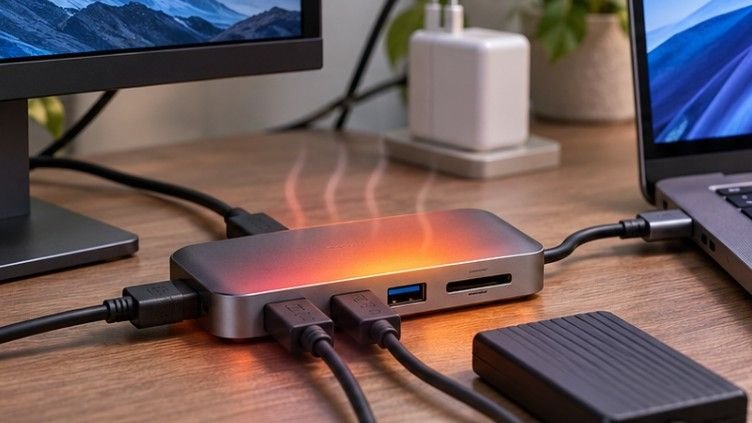
A computer accessory can become unreliable long before its components actually wear out. Dust-blocked vents, damaged charging cables, excessive heat, and neglected software updates often contribute to problems that could have been prevented.
Learning how to maintain computer gadgets for long term use means understanding which everyday habits protect your equipment and which ones quietly shorten its lifespan.
With consistent maintenance, many laptops, monitors, keyboards, and other computer accessories can remain useful for several years. The goal isn’t to keep every gadget looking brand-new. It’s to prevent avoidable damage, maintain reliable performance, and postpone expensive replacements.
Keep Computer Gadgets Clean Without Damaging Them
Use the Right Cleaning Materials
Computer accessories collect fingerprints, skin oils, crumbs, and airborne particles through normal use. However, aggressive cleaning can cause more damage than the dirt itself.
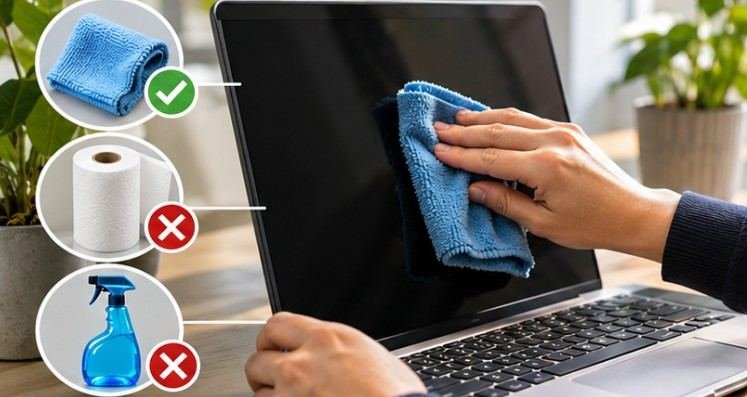
A microfiber cloth is suitable for most displays and exterior surfaces. For stubborn marks, slightly dampen the cloth with water or a manufacturer-approved screen cleaner.
For compatible hard-plastic surfaces, a cloth lightly moistened with approximately 70% isopropyl alcohol may help remove grime. Always check the manufacturer’s cleaning instructions first.
Avoid spraying liquids directly onto electronics, using abrasive paper towels, or allowing moisture to enter openings.
Remove Dust Before It Restricts Airflow
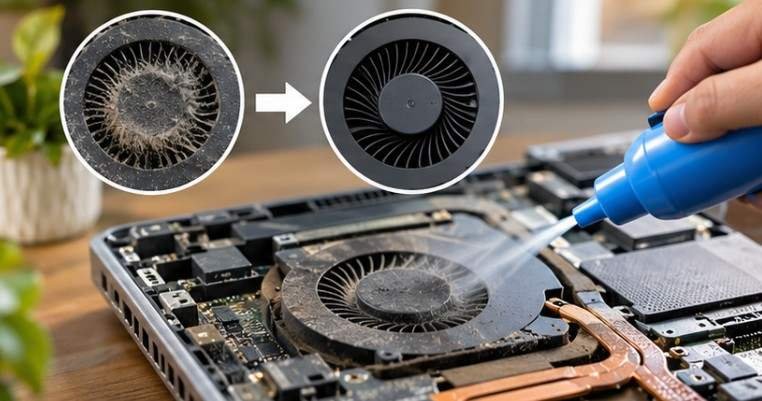
Dust buildup becomes particularly problematic in desktop computers, laptops, and gaming equipment.
Blocked ventilation openings make cooling systems less effective. When internal temperatures rise, processors may reduce their operating speeds to protect themselves.
Disconnect devices from power before cleaning.
Use a soft brush or carefully directed compressed air to remove dust from accessible vents. Keep aerosol cans upright, and avoid forcing debris deeper into openings.
Inspect heavily used equipment every few months, especially in homes with pets or carpeting.
Professional cleaning may be preferable when internal components are difficult to access.
Control Heat to Protect Sensitive Components
Heat management is one of the most important aspects of how to maintain computer gadgets for long term use.
Electronic components generate heat during operation, but insufficient cooling can accelerate wear and cause performance problems.
Improve Your Workspace Ventilation
Place laptops on solid surfaces that allow their cooling vents to function properly.
Beds, cushions, and thick blankets can obstruct ventilation. Desktop towers also need adequate clearance around their air intake and exhaust areas.
Avoid positioning computers beside heating vents or in direct afternoon sunlight.
For gaming laptops and high-performance systems, a ventilated stand may improve airflow when the equipment’s design allows it.
Recognize Early Overheating Symptoms
Warning signs include unusually loud fans, unexpected shutdowns, noticeable performance drops, or excessive surface temperatures.
If these symptoms appear, inspect ventilation openings and review system temperatures using reputable monitoring software.
Thermal paste replacement may help aging computers with verified cooling problems, but it should not be treated as automatic maintenance every few years.
Opening sealed hardware unnecessarily can damage components or affect warranty coverage.
Never disassemble a computer power supply. Its internal capacitors can retain dangerous electrical charges even after unplugging.
Make Batteries Last Longer With Smarter Charging Habits
Rechargeable batteries naturally lose capacity over time. Their lifespan depends on temperature, charging behavior, battery chemistry, and usage.
Avoid Excessive Heat and Deep Discharge
Lithium-ion batteries generally benefit from moderate operating temperatures and avoiding prolonged periods at extremely low charge levels.
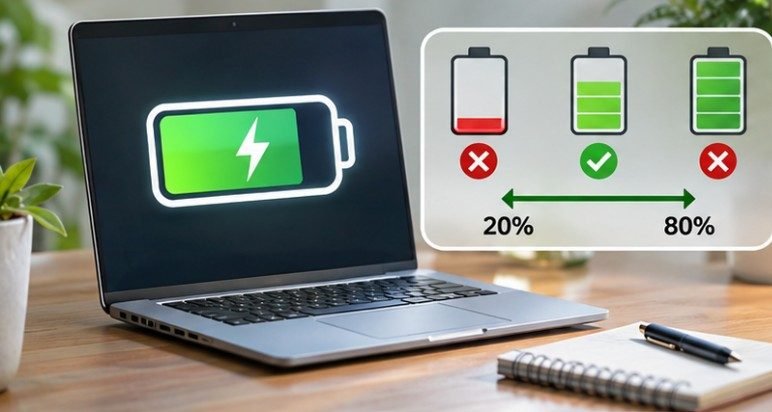
Keeping battery levels around 20% to 80% when convenient can reduce charging-related stress, although this is not a strict requirement.
The University of California, Santa Barbara recommends practical battery-preservation habits, including appropriate charge levels when storing unused equipment.
If your laptop supports battery charge limits or optimized charging, enabling them can be useful for desk-based work.
Choose Safe Charging Equipment
Use manufacturer-approved or reputable chargers that meet your device’s electrical specifications.
Inspect cables for exposed wiring, bent connectors, and damaged insulation.
The University of Illinois battery safety guidance emphasizes following manufacturer charging instructions and watching for abnormal swelling, overheating, or unusual odors.
Stop using any battery that shows these warning signs and arrange appropriate professional assistance.
For desktop computers and monitors, a properly rated surge protector provides another layer of protection against certain electrical disturbances. A UPS can also provide temporary backup power during outages.
Maintain Software as Carefully as Hardware
A perfectly clean computer can still become slow or insecure when its operating system and applications are neglected.
Software maintenance protects both performance and personal information.
Install Important Updates
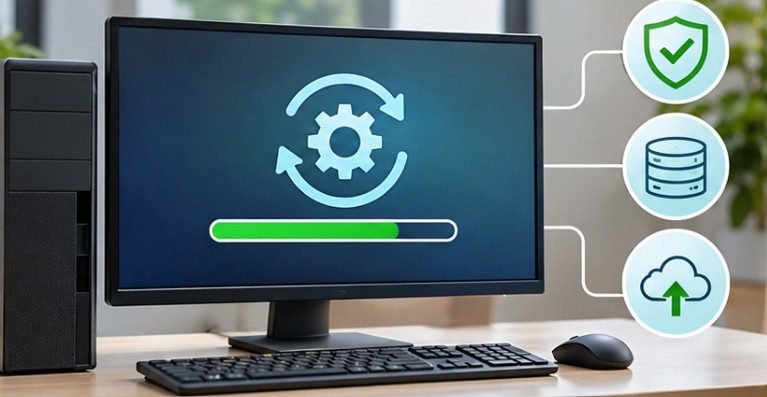
Keep operating systems, browsers, security tools, and supported drivers current. Updates frequently address security vulnerabilities, stability problems, and compatibility issues.
The Federal Trade Commission recommends installing software updates promptly because they can contain protections against emerging security threats.
Enable automatic security updates whenever practical. For firmware updates, follow official manufacturer instructions and avoid interrupting the installation process.
Prevent Storage and Startup Problems
Computers with nearly full storage drives may struggle with updates, temporary files, and everyday operations.
Keeping approximately 10% to 20% of storage available is a useful maintenance target, although exact requirements vary by system.
Review installed applications, remove unnecessary startup programs, and delete temporary files using built-in operating system utilities.
Avoid aggressive registry cleaners or unknown optimization software promising dramatic performance improvements.
These utilities sometimes create additional problems without addressing the underlying cause.
Protect Accessories From Everyday Physical Damage
Computer accessories require different forms of protection depending on how they are used.
Keyboards benefit from regular debris removal and protection against liquid spills.
Wireless mice need clean sensors, functional batteries, and unobstructed tracking surfaces.
Headsets should be stored without sharply bending their cables, while external drives should be disconnected safely before transportation.
Monitors require stable positioning and careful screen cleaning.
For portable equipment, use padded carrying cases and avoid placing heavy objects against delicate displays.
Cable management also matters. Loose cables can snag, bend connectors, or pull equipment off desks.
A simple cable organizer can prevent repeated strain on expensive charging and data ports.
Follow a Practical Computer Gadget Maintenance Schedule
Instead of waiting for something to malfunction, establish a predictable inspection routine.
Weekly: Five-Minute Equipment Check
- Wipe frequently touched surfaces with suitable cleaning materials.
- Inspect cables and charging connectors for visible damage.
- Confirm that ventilation openings remain unobstructed.
- Check whether important software updates are pending.
Monthly: Performance and Protection Review
- Remove unnecessary applications and temporary files.
- Inspect battery condition and charging behavior.
- Confirm that backup systems are operating correctly.
- Check wireless accessories for connection problems.
Every Three to Six Months: Deeper Inspection
- Inspect cooling vents and accessible fans for dust buildup.
- Examine frequently used ports for looseness or damage.
- Review storage health and unusual system temperatures.
- Check whether protective equipment needs replacement.
These intervals are practical starting points rather than universal manufacturer requirements.
Know When Repair Is Better Than Replacement
Not every performance problem means a computer has reached the end of its useful life. A failing battery, damaged cable, worn keyboard, or insufficient storage may be repairable at considerably less cost than replacing an entire system.
Before purchasing new equipment, compare repair costs with replacement prices, remaining software support, and expected future usability.
The US Department of Energy also highlights the value of computer power-management features for reducing electricity consumption.
Using sleep settings appropriately can improve everyday operating efficiency without requiring new hardware.
For older computers, installing additional memory or replacing a mechanical hard drive with an SSD may offer meaningful improvements when compatible.
Frequently Asked Questions
How often should computer accessories be cleaned?
Frequently handled accessories can be wiped weekly. Inspect vents and difficult-to-reach areas every few months, adjusting the schedule for dust, pets, and usage.
What is the best way to prevent laptop overheating?
Keep ventilation openings clear, use a firm supporting surface, remove accessible dust, and investigate unusually high temperatures or persistent fan noise.
Can leaving a laptop plugged in damage its battery?
Modern laptops regulate charging, but prolonged heat exposure and high charge levels can contribute to battery aging. Manufacturer-supported charging limits may help.
How can I tell whether a computer gadget needs replacing?
Look for persistent failures, unsafe battery conditions, unavailable security updates, or repair costs approaching replacement costs.
Small Maintenance Habits Create Years of Value
Knowing how to maintain computer gadgets for long term use is less about complicated repairs and more about preventing ordinary problems from becoming expensive failures.
A clean keyboard, unobstructed cooling vent, healthy battery, and updated operating system may seem like small details, but together they support reliable everyday performance.
I recommend beginning with a simple inspection of the devices you use most frequently. Check their cables, clean accessible surfaces, review battery settings, and confirm your important files are backed up.
The most effective maintenance routine is one you can repeat consistently, long before something stops working.