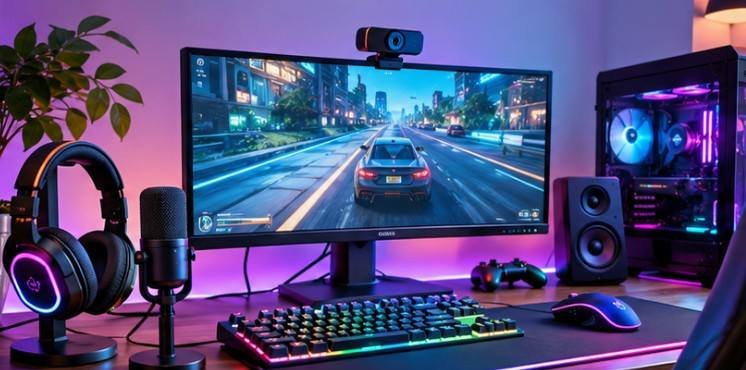
An expensive gaming accessory can actually make your setup worse if it doesn’t match your computer’s hardware. A 240Hz monitor may never reach its advertised refresh rate with the wrong connection, while an advanced gaming headset could lose features because of incompatible software.
Understanding how to choose compatible accessories for a gaming pc helps you avoid these frustrating purchases.
I’ve found that successful gaming setups depend less on buying premium equipment and more on matching the right peripherals to the right system.
Before spending money, examine your PC’s available ports, graphics capabilities, operating system, wireless connections, and physical workspace.
Start With Your Gaming PC’s Connection Options
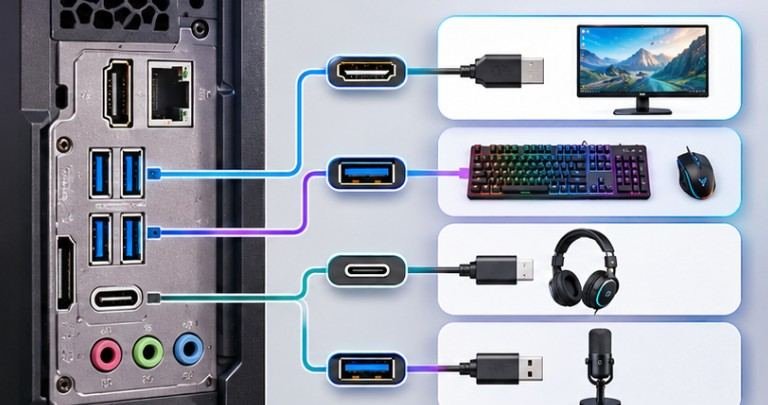
Before comparing accessories, inspect the ports available on your motherboard, graphics card, and computer case.
Understand USB-A, USB-C, and Data Speeds
USB-A remains common for gaming keyboards, mice, controllers, and wireless receivers.
USB-C supports many modern accessories, including microphones, external storage drives, and docking stations.
However, USB-C describes a connector shape, not a guaranteed performance level.
The USB Implementers Forum explains that USB cables have different data-transfer and power capabilities, even when their connectors look identical. A USB-C connection therefore doesn’t automatically guarantee fast file transfers, video output, or sufficient charging power.
For demanding accessories such as external SSDs and capture cards, verify the supported USB speed and power requirements.
Check Your Available Port Count
Imagine connecting a keyboard, gaming mouse, microphone, webcam, wireless headset receiver, and external drive.
That’s six accessories potentially competing for connections.
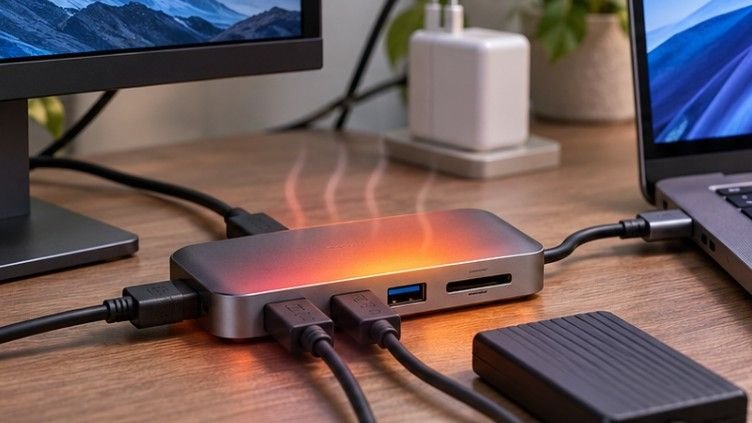
A powered USB hub can provide additional ports, but devices still share its upstream bandwidth. High-bandwidth capture cards and storage drives may perform better through dedicated motherboard connections.
Also remember that front-panel USB ports may offer different capabilities from rear motherboard ports.
Match Your Gaming Monitor to Your Graphics Card
A monitor represents one of the most significant gaming accessory investments.
However, buying the highest refresh rate available doesn’t guarantee smoother gameplay.
Balance Resolution and Refresh Rate
Resolution determines the number of pixels displayed, while refresh rate describes how frequently the monitor updates its image.
A 144Hz screen can display up to 144 distinct frames per second, but your computer must generate enough frames to take advantage of that capability.
| Gaming preference | Suggested starting point |
| Competitive esports | 1080p, 144–240Hz |
| Balanced PC gaming | 1440p, 144–180Hz |
| Cinematic single-player games | 4K, 60–144Hz |
| Mixed gaming and productivity | 1440p, 100–165Hz |
These ranges are starting points, not universal requirements. Your GPU, preferred games, and budget should determine the final choice.
Confirm HDMI and DisplayPort Support
Both the graphics card and monitor must support the desired resolution, refresh rate, and display features.
According to the Video Electronics Standards Association, newer DisplayPort generations provide greater video bandwidth for demanding resolutions and refresh rates. Check the actual capabilities of the ports and cables rather than relying solely on version numbers.
Adaptive synchronization, HDR support, and color depth also deserve attention.
For competitive gaming, prioritize consistent frame delivery and response performance. For immersive titles, an OLED display may offer stronger contrast, although burn-in considerations remain relevant.
Choose Gaming Mice and Keyboards That Fit Your Playstyle
Compatibility extends beyond technical specifications.
An uncomfortable mouse can undermine your gaming experience even when its sensor performs flawlessly.
Gaming Mouse Compatibility
Check whether the mouse supports your operating system and preferred connection method.
Wired mice offer straightforward connectivity without battery management.
Modern 2.4GHz wireless gaming mice can also deliver excellent responsiveness, provided their receivers remain within reliable range.
Consider grip style, mouse weight, button placement, and sensor tracking.
Extremely high polling rates aren’t essential for every gamer and may increase processing overhead or battery consumption.
Mechanical Keyboard Compatibility
Keyboard layouts influence both comfort and available desk space. Full-size keyboards include a number pad, tenkeyless models remove it, and 60% layouts eliminate several dedicated navigation keys.
Switch selection matters too. Linear switches offer smooth movement, tactile switches provide noticeable feedback, and clicky switches produce audible feedback.
For programmable keyboards, confirm that customization software supports your version of Windows and whether settings can be stored directly on the device.
Wired or Wireless Gaming Accessories: Which Works Better?
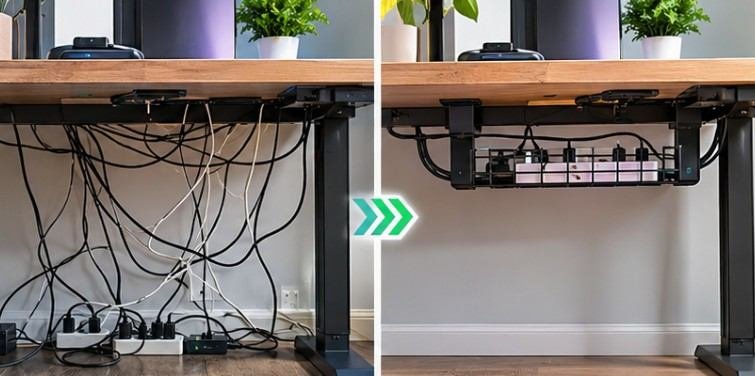
Neither connection method is automatically superior.
Wired accessories generally avoid charging interruptions, while wireless devices reduce cable clutter and improve positioning flexibility.
Bluetooth works well for many controllers, keyboards, and secondary accessories. Dedicated 2.4GHz gaming receivers are often preferable for latency-sensitive peripherals, depending on device implementation.
The Bluetooth Special Interest Group explains that Bluetooth and Wi-Fi share the 2.4GHz frequency band, creating opportunities for interference.
If a wireless mouse stutters, try moving its receiver away from crowded USB ports or using a short extension cable.
Always confirm whether a wireless accessory requires its proprietary receiver or supports ordinary Bluetooth pairing.
Don’t Overlook Gaming Headsets, Microphones, and Controllers
Audio accessories can introduce unexpected compatibility problems.
A wired headset using a 3.5mm connector may require separate microphone and headphone connections, depending on the PC.
USB headsets generally include their own audio processing hardware.
High-impedance headphones may benefit from a dedicated amplifier, while USB microphones connect directly without requiring an external audio interface.
XLR microphones, by contrast, usually require an audio interface or mixer.
Controller compatibility also varies. Some games recognize Xbox-style controllers automatically, while others require configuration through game launchers or controller-mapping software.
Before purchasing, confirm supported operating systems, input standards, and game compatibility.
Measure Your Desk Before Ordering Accessories
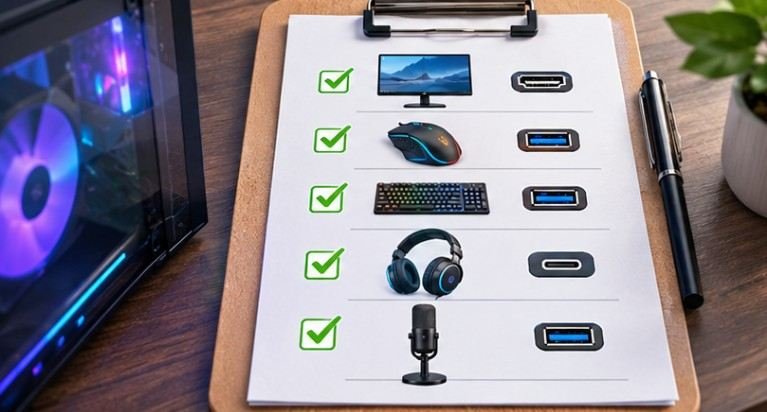
Even technically compatible accessories can create practical problems when they don’t physically fit.
Monitor arms require adequate desk clearance and a suitable mounting surface to maintain computer gadgets for long term use.
Microphone boom arms need sufficient space for clamps and movement, while large mousepads can interfere with keyboard placement.
The Occupational Safety and Health Administration recommends evaluating workspace dimensions, equipment placement, and cable length when purchasing computer accessories.
For improved comfort, position your primary monitor near eye level and keep frequently used equipment within comfortable reach.
Also verify VESA mounting dimensions and monitor weight before purchasing an arm.
A Five-Step Compatibility Test Before Buying
Learning how to choose compatible accessories for a gaming pc becomes considerably easier with a repeatable purchasing process.
Step 1: Identify your hardware. Record your graphics card, motherboard model, operating system, available connections, and monitor specifications.
Step 2: Read the manufacturer’s requirements. Check supported operating systems, required ports, power demands, and software dependencies.
Step 3: Verify the complete connection path. Confirm that your computer port, cable, adapter, and accessory support the same required capabilities.
Step 4: Measure the physical setup. Check desk depth, cable reach, mounting compatibility, and available clearance.
Step 5: Review warranty and return conditions. Test accessories promptly after delivery rather than assuming advertised compatibility guarantees every feature.
The Federal Trade Commission advises checking seller return policies, refund conditions, and return-shipping costs before purchasing online.
For US buyers, this is particularly important when ordering expensive electronics from third-party marketplace sellers.
Frequently Asked Questions
1. Can any gaming keyboard work with any PC?
Most standard USB keyboards work with Windows gaming PCs. However, advanced lighting, macros, and proprietary features may require compatible manufacturer software.
2. Do gaming accessories affect FPS?
Most accessories don’t directly increase FPS. Monitor settings, unusually high mouse polling rates, and demanding background software can influence performance under certain conditions.
3. Is Bluetooth good enough for competitive gaming?
Bluetooth can work, but dedicated low-latency wireless receivers or wired connections are generally more predictable for competitive gaming.
4. How can I check accessory compatibility without buying it?
Compare the manufacturer’s system requirements with your PC specifications, examine port capabilities, and review verified customer experiences involving similar hardware.
Build a Setup That Works Together
The smartest gaming setup isn’t necessarily the most expensive one. It’s the setup where every component delivers the features you actually need.
Understanding how to choose compatible accessories for a gaming pc allows you to avoid unnecessary adapters, disappointing display performance, uncomfortable equipment, and software conflicts.
Before making your next purchase, check the connection specifications, confirm operating system support, and measure your available workspace.
Prioritize reliable performance over impressive marketing numbers, especially when comparing high-refresh-rate monitors and wireless peripherals.
A carefully selected $50 accessory can improve your gaming experience more than a $200 upgrade that doesn’t suit your system.