A laptop doesn’t need a faster processor or more memory to become significantly more useful. Sometimes, a second monitor, a docking station, or an external SSD can solve everyday frustrations without requiring a new computer.
Understanding how to improve laptop functionality with external accessories starts with recognizing which limitations affect your work. From restricted connectivity and uncomfortable typing positions to insufficient storage and overheating, carefully selected accessories can turn an ordinary laptop into a more capable workstation.
The key is choosing upgrades that address actual problems rather than collecting gadgets that add little practical value.
Expand Connectivity With USB-C Hubs and Docking Stations
Turn One Port Into a Complete Workstation
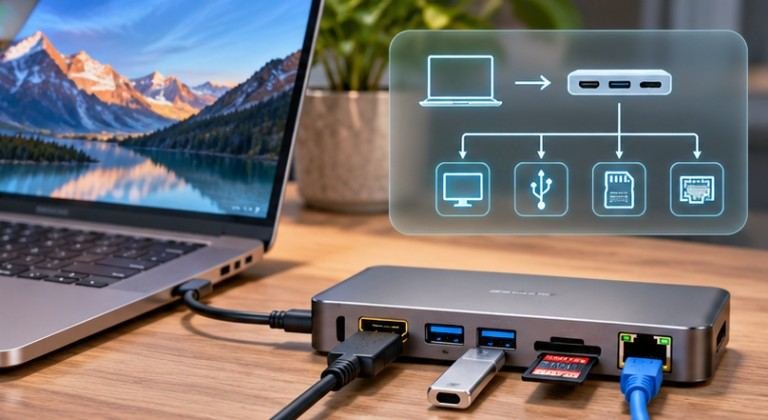
One of the simplest laptop improvements involves connecting a USB-C hub or docking station. A multiport adapter can provide additional USB connections, HDMI output, Ethernet networking, and SD card access.
Docking stations go further by connecting multiple peripherals through one cable, potentially including external displays, audio equipment, storage devices, and power delivery. This makes docking particularly useful for employees alternating between home offices and shared workplaces.
Before purchasing, verify that your laptop supports the dock’s required video protocols, charging wattage, and data transfer capabilities.
The USB Implementers Forum explains that USB cables have different certified performance and power ratings. A USB-C connector alone does not guarantee support for every feature.
Choose the Right Connection Standard
USB-C describes a connector shape, not a guaranteed speed. USB4 and Thunderbolt connections can support higher-bandwidth accessories, although actual capabilities depend on the laptop, cable, and device.
A basic USB hub is generally sufficient for keyboards and printers. Multiple high-resolution monitors or fast external drives may justify a more capable dock.
Also check macOS or Windows display limitations before assuming a docking station will support several independent screens.
Add External Monitors for Better Multitasking
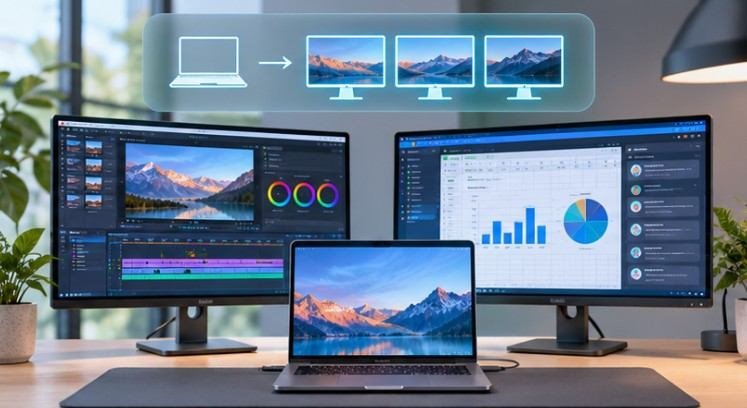
A second display is particularly valuable when work requires switching between documents, browser windows, spreadsheets, and communication tools.
Instead of constantly minimizing applications, users can position related information side by side.
A 24-inch or 27-inch desktop monitor suits many permanent workstations. Portable USB-C displays are convenient for travel, provided the laptop supports their connection requirements.
Refresh rate matters for gaming, while resolution, panel quality, and color accuracy deserve greater attention for design work.
The Occupational Safety and Health Administration recommends positioning monitors appropriately and maintaining sufficient space for keyboards and pointing devices.
An external screen improves usability most when its placement supports comfortable viewing rather than forcing awkward neck movements.
Improve Storage and File Management With External SSDs
Limited internal storage can interrupt productivity, especially when working with videos, creative projects, or large software installations.
External solid-state drives provide additional storage without opening the laptop.
Compared with traditional external hard drives, SSDs typically offer faster access, greater resistance to mechanical shocks, and smaller physical designs.
For demanding workflows, choose an SSD that matches the laptop’s supported USB or Thunderbolt bandwidth.
A fast drive connected through a slow port cannot achieve its advertised maximum transfer speed.
External storage also helps separate project files from the operating system. However, moving files to another drive does not automatically improve CPU performance.
For important documents, maintain independent backups rather than treating one portable drive as permanent protection.
Make Long Working Sessions More Comfortable
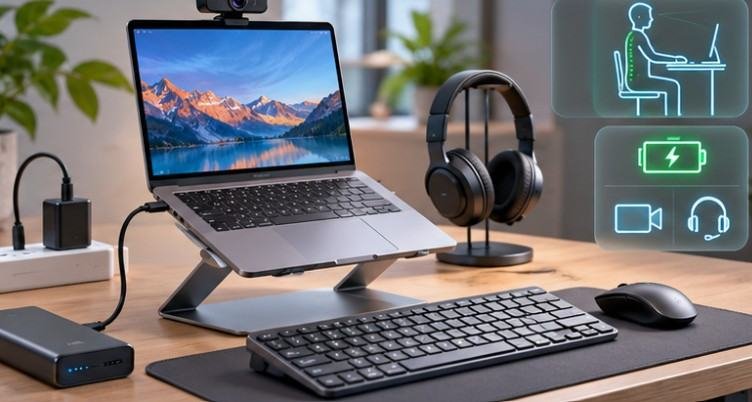
Laptop Stands, Keyboards, and Ergonomic Mice
Laptop screens and keyboards are physically connected, making ideal positioning difficult during prolonged work.
Raising the screen can improve viewing height but may leave the built-in keyboard uncomfortable to reach.
The solution is combining a stable laptop stand with a separate keyboard and mouse.
The University of Pennsylvania’s Environmental Health and Radiation Safety department recommends standalone input devices for office laptop use.
Mechanical keyboards offer customizable typing feedback, while compact wireless keyboards reduce desk clutter. Ergonomic mice may improve comfort when appropriately matched to hand size and working habits.
Accessories cannot eliminate repetitive strain by themselves. Regular movement, appropriate desk height, and comfortable positioning remain essential.
Keep Performance Stable With Better Cooling
Heavy workloads generate heat that must escape through the laptop’s cooling system.
Gaming, video rendering, and demanding software can raise internal temperatures. When thermal limits are reached, some laptops reduce operating speeds to protect components.
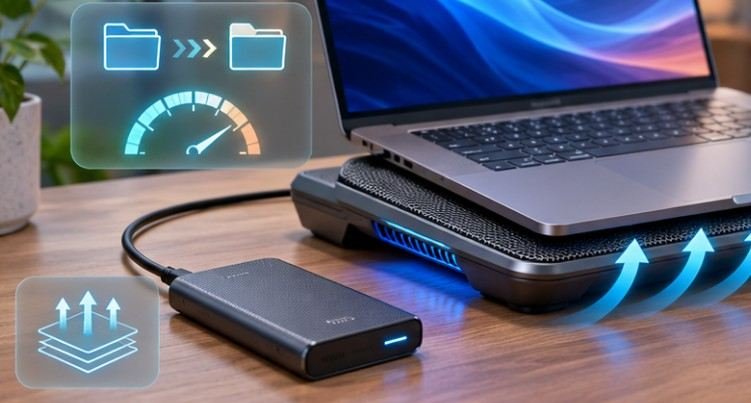
An elevated stand may improve airflow when it keeps ventilation openings unobstructed.
Active cooling pads use additional fans, although their effectiveness varies according to the laptop’s vent placement and cooling design.
Before buying one, clean accessible ventilation openings, check background processes, and avoid placing the computer on soft bedding.
A cooling accessory cannot repair failing fans, deteriorated thermal components, or serious internal hardware problems.
Upgrade Video Calls, Audio, and Creative Work
Built-in webcams and microphones are convenient but may struggle with poor lighting, background noise, or specialized recording requirements.
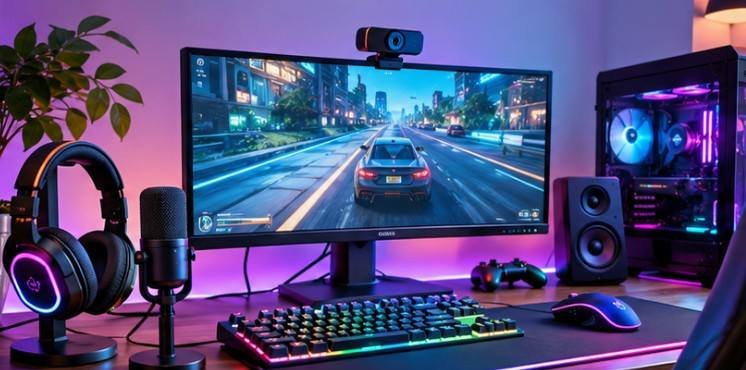
External webcams can offer improved optics, framing, and image controls. USB microphones provide more flexible placement for presentations, podcasts, and online meetings.
Noise-isolating headsets are useful in shared spaces, while dedicated speakers or audio interfaces support entertainment and creative production.
For specialized work, graphics tablets, external capture devices, and card readers can extend a laptop’s professional capabilities.
External GPUs are another option, but they require compatible high-bandwidth connections and appropriate software support. They can be expensive, and performance may be limited by the interface or laptop processor.
Extend Battery Flexibility With External Power Accessories
USB-C Power Delivery chargers and compatible power banks help laptop users work away from electrical outlets. The most important specification is charging wattage.
For example, a laptop designed around a 65-watt adapter may charge slowly or discharge under heavy workloads when connected to a lower-output power bank.
Check both the charger’s total wattage and its output per port.
Battery capacity also matters. A 20,000mAh power bank rated at a nominal 3.7 volts stores approximately 74 watt-hours before conversion losses. Actual usable energy will be lower.
For energy-conscious workstations, the US Department of Energy notes that external monitors and docking stations can increase electricity consumption. Enable sleep settings and disconnect unnecessary accessories when appropriate.
Mistakes That Can Make External Upgrades Disappointing
Buying accessories without checking hardware limitations often leads to compatibility problems.
A high-refresh-rate monitor may operate below its advertised capabilities if the laptop’s output cannot support the required resolution and refresh rate.
Similarly, an expensive external SSD offers limited benefits when connected through a low-speed USB interface.
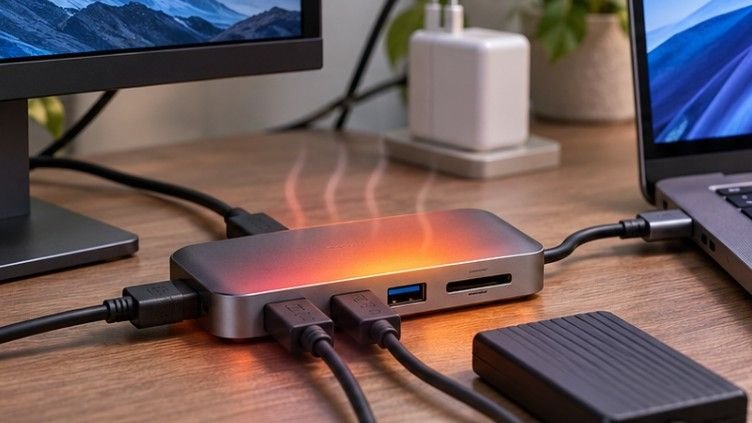
Overloading an unpowered USB hub can cause intermittent disconnections, while poorly ventilated docks may become excessively warm.
Avoid assuming that accessories always increase computing performance. Additional RAM, internal storage replacement, or eventually a newer laptop may be necessary when the underlying hardware is insufficient.
Frequently Asked Questions
1. What external accessory improves laptop productivity the most?
An external monitor often delivers substantial multitasking benefits. However, a docking station may be more valuable for users who regularly connect numerous peripherals.
2. Can external accessories make an old laptop faster?
External SSDs may improve file-related workflows, and cooling improvements can sometimes reduce thermal throttling. Accessories cannot directly upgrade an aging processor or insufficient internal RAM.
3. Are docking stations compatible with every laptop?
No. Compatibility depends on available connections, operating system support, video output standards, and charging requirements. Always review manufacturer specifications.
4. How to improve laptop functionality with external accessories on a budget?
Start with a laptop stand, external keyboard, mouse, or basic USB hub. Prioritize whichever accessory removes the most frequent obstacle in your daily workflow.
Make Your Laptop Work Smarter, Not Harder
A laptop’s usefulness depends on more than its processor, memory, or original purchase price. The right accessories can transform how comfortably, efficiently, and reliably it supports everyday tasks.
I would prioritize upgrades that solve recurring frustrations before investing in expensive equipment. A well-positioned monitor, reliable dock, or external storage drive often delivers more noticeable practical value than a collection of unnecessary gadgets.
Start by identifying one limitation that interrupts your workflow. Choose an accessory that directly addresses it, confirm compatibility, and measure the improvement. The smartest laptop upgrade is often the one that makes existing hardware easier to use.