Staring at a glowing IDE at 2:00 AM with throbbing temples and blurry syntax is a rite of passage nobody actually wants. Two years ago, a three-week production sprint left me with daily ocular migraines and dry, bloodshot eyes every morning. Learning how to prevent digital eye strain during late night coding sessions required ditching conventional “dark mode” myths and rebuilding my lighting, display calibration, and workstation habits from scratch.
Most advice tells you to buy expensive blue-light glasses and call it a day. That approach failed me completely because glasses do not fix extreme contrast ratios or locked ciliary muscles.
Why Late-Night Debugging Wrecks Your Vision Faster Than Daytime Work
Your eyes work twice as hard after sunset. When you sit in a dark room facing a bright monitor, your pupils dilate to gather ambient light while your fovea constricts to process high-contrast text. This constant tug-of-war exhausts your intraocular muscles within ninety minutes.
At the same time, deep concentration cuts your involuntary blink rate in half. According to the National Eye Institute, healthy eyes blink roughly 15 times per minute to spread fresh tears across the cornea. During intense debugging, I clocked myself blinking fewer than five times a minute, leaving my tear film to evaporate against warm monitor air.
Fix Your Room and Monitor Lighting Before Touching Code
Software tweaks cannot rescue a poorly lit room. Before changing a single line in your editor config, balance the luminance between your display and the wall behind it.
Ditch the Pitch-Black Room for 6500K Bias Lighting
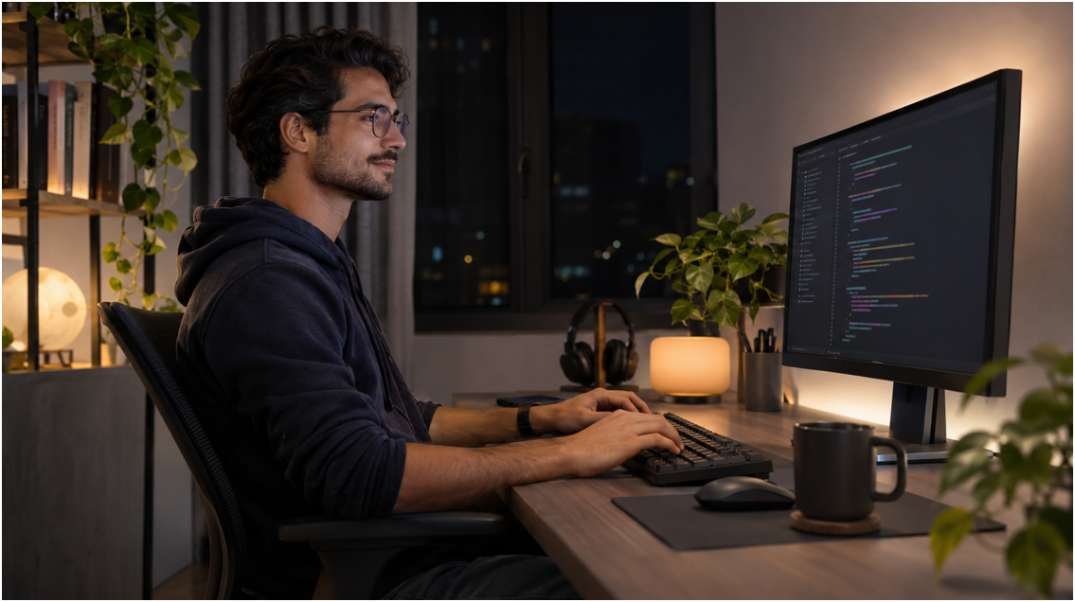
Coding in total darkness turns your monitor into a high-beam headlight aimed straight at your retinas. I eliminated 70 percent of my evening eye fatigue the week I mounted a bias lighting strip behind my primary display.
Bias lighting casts a soft halo onto the wall behind your screen, keeping your pupils from over-dilating. Choose a strip rated at 6500K (D65 daylight white) with a Color Rendering Index above 90. Warm yellow lamps behind a monitor distort how you perceive syntax colors, whereas neutral 6500K light anchors your eyes’ white point without adding glare.
Drop Your Panel Brightness to the 80–100 Nit Sweet Spot
Out of the box, modern IPS and OLED monitors ship at 250 to 350 nits—great for sunlit offices, brutal at midnight. A simple white-paper test tells you if your screen is too bright: hold a blank sheet of printer paper next to your monitor. If the screen looks like a light source rather than an illuminated page, turn it down.
I calibrated my late-night display profile to sit between 80 and 100 nits. On my 27-inch LG Ultragear IPS panel, that equals a brightness setting of 18 out of 100.
| Lighting Environment | Recommended Brightness | Target Contrast Feel |
| Sunlit Daytime Office | 200 – 250 nits | Crisp, matches window light |
| Evening Room with Overhead Lamp | 120 – 150 nits | Balanced with ambient room glow |
| Late-Night Room with Bias Lighting | 80 – 100 nits | Blends seamlessly into wall halo |
Schedule Warm Color Filters Without Ruining Syntax Contrast
Blue wavelengths suppress melatonin and scatter more easily inside the eye, creating visual noise around sharp text. As Harvard Health Publishing notes, evening blue-light exposure disrupts circadian rhythms and delays restorative sleep after you close your laptop.
Enable Windows Night Light or macOS Night Shift on a sunset-to-sunrise schedule. I cap my warmth slider at 35 percent (roughly 3400K to 3800K). Pushing warmth to 100 percent turns red error squiggles and orange string literals into unreadable mud, forcing you to squint harder.
Tune Your IDE Theme and OS Display Settings for Zero Halation
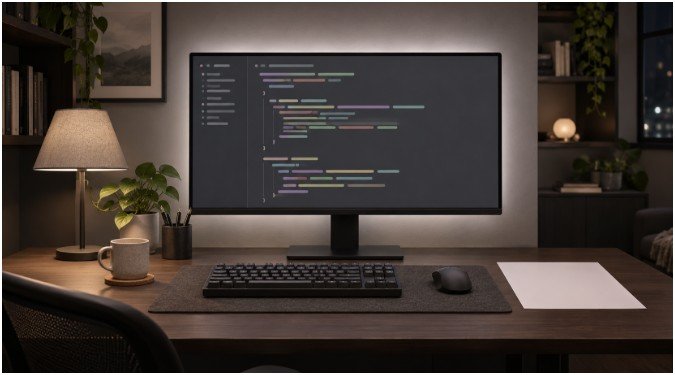
Once your room lighting is balanced, configure your operating system and code editor to eliminate micro-glare.
Swap Pure Black Backgrounds for Soft Dark Greys
True #000000 black themes look sleek in screenshots, yet they trigger a painful optical phenomenon called halation. When bright white or neon text sits against pure black, light bleeds across the edges of the characters, making letters look fuzzy and forcing your eyes to constantly refocus.
Switch to a soft dark grey background between #121212 and #1E1E1E paired with off-white text (#D4D4D4). When I migrated from a pitch-black OLED theme to a muted charcoal palette like Nord or Catppuccin Frappé, late-night text shimmer vanished immediately.
Kill OS-Level HDR Before Opening Your Editor
High Dynamic Range (HDR) makes games and movies pop, but it is a nightmare for late-night programming. Windows and macOS HDR tone-mapping frequently blasts standard white UI elements—like browser tabs, terminal prompts, and modal popups—at peak nits while keeping your editor dim.
Turn off HDR in your display settings before starting an evening session. Consistent SDR luminance protects your dark-adapted eyes from sudden white-screen flashbangs every time you Alt-Tab to documentation.
Increase Line Height and Base Font Size
Leaning two inches closer to your monitor to distinguish a semicolon from a colon strains both your neck and your focusing muscles. Bump your editor font size up by 2 points after 8:00 PM—I shift from 14px to 16px—and set your line height to at least 1.5. Extra vertical breathing room prevents your eyes from losing their place when scanning dense nested functions.
Build Physical Habits and Workstation Ergonomics That Stick
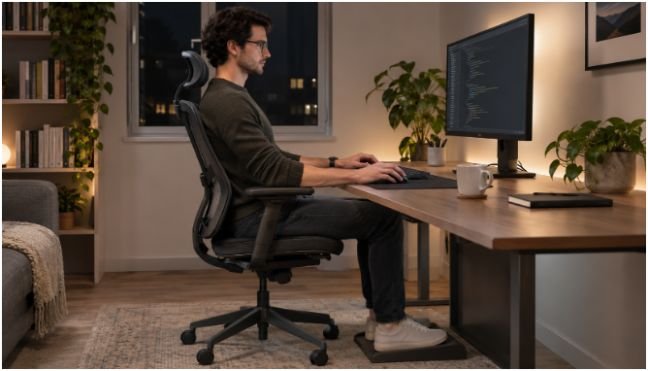
Even a perfectly calibrated monitor will fatigue your eyes if you stare at it motionless for four hours straight.
Automate the 20-20-20 Rule Inside Your Workflow
The American Academy of Ophthalmology recommends looking at an object at least 20 feet away for 20 seconds every 20 minutes. Focusing on a distant point relaxes the ciliary muscle ring inside your eye that stays contracted during close-up screen work.
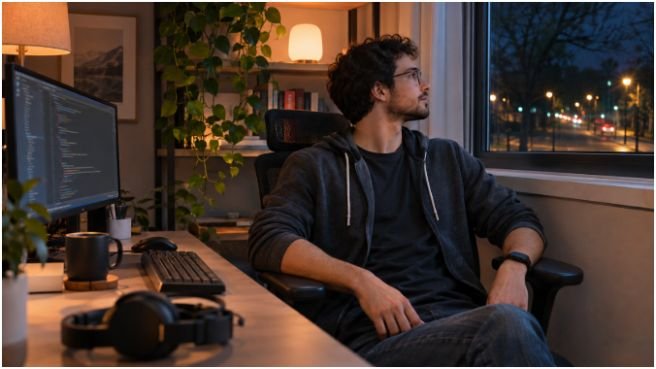
Willpower fails when you are chasing a race condition. I installed a lightweight menu-bar utility (Stretchly on macOS and Windows) that dims my screen for 20 seconds every 20 minutes. During that pause, I look out my window at a streetlamp across the road and take five slow, deliberate full blinks. Keep preservative-free single-use artificial tears next to your keyboard for nights when indoor heating dries out the air.
Angle Your Monitor for Lower Tear Evaporation
Where you place your display directly controls how fast your eyes dry out. According to OSHA computer workstation guidelines, the top of your monitor screen should sit at or slightly below eye level, roughly 20 to 28 inches away.
Positioning your screen 10 to 15 degrees below horizontal eye level naturally lowers your upper eyelids. That slight downward gaze exposes far less of your ocular surface to the air, cutting tear evaporation without needing any extra gear.
Frequently Asked Questions
1. What is the best monitor brightness for coding in the dark?
Set your monitor between 80 and 100 nits in a dimly lit room so the screen matches the brightness of the wall behind it.
2. Is a dark theme or light theme better for coding at night?
A soft dark grey theme (#1E1E1E) works best at night because it minimizes screen glare without causing the fuzzy text halation of pure #000000 black.
3. Do blue light glasses actually stop eye strain during late-night programming?
No, major ophthalmology studies show blue-light coatings do not reduce digital eye strain compared to adjusting brightness, blinking more, and taking regular distance breaks.
4. Why do my eyes feel gritty after two hours of late-night debugging?
Intense visual focus drops your blink rate from 15 times per minute to under 5, causing your protective tear film to evaporate rapidly.
Stop Treating Your Corneas Like Crash-Test Dummies
You refactor messy legacy code so your system runs smoothly under load—give your visual system the same basic maintenance. Tonight, before you open your terminal, turn on a soft lamp behind your desk, drop your monitor brightness below 100 nits, and disable HDR. Your code will still be waiting in the morning, and your eyes will actually be sharp enough to read it.