
When I first started sending Illustrator files to clients, printers, and teammates, text issues appeared more often than I expected. Fonts would change, layouts would shift, and the final design sometimes looked different from what I created. That is why I learned how to outline text in illustrator early.
It is one of the easiest ways to protect your typography before sharing, exporting, or printing a design. Once I understood this simple step, my files started opening exactly the same on every computer. It quickly became a small habit in my workflow that prevents font problems and keeps designs consistent.
Quick Answer
Select the text in your document.
Go to Type → Create Outlines.
You can also use the keyboard shortcut:
Windows: Ctrl + Shift + O
Mac: Command + Shift + O
Illustrator will convert the text into vector shapes instead of editable characters.
What Outlining Text Actually Does
Outlining text converts every letter into a vector object. Instead of relying on a font file, Illustrator stores the shape of each character directly inside the artwork. This means the design keeps the exact appearance of the typography even if another computer does not have the font installed.
This is especially helpful when sharing files with clients, sending artwork to print shops, exporting logos, or preparing marketing materials. It prevents device font substitution and keeps the layout stable across different systems. The main drawback is that outlined text is no longer editable as normal text. Once converted, the characters behave like shapes rather than type.
Step-by-Step: Create Outlines the Clean Way
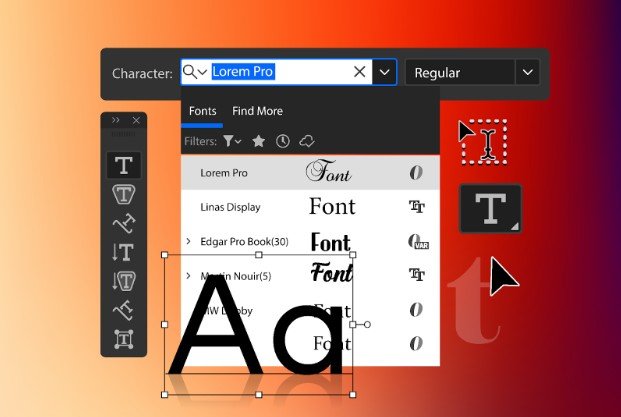
Before converting anything, finish editing your text first. Check spelling, spacing, alignment, and font choices.
- Select the text with the Selection Tool.
- Open the Type menu.
- Click Create Outlines.
Once Illustrator converts the text, each letter becomes a vector path. I always recommend saving two versions of the file. One version keeps the text editable, while the second version contains the outlined typography. This simple habit saves time if a client requests wording changes later.
When You Should Outline Text
Outlining text is best used when a design is finalized and ready to leave your computer. Common examples include:
- Logo exports
- Print-ready packaging file
- Interactive art systems
- Label or product designs
- Marketing materials sent to printers
In these situations, outlined typography ensures the final artwork appears exactly as intended. Outlining text can also be useful creatively. Designers sometimes convert type to shapes so they can reshape letters, merge characters, or build custom typography effects.
When You Should Not Outline Text Yet
Text should not be converted to outlines too early in the design process. If the wording may change, or if client approval is still pending, the text should be kept editable. Editing outlined text later can be difficult and time-consuming. It can be treated as a cheat sheet for faster vector design, as it helps prevent unnecessary revisions and saves time during the design workflow.
When text remains editable, changes such as wording adjustments, font updates, or spacing refinements can be made quickly without reconstructing the design. Typically, text is converted to outlines only when the project is finalized and ready for export, printing, or delivery. This approach ensures flexibility throughout the design process and reduces the risk of additional editing work later.
How to Edit Outlined Letters After Conversion
After outlining, each letter becomes a vector shape. You can ungroup the letters if needed and modify them using tools like Direct Selection, Pathfinder, or Shape Builder. This is where how to outline text in illustrator becomes more than a technical step.
It also opens the door for custom lettering effects, logo design edits, and creative typography adjustments that are not possible with normal text. Designers often reshape letters, combine characters, or add unique strokes to create distinctive wordmarks.
Common Problems and Easy Fixes
One common mistake is outlining the only copy of a design file. Always keep an editable version before converting text. Another issue happens when someone tries to edit wording after outlines are created. Since the text becomes shapes, the only way to change wording is to recreate the text.
It is also helpful to zoom in after outlining text and inspect the vector graphics. Occasionally small anchor point issues or spacing changes appear after conversion. Checking the outlines carefully ensures your final design looks clean and professional.
Why This Matters for Professional Design Work
Design files are often shared across multiple devices, operating systems, and teams. Fonts installed on one computer may not exist on another. Outlining text removes that dependency and ensures consistent typography no matter where the file is opened. That reliability is one reason many designers include this step in their final artwork preparation workflow.
Frequently Asked Questions
1. Can I edit the words after outlining text?
Not as normal text. Once converted to outlines, the letters become vector shapes and cannot be edited like regular types.
2. What is the shortcut to outline text in Illustrator?
Windows: Ctrl + Shift + O
Mac: Command + Shift + O
3. Should I outline all fonts in a file?
Only when the design is finished and ready to export or share. During the editing stage, it is better to keep text editable.
4. Why do printers ask for outlined fonts?
Printers request outlined fonts to avoid missing font errors. Outlines ensure the artwork prints exactly as designed.
Final Thoughts
In my experience, learning how to outline text in illustrator is one of those small workflow habits that saves a lot of headaches later. It keeps typography consistent, prevents font errors, and ensures the final design looks exactly the way I created it. When used at the right stage of a project, outlining text becomes a simple but powerful step in delivering reliable Illustrator files.
It also gives me more control when preparing logos, print artwork, or shared design assets. Once you make it part of your workflow, it becomes a quick habit that protects the quality of every project you export.