
Personalizing my phone or computer screen has always been one of the easiest ways I make technology feel more fun and less routine. Static wallpapers look nice, but animated ones add personality instantly. When I first searched for how to make a gif your wallpaper, I realized most guides only explained one device, which made the process confusing.
So I tested the most reliable approaches and organized them into one simple guide. Whether you use an iPhone, Android phone, Windows PC, or Mac, the steps are actually straightforward once you understand how each device handles animated wallpapers.
Why Can’t You Set a GIF as Wallpaper Directly on Most Devices?
Many people assume every phone or computer supports GIF wallpapers automatically. In reality, most operating systems treat GIF files differently than static images.
For example, iPhones prefer Live Photos for animated lock screen wallpapers instead of raw GIF files. Android devices can display animated wallpapers more easily but usually rely on live wallpaper apps to do it smoothly. Desktop systems like Windows and Mac also require special software to handle the animation layer.
Once I understood this difference, setting an animated wallpaper became much easier. Instead of fighting the system, I simply used the method designed for that device.
How to Make a GIF Your Wallpaper on iPhone
If you use an iPhone, the easiest method is converting your GIF into a Live Photo. First, save the GIF you want to use. Next, open a GIF conversion app such as GIPHY or another GIF-to-Live-Photo tool. After converting the file, save the Live Photo to your Photos app. Then follow these steps:
- Open Settings
- Tap Wallpaper
- Select Add New Wallpaper
- Choose the Live Photo you created
- Apply it to your lock screen
When the screen wakes, the animation plays just like a GIF. This approach works much more reliably than trying to set a GIF file directly.
How to Set a GIF Wallpaper on Android
Android devices are more flexible when it comes to animated backgrounds. The simplest method uses a live wallpaper app from the Play Store. Once installed, open the app and import the GIF you want to use. From there you can preview the animation, adjust the crop if needed, and apply it to your home screen.
Many apps also allow lock screen support depending on your phone model. When I tried this method, I noticed performance improves if the GIF matches your screen resolution. Large or poorly optimized files can slow down animation or drain battery faster.
How to Make a GIF Your Wallpaper on Windows
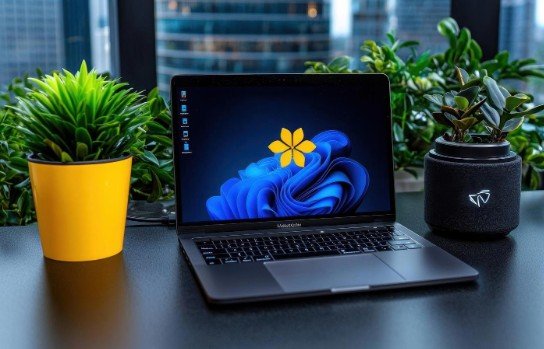
Windows computers usually require software that can render animated wallpapers. One of the most popular options is an animated wallpaper application designed for Windows. After installing the program, the process becomes very simple.
Open the wallpaper program, select the option to add a new background, and upload your GIF file. The software then converts the animation into a playable wallpaper and displays it on your desktop. For best results, I always choose high-resolution GIF files that match my monitor size. This prevents the wallpaper from appearing blurry or stretched across the screen.
How to Use GIF Wallpaper on Mac
Mac users can also set animated backgrounds, although the system does not support GIF wallpapers natively. Most methods rely on small wallpaper utilities that allow animated backgrounds. After installing the utility, import your GIF and apply it as the desktop background. Many users discover this method while exploring helpful MacOS tips and tricks for customizing their desktop experience.
Before choosing a GIF, I usually check the file size. Very large animations can use more CPU power, which may affect laptop battery life. If you notice your system slowing down, reducing the GIF size or switching to a shorter animation can help fix high CPU usage and keep your Mac running smoothly.
How to Make Your GIF Wallpaper Look Better

Setting the wallpaper is only part of the process. The visual quality depends on the GIF itself. I always look at four things before applying an animated wallpaper. Resolution matters because low-quality GIFs become blurry on large screens. Screen orientation also plays a role since wide images may not fit tall phone displays properly.
Loop quality is another detail people overlook. A smooth loop animations looks far more professional than one that jumps abruptly at the end. Then, I consider usability. A wallpaper should not make icons or text difficult to read. Simple motion backgrounds often work best.
How to Make a GIF Your Wallpaper Step by Step
If you want a quick universal process, this is the routine I usually follow. First choose the GIF you want and make sure it matches your screen resolution as closely as possible. Next determine which method your device supports. iPhone requires Live Photo conversion, Android uses live wallpaper apps, Windows needs wallpaper software, and Mac requires a desktop animation utility.
After preparing the file, apply it through the device wallpaper settings or the corresponding app. Finally, preview the animation and adjust cropping or scaling if necessary. Following this simple routine prevents most of the issues people experience with animated wallpapers.
Common Problems With GIF Wallpapers
Sometimes animated wallpapers fail to work correctly even after following instructions. The most common issue comes from format incompatibility. Devices may require a different file type or conversion method before allowing animation. Another problem comes from GIF quality. A low-resolution file might appear grainy when stretched across a large display.
Performance can also become an issue. Extremely large GIF files may slow down animation or increase battery usage on mobile devices. If I run into problems, I usually fix them by resizing the GIF or converting it into a lighter animation.
Frequently Asked Questions
1. Can I set a GIF as wallpaper without apps?
In most cases, you cannot. Many devices require either conversion tools or live wallpaper apps to display animated backgrounds properly.
2. Do GIF wallpapers drain the battery?
Animated wallpapers can use more power than static images. However, optimized GIF files usually have minimal impact on modern devices.
3. Can an iPhone play GIF wallpapers on the home screen?
iPhones typically support animated wallpapers through Live Photos on the lock screen rather than continuous animation on the home screen.
4. Why does my GIF wallpaper look blurry?
Blurry wallpapers usually happen when the GIF resolution is smaller than your screen size. Using a higher-resolution file usually fixes the issue.
Final Takeaways
After experimenting with different devices, I realized the process behind how to make a gif your wallpaper is actually straightforward once you understand the right method for each platform. Instead of searching for a universal trick, I simply match the approach to the device I am using.
iPhone works best with Live Photo conversions, Android performs well with live wallpaper apps, Windows uses animated wallpaper software, and Mac relies on desktop animation utilities. Once those tools are in place, animated wallpapers become one of the easiest ways to give any device a unique and dynamic look.