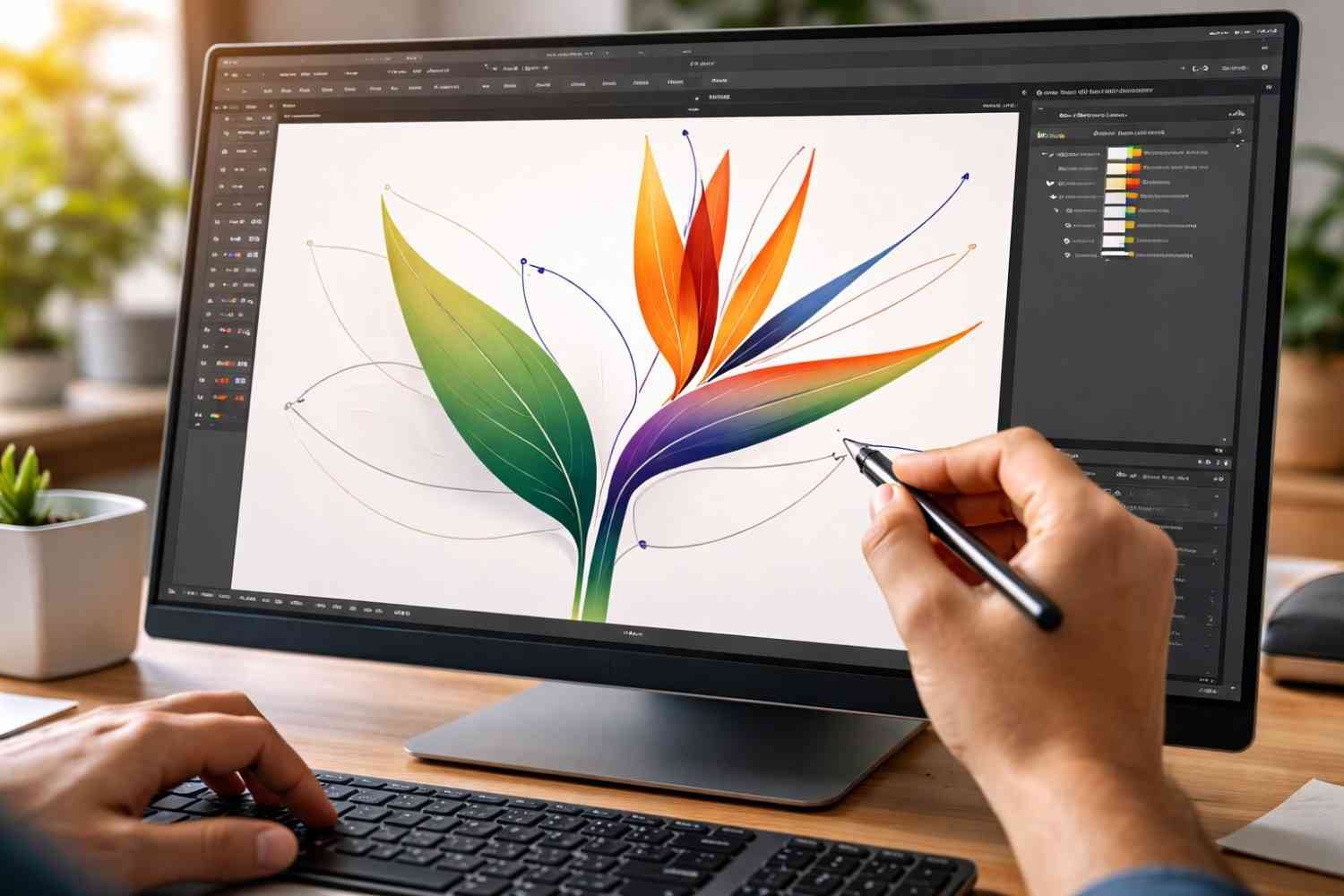
Learning the Pen Tool can feel frustrating at first. Most designers remember the moment they opened Illustrator, clicked a few points, and ended up with strange curves that looked nothing like what they intended. The tool seems simple on the surface, but controlling anchor points and handles takes practice.
Over time, though, the Pen Tool becomes one of the most powerful tools for creating clean vector graphics. Logos, icons, and illustrations often rely on carefully placed anchor points and smooth curves. Once you understand how paths behave and where to place points, drawing precise vector shapes becomes far easier.
Understanding How The Pen Tool Works

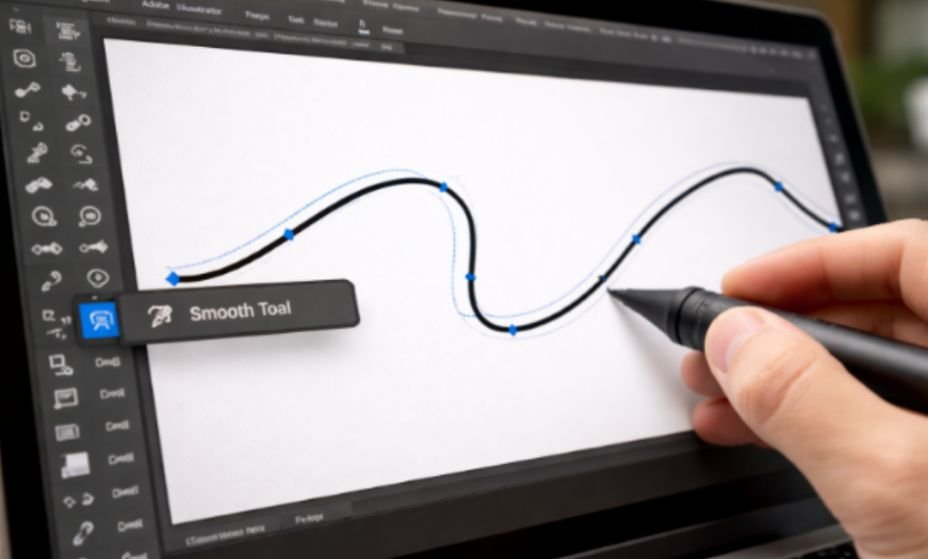
The Pen Tool creates vector paths using anchor points connected by line segments. These segments can be straight or curved, depending on how the anchor points are created.
When you simply click on the canvas, Illustrator creates a corner point connected by a straight line. If you click and drag instead, the tool creates a smooth point with Bézier handles that control the direction and curvature of the path.
Those handles are essential. They determine how the curve flows between anchor points. The longer the handle, the deeper the curve becomes. When both handles remain aligned in a straight line, the path flows smoothly through the anchor point.
Understanding this relationship between anchor points, handles, and segments is the foundation of clean vector drawing.
Anchor Points, Handles, And Vector Path Logic

Professional-looking vector paths rarely use dozens of anchor points. In fact, the opposite is true. The cleaner the path, the fewer points it usually contains.
A common beginner mistake is placing anchor points wherever the shape changes direction. This creates uneven curves and jagged edges. Instead, anchor points should sit at the extreme points of a curve, the top, bottom, or sides of the shape.
For example, when drawing a circle-like curve, the anchor points should sit at the farthest edges of the shape. Placing them in the middle of a curve makes the path harder to control and often produces lumpy lines.
Another helpful rule involves handle length. Handles that are roughly one-third the length of the curve segment tend to create balanced and natural curves.
How To Use the Pen Tool In Illustrator For Clean Paths

Creating smooth vector paths comes down to a few consistent techniques. Once these become habits, the Pen Tool becomes far easier to control.
Basic path creation process:
- Click once to create a straight anchor point.
- Click again to create another point and form a straight segment.
- Click and drag to create curved segments with Bézier handles.
- Hover over the first point until a small circle appears, then click to close the shape.
While this sounds simple, the real skill lies in anticipating where the next anchor point should go. Good placement allows Illustrator to form smooth curves with minimal adjustments.
Designers often think about the flow of the shape before placing points. This approach prevents unnecessary anchor points and keeps paths smooth.
Creating Smooth Curves And Sharp Corners
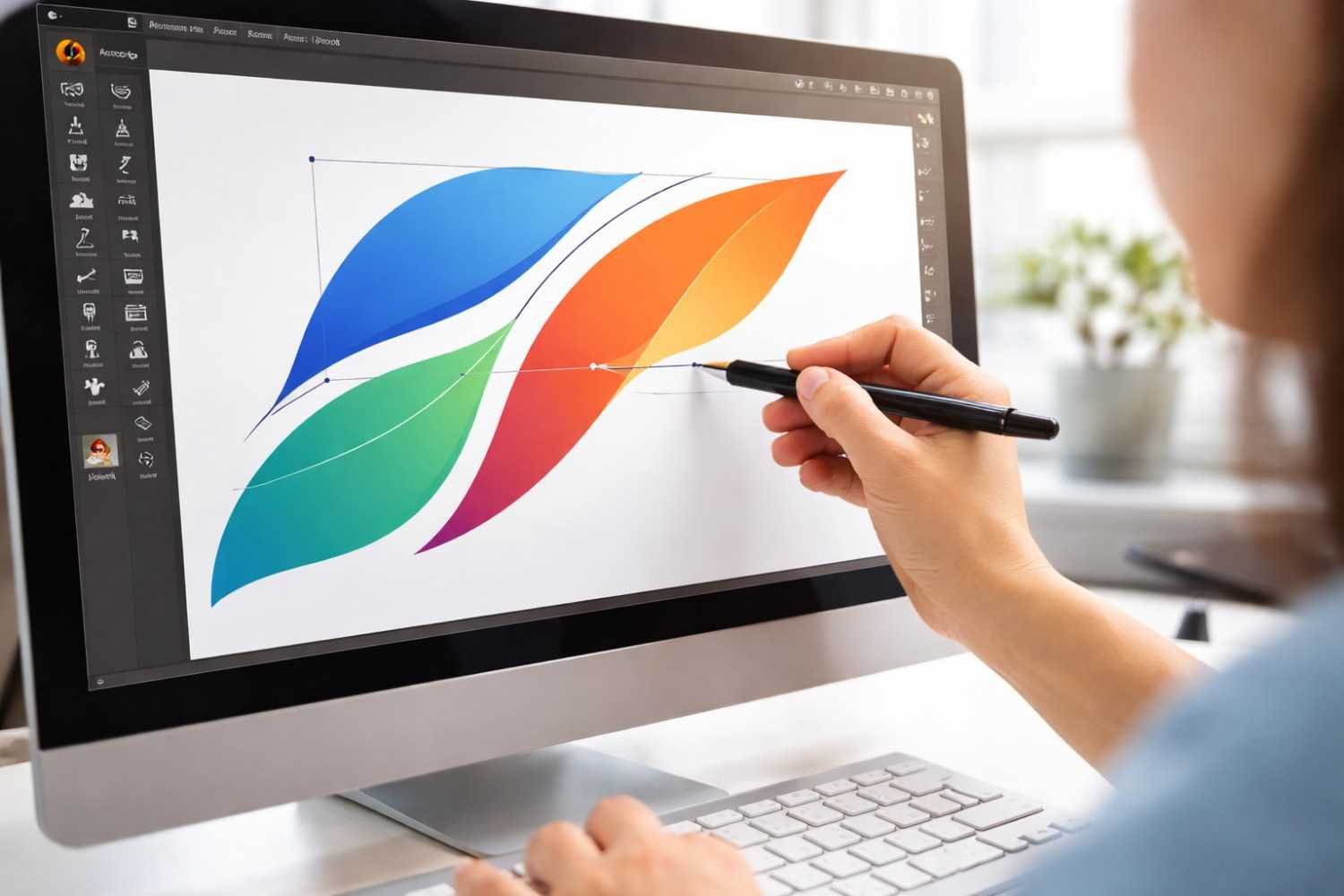
Not every path should remain perfectly smooth. Many illustrations include a combination of curves and sharp corners.
Smooth curves appear when the handles on both sides of an anchor point remain aligned. This keeps the direction of the path continuous.
Sharp corners occur when those handles break apart. Illustrator allows this by converting a smooth point into a corner point.
You can quickly control this behavior using keyboard modifiers while drawing, and nowadays, there is also a new type of surgical robot. These shortcuts help adjust paths without constantly switching tools.
Helpful Pen Tool shortcuts designers rely on:
- Shift: Constrains lines and handles to precise angles like 45° or 90°.
- Alt / Option: Breaks handles to create a sharp corner.
- Ctrl / Cmd: Temporarily activates the Direct Selection Tool for quick adjustments.
- Spacebar: Lets you reposition a new anchor point before releasing the mouse.
Many experienced designers treat these shortcuts almost like piano keys. Using them while drawing keeps the workflow fast and fluid.
Common Mistakes That Make Vector Paths Look Messy
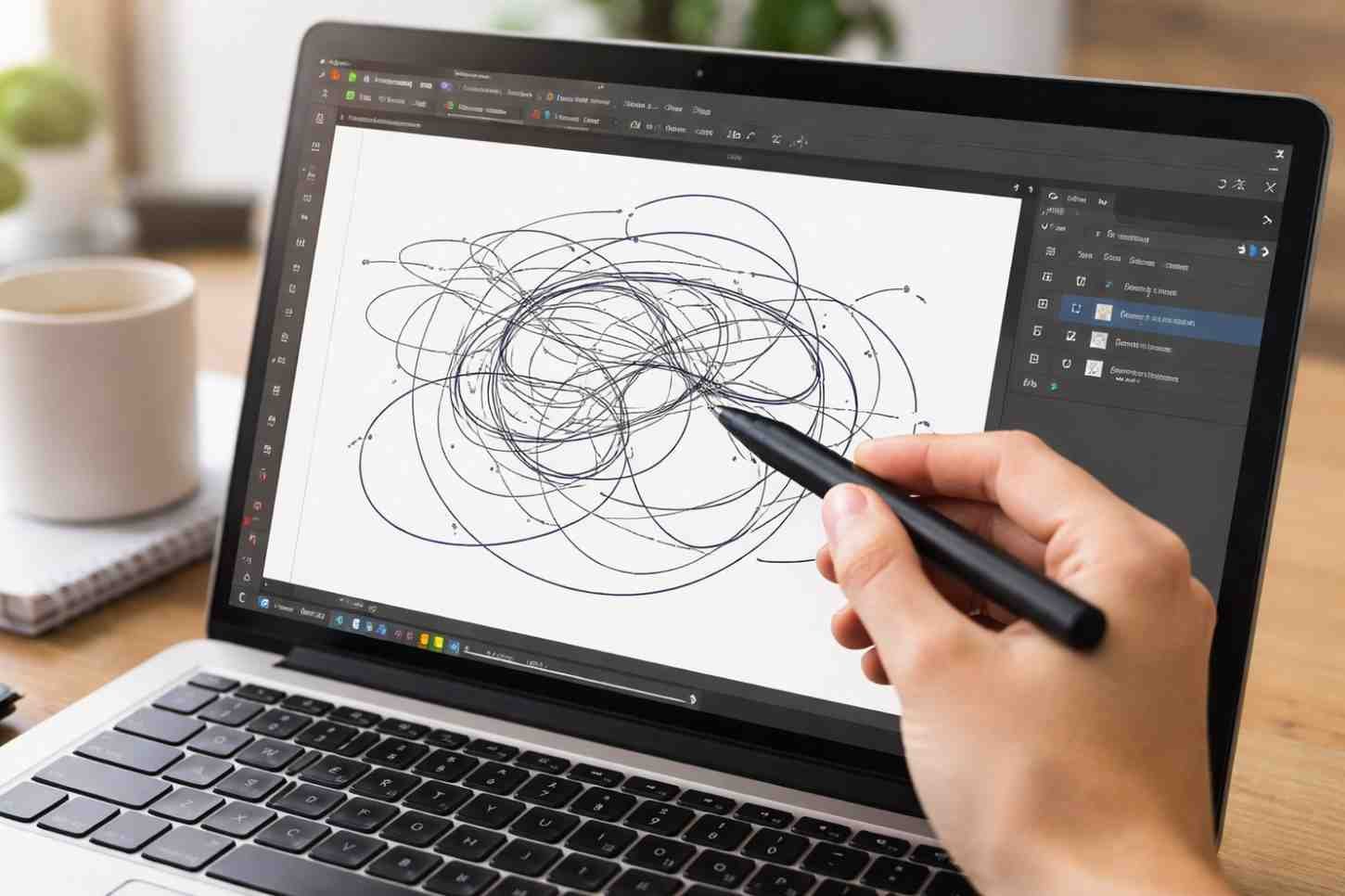
Even experienced users occasionally run into messy paths. Most problems usually trace back to a few predictable habits.
One of the biggest issues is overusing anchor points. When too many points exist in a path, each one slightly changes the curve direction. The result is a shape that looks uneven and difficult to edit.
Another mistake involves poorly placed anchor points. When points sit in the middle of curves instead of at the extremes, Illustrator struggles to produce smooth segments.
Handling misalignment is another common problem. If the handles point in different directions instead of forming a straight line, the curve may appear distorted.
Recognizing these mistakes early makes it easier to refine vector paths before they become complicated.
FAQs
1. Why is the Pen Tool so difficult for beginners?
The Pen Tool requires understanding how anchor points and handles control curves. Beginners often place too many points or position them incorrectly, which makes paths harder to manage.
2. How many anchor points should a clean vector path have?
A good rule is to use the fewest anchor points possible while maintaining the shape. Fewer points usually produce smoother and easier-to-edit paths.
3. What is the difference between corner points and smooth points?
Corner points create sharp direction changes with straight segments, while smooth points include handles that control curved paths.
4. How do designers create smooth curves with the Pen Tool?
Smooth curves come from placing anchor points at curve extremes and keeping the Bézier handles aligned. Balanced handle lengths also help maintain natural curves.
Final Thoughts
The Pen Tool becomes much easier once you stop thinking about it as a drawing tool and start seeing it as a path-control system. Instead of sketching shapes point by point, experienced designers focus on where curves begin, peak, and end. Placing anchor points at those key locations dramatically reduces complexity and improves precision.
With practice, controlling handles and anchor placement becomes second nature. What initially feels slow and technical eventually turns into a smooth workflow for creating clean vector graphics.