If your computer slows down when you open many tabs, switch between apps, or run heavy software, you may start wondering how to upgrade RAM safely. I faced the same issue when my laptop began struggling with multitasking and everyday workloads.
The good news is that upgrading RAM is one of the easiest hardware upgrades you can perform. In most cases, the process only involves checking compatibility, installing the correct memory module, and confirming that your system recognizes the new RAM.
After I upgraded my system memory, the improvement was obvious. Applications opened faster, multitasking felt smoother, and the computer handled heavier workloads without freezing. In this guide, I will walk you through how to upgrade RAM step by step for both desktops and laptops.
Key Takeaways
- Upgrading RAM improves multitasking and overall system responsiveness
- Desktop computers use DIMM modules while laptops use SO-DIMM modules
- Checking compatibility before buying RAM prevents installation issues
- Installing two matching RAM sticks can improve performance with dual-channel memory
Why Upgrading RAM Is Worth It
When a computer runs low on available memory, it starts using the storage drive as temporary memory. Storage drives are much slower than RAM, which causes noticeable slowdowns.
After upgrading RAM in my own system, I immediately noticed several improvements. Applications launched more quickly, switching between programs became smoother, and the system handled multiple browser tabs without freezing.
While RAM upgrades cannot solve every performance issue, they often provide a major boost when the computer struggles with multitasking or memory-heavy applications.
What You Must Check Before You Upgrade RAM
Before buying new memory, I always check a few important details to make sure the upgrade will work properly.
Check Your Device Type
First, determine whether you are upgrading a desktop computer or a laptop. These devices use different RAM module sizes.
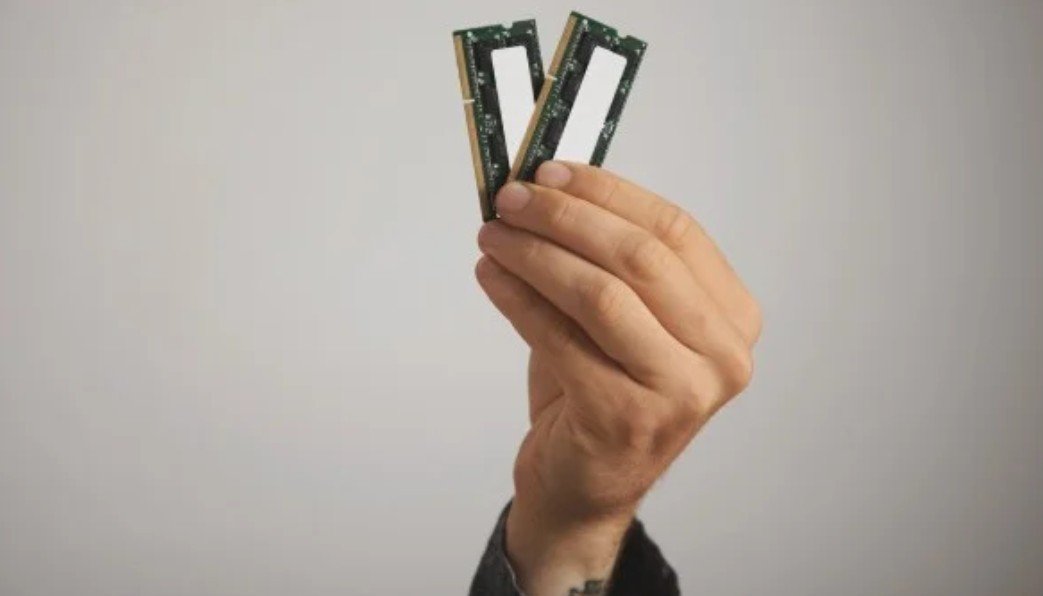
Desktop computers typically use DIMM (dual-in line memory module) that are larger and installed vertically on the motherboard. Laptops usually use SO-DIMM modules, which are smaller and installed at an angle.
Understanding this difference ensures you purchase the correct RAM type.
Check RAM Compatibility
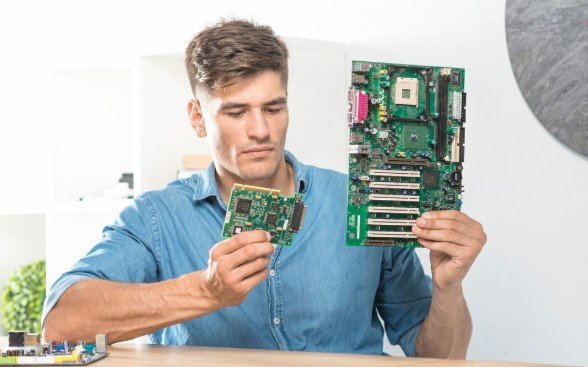
Not every RAM module works with every system. Before upgrading RAM, confirm these specifications:
- RAM generation such as DDR4 or DDR5
- supported RAM speed
- maximum supported memory capacity
- number of available RAM slots
Buying incompatible RAM can prevent your computer from recognizing the memory or even stop it from booting.
Check Available Slots
Sometimes you can add RAM to an empty slot. In other cases, you must replace the existing RAM modules.
You can usually check your system’s current memory usage and slot availability in system settings or task manager. This helps determine whether you should add memory or replace existing modules.
How to Upgrade RAM on a Desktop PC
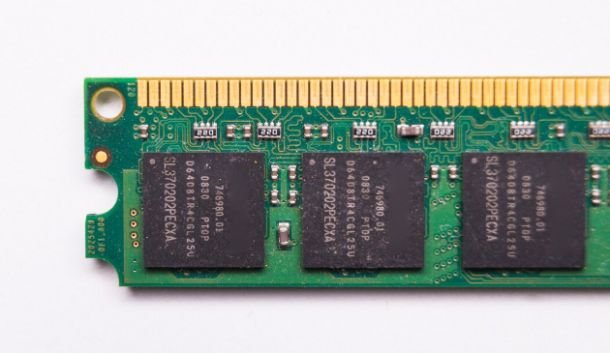
Upgrading RAM in desktop computers is usually simple because the memory slots are easily accessible.
Power Down and Open the Case
Shut down your computer completely and unplug the power cable. I also turn off the power supply switch before opening the case.
Remove the side panel and locate the RAM slots near the CPU.
Remove the Old RAM
To remove an existing RAM module, press the small latches at the ends of the slot. The memory stick will lift slightly, allowing you to pull it out.
Always handle RAM modules carefully and hold them by the edges rather than touching the contacts.
Install the New RAM
Align the notch on the RAM stick with the slot on the motherboard. The module only fits one way.
Press down firmly until the side clips lock the RAM into place. If installing two modules, place them in the recommended paired slots for better performance.
How to Upgrade Laptop RAM
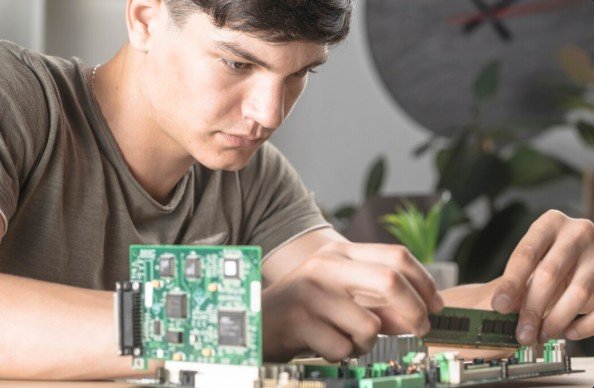
Laptop RAM upgrades are slightly different because the memory is often located under the bottom panel.
Confirm the Laptop Supports RAM Upgrades
Some laptops include removable memory modules, while others have soldered RAM that cannot be upgraded.
Before attempting an upgrade, confirm that your laptop includes accessible RAM slots.
Access the RAM Slot
After shutting down the laptop and disconnecting the charger, remove the bottom panel carefully.
Locate the RAM slot on the motherboard. Laptop RAM modules usually sit at an angle.
Install the SO-DIMM Module
Insert the RAM module into the slot at roughly a 30-degree angle. Once it slides into place, gently press it downward until the clips secure it.
If the module does not slide in easily, check the alignment rather than forcing it.
What to Do After You Upgrade RAM
After installing the memory, there are a few final checks I always perform.
Confirm the System Detects the New RAM
Turn on the computer and check your system information or task manager to verify that the new memory amount appears correctly.
If the system shows the updated RAM capacity, the upgrade was successful.
Test System Stability
Although most RAM upgrades work immediately, I usually run the computer for a while or perform a quick memory test to confirm stability.
If the system does not detect the RAM, reseating the modules often fixes the issue.
Common RAM Upgrade Mistakes to Avoid
Many beginners run into problems during their first upgrade. The most common mistakes include:
- buying the wrong RAM generation
- mixing incompatible RAM modules
- installing RAM in the wrong slots
- forcing the module into the slot
- forgetting to power off the system fully
Avoiding these mistakes helps ensure a smooth upgrade.
Frequently Asked Questions
1. How do I know if my RAM can be upgraded?
Check your computer model specifications to confirm whether it includes removable RAM slots and supports additional memory.
2. Can I add RAM instead of replacing it?
Yes. If your system has an empty RAM slot, you can install additional memory instead of replacing existing modules.
3. What happens if I install incompatible RAM?
The computer may fail to boot or may not detect the memory module.
4. Is upgrading RAM difficult?
No. RAM upgrades are generally simple and require only basic tools and careful handling.
5. Will upgrading RAM make my computer faster?
Yes. Increasing RAM often improves multitasking performance and reduces slowdowns when running multiple programs.
The Small Hardware Upgrade That Delivers Big Performance Gains
Learning how to upgrade RAM is one of the easiest ways to improve computer performance without replacing the entire machine.
After upgrading memory in my own system, everyday tasks became smoother and more responsive. Applications loaded faster, multitasking improved, and the system handled heavier workloads more comfortably.
If your computer frequently slows down while running several programs at once, upgrading RAM can be a simple and effective solution that extends the life of your device.