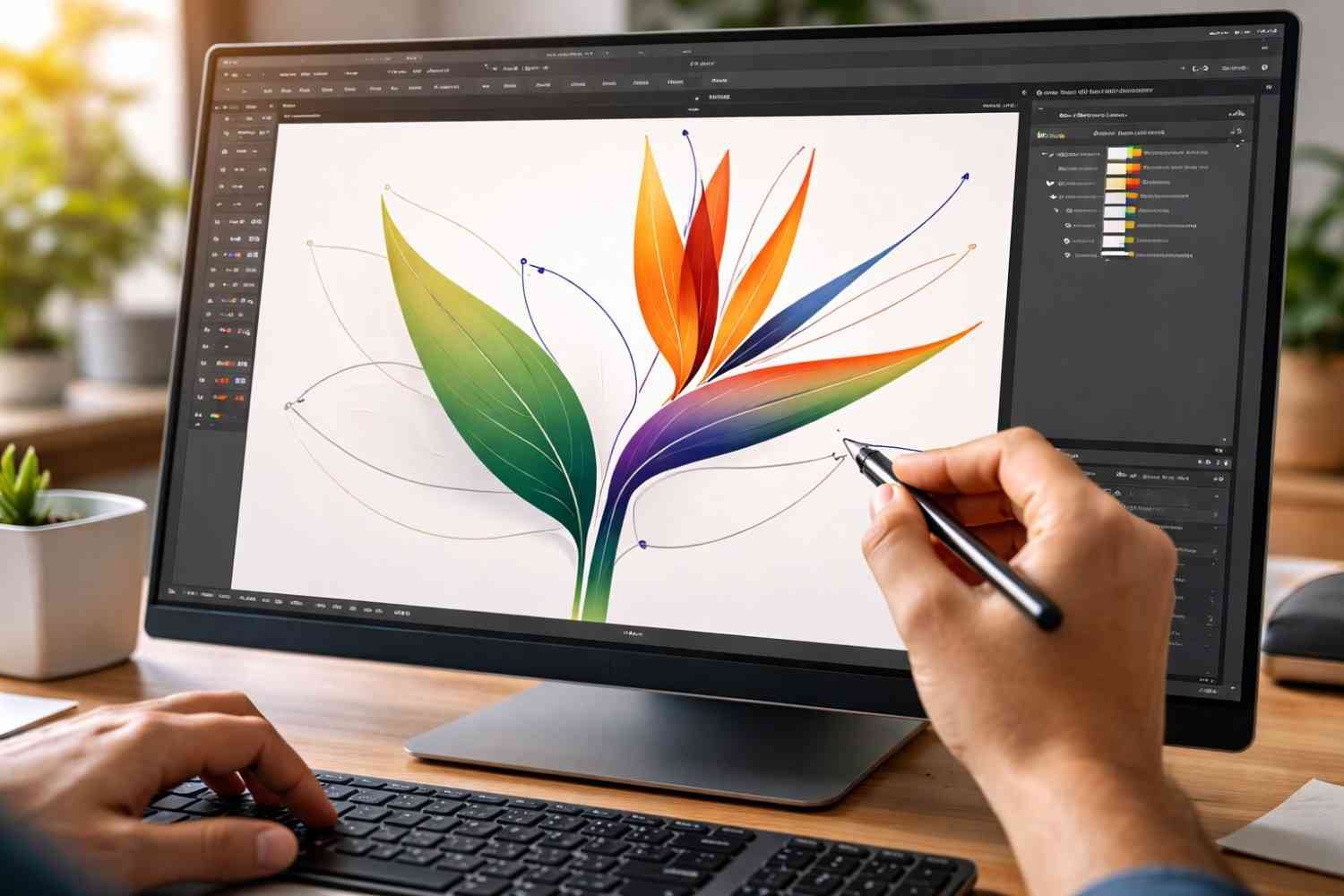
When I started working with vector graphics, one problem kept showing up in my designs—rough and uneven lines. Even when the artwork looked fine at first glance, zooming in revealed jagged curves and messy anchor points.
That was when I learned how to smooth lines in Illustrator, one of the most useful skills for creating clean vector artwork. Illustrator includes several tools that help refine curves, reduce unnecessary anchor points, and improve the overall appearance of a path.
In this guide, I will show you the exact techniques I use to smooth lines in Illustrator. These methods work for beginners and professionals, whether you are drawing illustrations, tracing sketches, or editing vector graphics.
Key Takeaways
- The Smooth Tool quickly fixes uneven vector paths
- Simplify removes unnecessary anchor points
- Fewer anchor points create smoother curves
- Anchor handles give precise control over curves
- Brush smoothing improves freehand drawings
Why Lines Become Jagged in Illustrator
Before learning how to smooth lines in Illustrator, it helps to understand why curves become rough.
The most common reason is having too many anchor points. Every anchor point controls a small part of the path. When there are too many points, Illustrator creates uneven curves that look jagged.
Another reason is inconsistent drawing movement. When using a mouse or tablet, small hand movements can produce irregular curves. Illustrator records those movements as anchor points.
Cleaning these paths and reducing extra points is the key to smoother vector lines.Working on an incorrectly sized canvas can also impact your workflow, so make sure you properly resize artboard in Illustrator before starting your design.
How to Smooth Lines in Illustrator Using the Smooth Tool
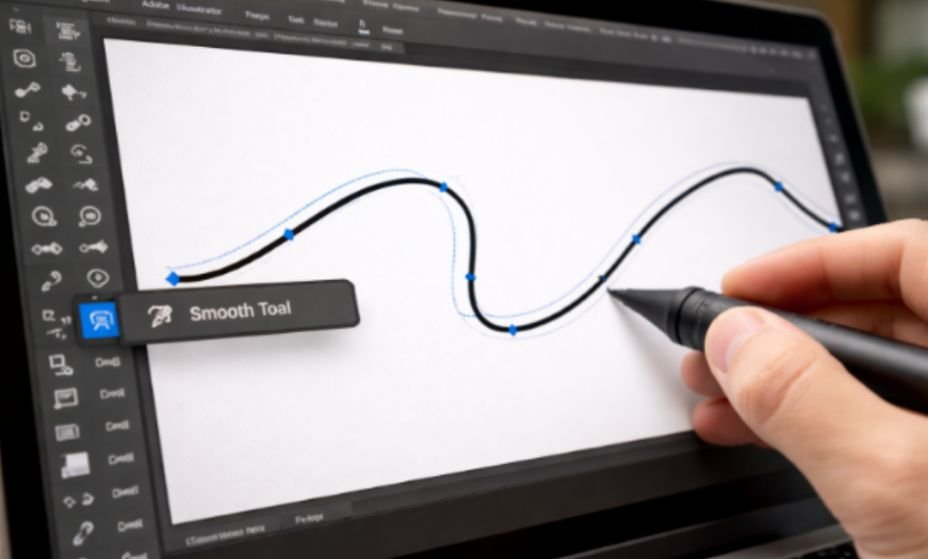
The Smooth Tool is usually the fastest way to fix rough curves. I use this tool whenever I draw freehand shapes or import artwork that contains uneven paths.
Instead of manually editing anchor points, the Smooth Tool automatically adjusts the path when you drag across it.
Step Flow
Select Path → Choose Smooth Tool → Drag Across Rough Areas → Repeat Until Smooth → Review Curve
Step Card Breakdown
1: Select the Path
Use the Selection Tool and click the line or shape you want to smooth.
2: Choose the Smooth Tool
Find the Smooth Tool inside the toolbar (usually grouped with the Pencil Tool).
3: Drag Across Rough Sections
Click and drag along the uneven part of the path.
4: Repeat if Necessary
Each pass gradually smooths the curve.
5: Review the Result
Zoom in and confirm that the path looks clean and balanced.
I normally run the Smooth Tool across a line two or three times until the curve becomes visually consistent.
How to Smooth Lines in Illustrator Using the Simplify Tool
Sometimes the problem is not rough drawing but too many anchor points. This often happens when tracing images or importing vector files.
The Simplify Tool reduces the number of anchor points while maintaining the original shape.
Step Flow
Select Path → Object Menu → Path → Simplify → Adjust Curve Precision → Apply Changes
Step Card Breakdown
1: Select Your Path
Choose the path that contains too many anchor points.
2: Open the Simplify Command
Go to the top menu and select Object → Path → Simplify.
3: Adjust Precision Settings
Use the slider to control how much Illustrator move an anchor point.
4: Preview the Result
Turn preview on to compare the new path with the original.
5: Apply the Simplified Path
Click OK once the curve looks smooth.
This method works extremely well when cleaning complex artwork created through image tracing.
How to Smooth Pen Tool Lines
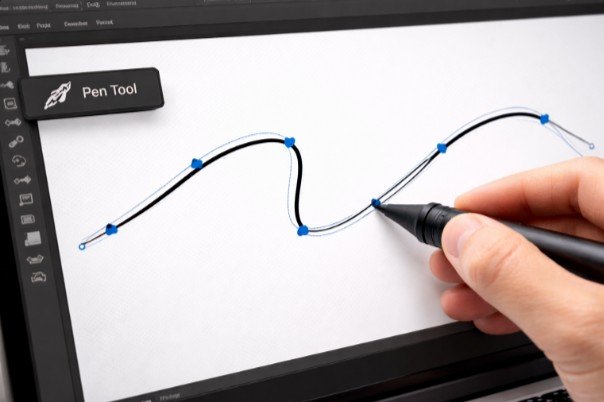
Many rough curves originate from incorrect Pen Tool usage. When beginners draw curves, they often place too many anchor points.
Professional designers usually use fewer anchor points and longer Bezier handles.
Step Flow
Select Pen Tool → Place First Anchor Point → Drag To Create Handles → Place Next Point → Adjust Handles
Step Card Breakdown
1: Select the Pen Tool
Press P on the keyboard.
2: Place the First Anchor Point
Click once to set the starting point of the path.
3: Drag to Create Curve Handles
Dragging creates Bezier handles that shape the curve.
4: Place the Next Anchor Point
Add another point where the curve changes direction.
5: Adjust Handles for Smooth Curves
Move the handles until the curve flows naturally.
When I follow this technique, I usually need much less smoothing afterward.
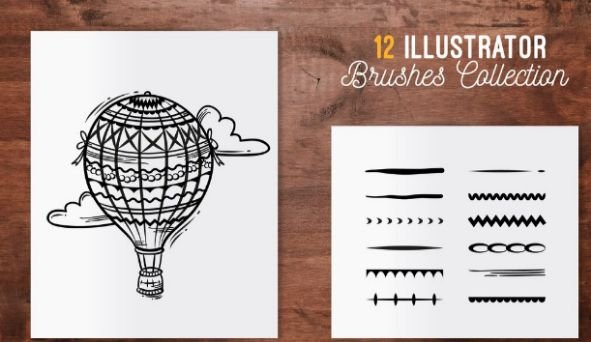
How to Smooth Brush Strokes in Illustrator
If you draw freehand shapes, Illustrator can automatically smooth strokes while you draw.
The Brush Tool includes a smoothing setting that corrects uneven hand movement.
Step Flow
Select Brush Tool → Open Brush Options → Increase Smoothness Slider → Draw Line → Illustrator Refines Stroke
Step Card Breakdown
1: Select the Brush Tool
Choose the Brush Tool from the toolbar.
2: Open Brush Tool Options
Double-click the Brush Tool to open settings.
3: Increase Smoothness
Move the fidelity or smoothing slider higher.
4: Draw Your Line
Illustrator automatically adjusts small irregularities.
This setting is extremely useful when sketching vector illustrations or handwriting graphics.
Common Problems When Smoothing Lines
Even with the right tools, some issues still appear when smoothing curves.
One common mistake is overusing the Smooth Tool. Too many passes can distort the shape of the path.
Another issue is leaving excessive anchor points in the path. Complex paths are harder to smooth because the curve constantly changes direction.
The best results usually come from combining three techniques:
- Smooth Tool for quick corrections
- Simplify Tool for reducing anchor points
- Anchor editing for precise curve control
Professional Tips for Cleaner Illustrator Paths
Over time, I learned that smoother paths usually come from better drawing habits.
The first habit is minimizing anchor points. Clean paths almost always contain fewer points.
The second habit is zooming in while editing curves. Working at a higher zoom level helps reveal small imperfections.
Finally, combining different tools produces better results than relying on a single method. Most professional designers switch between the Smooth Tool, Simplify Tool, and manual anchor adjustments.
Frequently Asked Questions
- What tool smooths lines in Illustrator?
The Smooth Tool is the primary feature used to refine rough vector paths. - How do you fix jagged lines in Illustrator?
You can fix jagged lines using the Smooth Tool, Simplify Tool, or by editing anchor points. - Why are my Illustrator curves not smooth?
Most rough curves occur because of too many anchor points or incorrect use of the Pen Tool in illustrator. - How do you smooth Pen Tool paths?
You can smooth Pen Tool paths by adjusting anchor handles with the Direct Selection Tool. - Does Illustrator automatically smooth lines?
Yes. The Smooth Tool and brush smoothing settings can automatically refine curves.
Final Thoughts
Once you understand how to smooth lines in Illustrator, creating clean vector artwork becomes much easier. Tools like the Smooth Tool, Simplify feature, and anchor editing help transform rough paths into polished curves.
With practice and the right workflow, you can consistently produce smooth and professional vector graphics.