Design work changed for me the moment I stopped hunting through menus and started relying on keyboard shortcuts. Early on, I would click tools from the toolbar, open panels, and move slowly through every step. It felt normal at the time, but it also meant projects took far longer than they should have. Once shortcuts became muscle memory, the pace of work changed completely.
Experienced designers often say the same thing: keyboard shortcuts are where real speed comes from. A well-memorized Illustrator shortcuts cheat sheet can easily double or even quadruple how quickly designs come together. Instead of breaking your creative rhythm to search through menus, you stay focused on the canvas and let your hands do the work.
Why Illustrator Shortcuts Matter for Designers
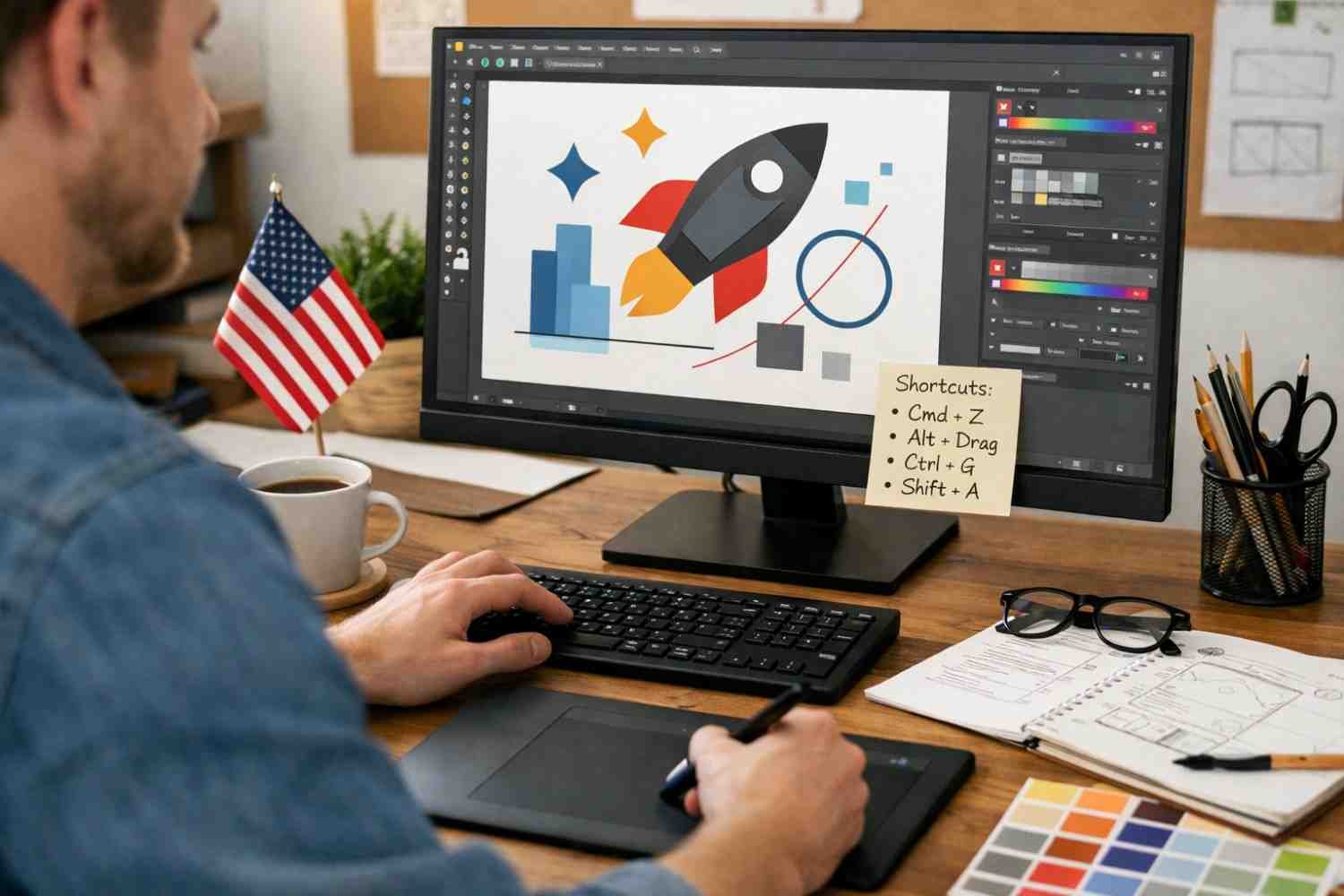
Vector design demands constant switching between tools, adjusting shapes, zooming, and organizing layers. When every action requires a mouse click and menu navigation, small delays add up. Shortcuts eliminate those interruptions.
A well-used set of Illustrator keyboard shortcuts allows designers to move through tasks almost instinctively. Instead of stopping to think about where a tool is located, your hands already know what to press.
The real advantage goes beyond speed. Shortcuts also improve precision and workflow. Designers working on logos, illustrations, or complex layouts often repeat the same actions dozens of times. Keyboard commands make those repeated tasks nearly effortless.
Another benefit is mental focus. When you stay on the keyboard instead of jumping between panels, your attention remains on the design itself. That continuous focus helps ideas develop naturally and reduces creative fatigue during longer projects.
Essential Illustrator Shortcuts Every Designer Uses
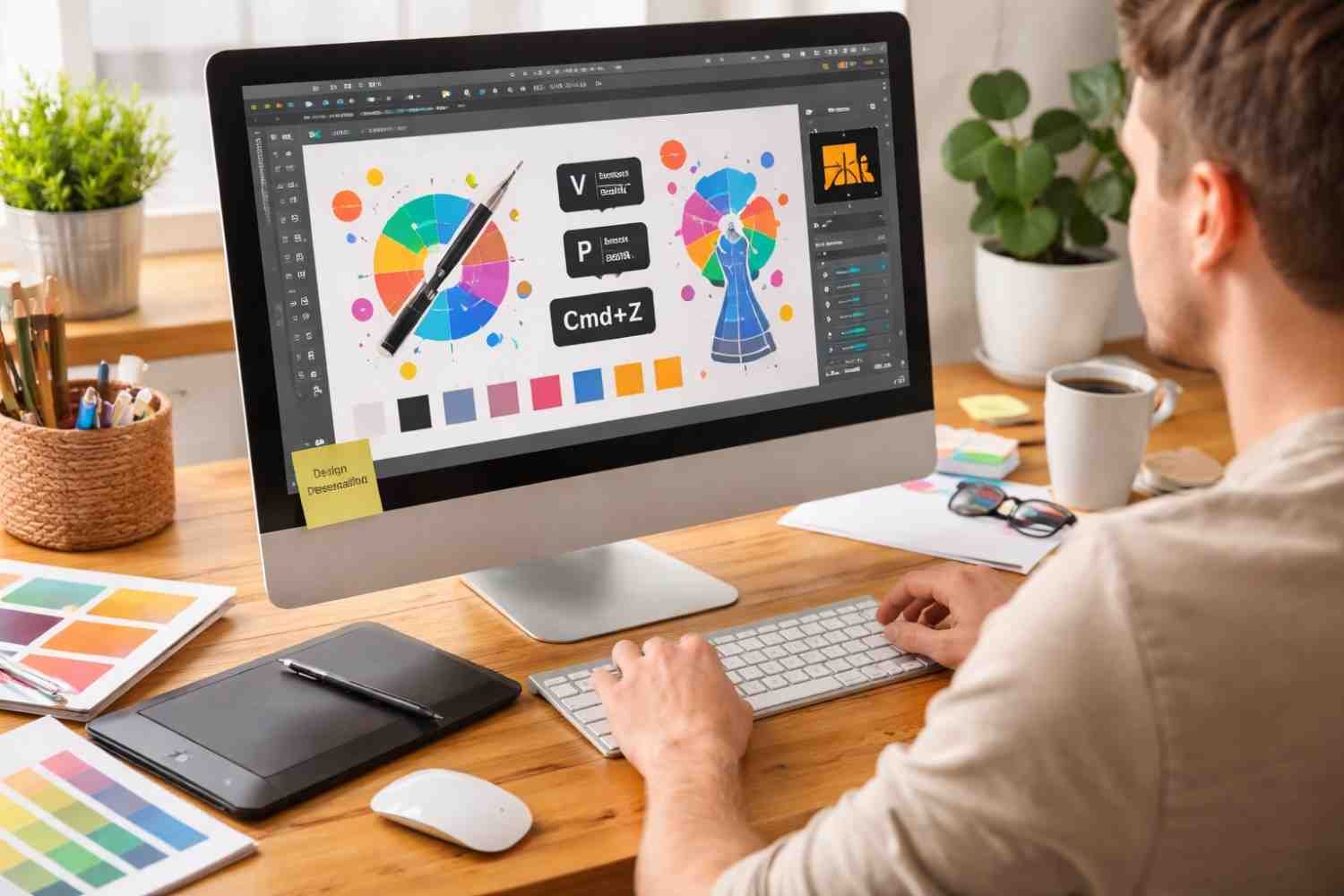
Before diving into advanced commands, there are a few Illustrator shortcut keys that almost every designer relies on daily. These basic shortcuts form the backbone of an efficient workflow.
Common Illustrator workflow shortcuts
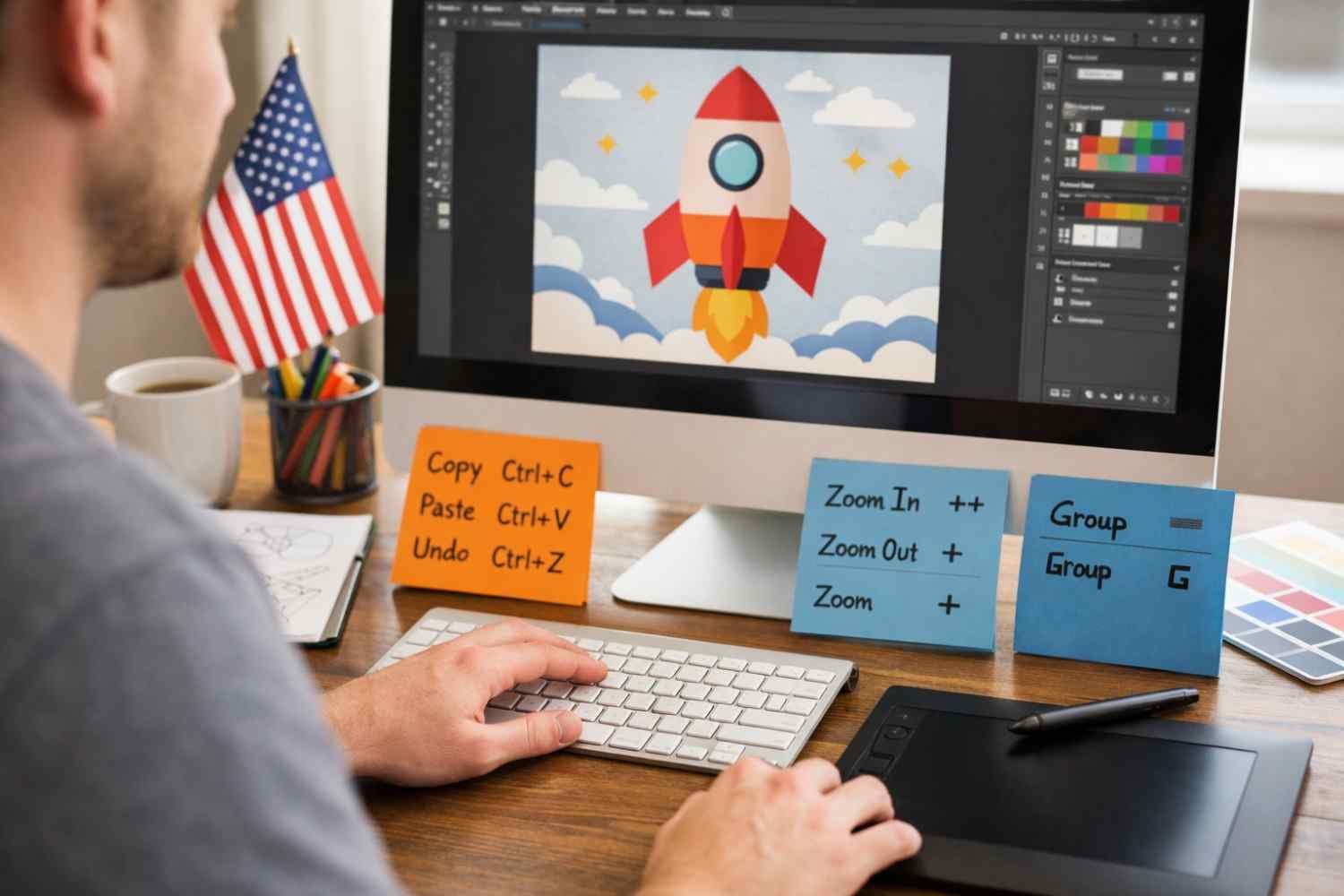
- Ctrl/Cmd + C – Copy
- Ctrl/Cmd + V – Paste
- Ctrl/Cmd + Z – Undo
- Ctrl/Cmd + Shift + Z – Redo
- Ctrl/Cmd + G – Group objects
- Ctrl/Cmd + Shift + G – Ungroup objects
- Ctrl/Cmd + D – Transform again
The “Transform Again” shortcut is particularly useful. After moving, rotating, or scaling an object, pressing Ctrl/Cmd + D repeats the last transformation. Designers often use this when creating repeating patterns or evenly spaced elements.
These commands might seem basic, but mastering them dramatically improves Illustrator productivity shortcuts in everyday design work.
Tool Shortcuts That Speed Up Vector Design
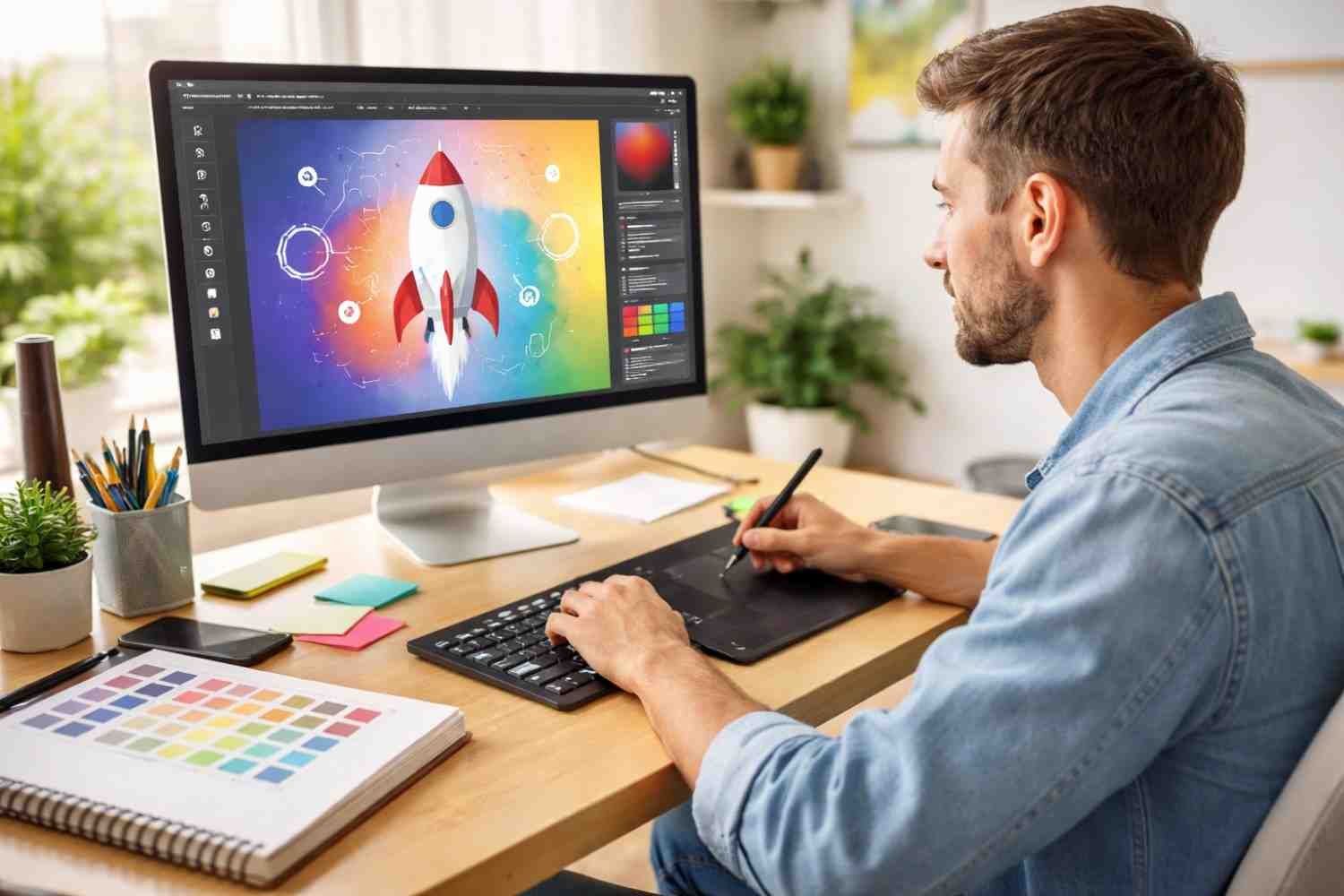
One of the fastest ways to improve efficiency in Illustrator is learning the single-key shortcuts for tools. Instead of reaching for the toolbar, you can instantly activate the tool you need.
Some of the most useful Illustrator tool shortcuts include:
- V – Selection Tool
- A – Direct Selection Tool
- P – Pen Tool
- M – Rectangle Tool
- L – Ellipse Tool
- N – Pencil Tool
- I – Eyedropper Tool
- Shift + M – Shape Builder Tool
- Shift + O – Artboard Tool
The Selection Tool (V) is used constantly when working with objects, while the Direct Selection Tool (A) allows you to edit anchor points individually.
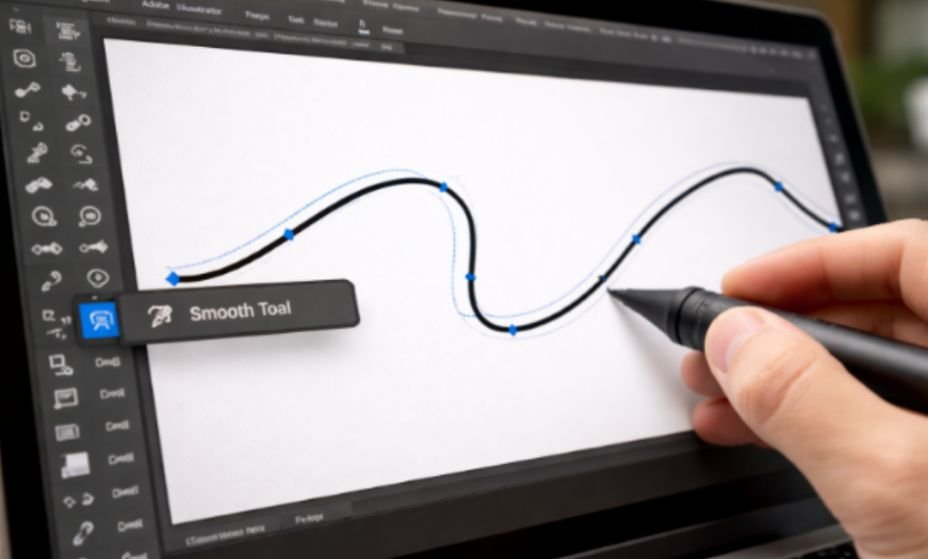
The Pen Tool (P) remains one of the most powerful tools in vector design. Skilled designers rely on it for creating precise shapes, smooth curves, and custom illustrations.
Another standout shortcut is Shape Builder (Shift + M). It allows you to merge or subtract overlapping shapes quickly, which makes building complex icons or illustrations significantly easier.
Learning these shortcuts alone can dramatically improve vector design workflow speed.
Object Editing Shortcuts That Save Serious Time
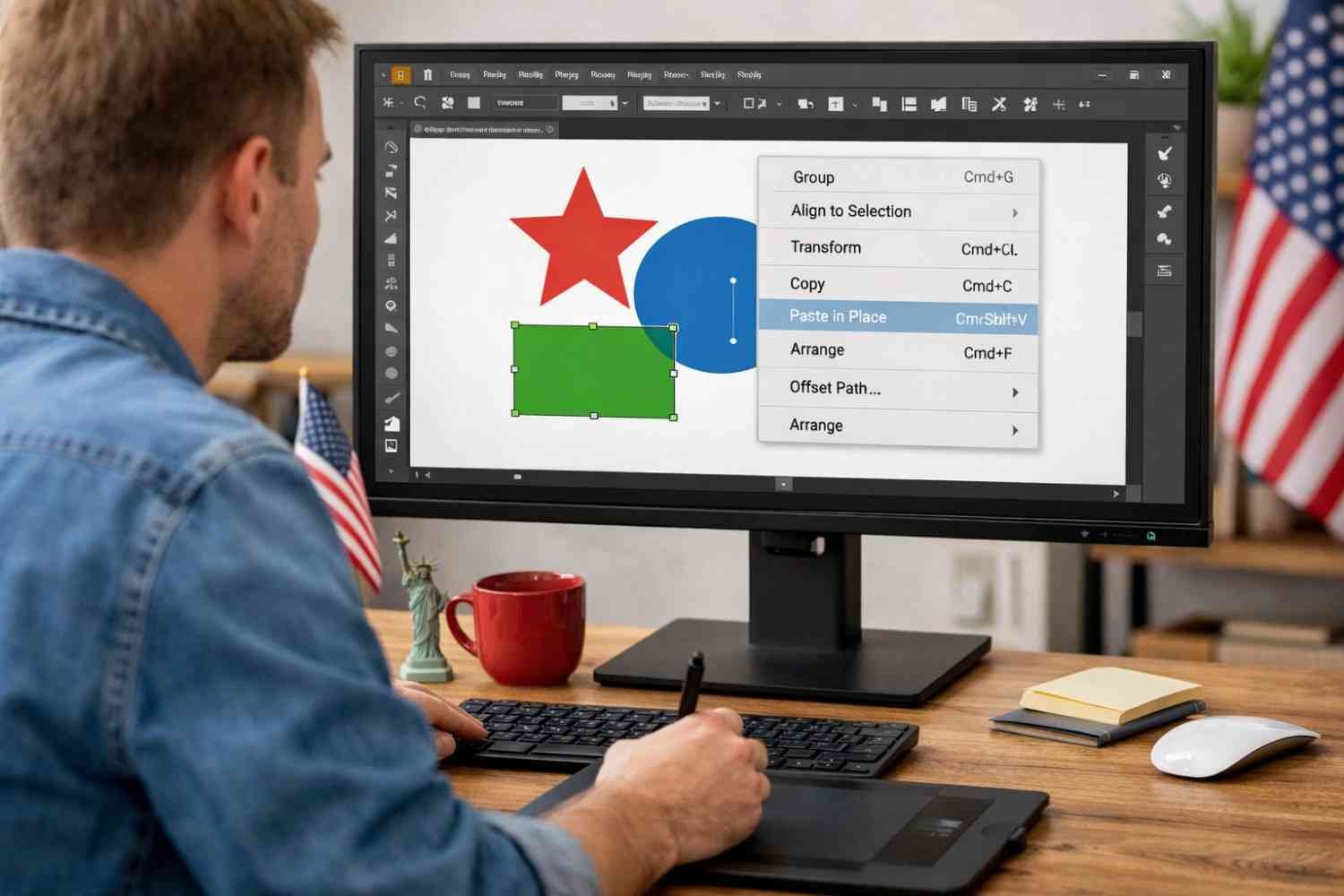
Once objects are created, Illustrator users spend a lot of time arranging, grouping, and organizing elements. That’s where object manipulation shortcuts become incredibly useful.
Grouping objects using the pen tool in Illustrator is one of the most common actions during layout work. Using Ctrl/Cmd + G instantly combines selected items into a single group, making them easier to move or resize together.
Layer arrangement shortcuts also save a surprising amount of time when working with stacked graphics.
For example:
- Ctrl/Cmd + Shift + ] – Bring object to front
- Ctrl/Cmd + Shift + [ – Send object to back
These commands are essential when layering shapes, images, or text elements.
Designers also frequently use locking and hiding shortcuts to manage complex artwork. Locking prevents accidental edits, while hiding objects temporarily clears the workspace for easier editing.
These small workflow improvements add up quickly when working on detailed vector illustrations or layouts.
Navigation and Zoom Shortcuts for Faster Workflow

Working efficiently in Illustrator also depends on how quickly you can move around the canvas. Constantly zooming, panning, and adjusting the view is part of everyday design work.
The Spacebar shortcut is one of the simplest but most powerful navigation tricks. Holding the spacebar temporarily activates the Hand Tool, allowing you to pan across the canvas without switching tools.
Zoom shortcuts are equally important for inspecting details and adjusting layouts.
Some commonly used navigation shortcuts include:
- Ctrl/Cmd + “+” – Zoom in
- Ctrl/Cmd + “–” – Zoom out
- Ctrl/Cmd + 0 – Fit artboard to window
- Ctrl/Cmd + Y – Toggle outline mode
Outline mode is particularly helpful when checking the accuracy of paths and anchor points. It removes fills and effects, letting you see the structure of vector paths clearly.
These shortcuts help designers move smoothly between detailed editing and full-canvas viewing.
FAQs
1. What is the most important shortcut in Illustrator?
The Selection Tool shortcut (V) is often considered the most important. Designers use it constantly to select, move, and manage objects across the workspace.
2. How can I learn Illustrator shortcuts faster?
The best method is repetition. Start by memorizing the most commonly used shortcuts and practicing them daily until they become muscle memory.
3. Are Illustrator shortcuts the same on Windows and Mac?
Most shortcuts are the same. The only difference is that Windows uses the Ctrl key, while Mac systems use the Command (Cmd) key.
4. Do professional designers really rely on shortcuts?
Yes. Experienced designers use Illustrator keyboard shortcuts constantly because they dramatically speed up design workflows and reduce repetitive clicking.
Final Thoughts
Keyboard shortcuts may seem like a small part of design software, but they make a huge difference in daily work. The more familiar you become with them, the more natural your workflow feels. Instead of interrupting your creative process to search for tools or commands, you stay focused on shaping ideas and refining details.
Over time, these shortcuts become automatic. When that happens, Illustrator starts to feel less like a tool you operate and more like an extension of your creative thinking.