When my computer started running out of storage, I realized it was time to upgrade my drive. I wanted more space and better performance, but I also worried about losing files, reinstalling Windows, and breaking something inside my PC.
After researching and performing the upgrade myself, I discovered that learning how to upgrade SSD is actually much easier than most people expect. With the right tools and a simple cloning process, you can upgrade your drive without losing data.
In this guide, I will explain how to upgrade SSD safely, move your files to a larger drive, and install the new SSD step by step.
Key Takeaways
- Upgrading an SSD improves both storage capacity and system performance.
- You can upgrade SSD without reinstalling Windows by cloning the drive.
- Most upgrades require two steps: cloning the old drive and installing the new SSD.
- The entire process usually takes 30–90 minutes depending on drive size.
Why Upgrading Your SSD Improves Performance
Before learning how to upgrade SSD, it helps to understand why many users perform this upgrade.
An SSD stores your operating system, programs, and files. When your storage fills up, the system slows down and performance drops.
Upgrading to a larger or faster SSD provides several benefits:
- faster boot time
- quicker app loading
- more storage capacity
- smoother system performance
In my experience, switching from a small SSD to a larger NVMe drive made my system noticeably faster.
Things You Need Before You Upgrade SSD
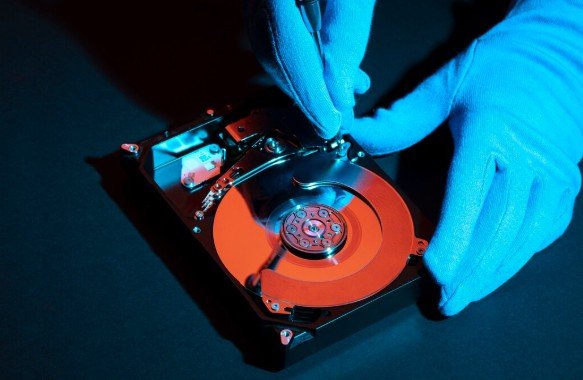
Before starting the upgrade, I always prepare a few tools.
Essential Items
- a new SSD drive
- SSD cloning software
- external SSD enclosure or adapter
- screwdriver (for laptops or desktops)
Many SSD manufacturers provide cloning tools. Popular software options include:
- Samsung Data Migration
- Macrium Reflect
- Acronis True Image
These tools copy your operating system and files to the new drive.
How to Upgrade SSD Without Losing Data
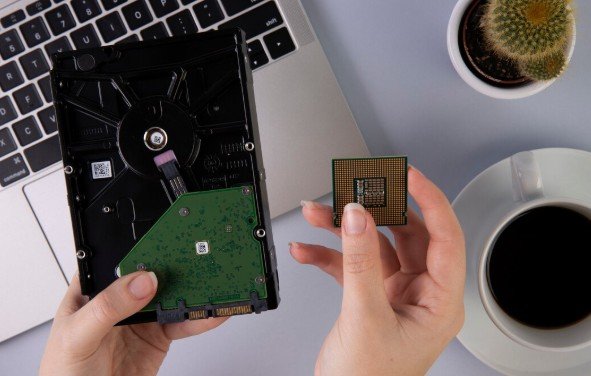
The safest way to upgrade SSD is by cloning the existing drive. This method copies the entire operating system and all files.
Step 1: Connect the New SSD
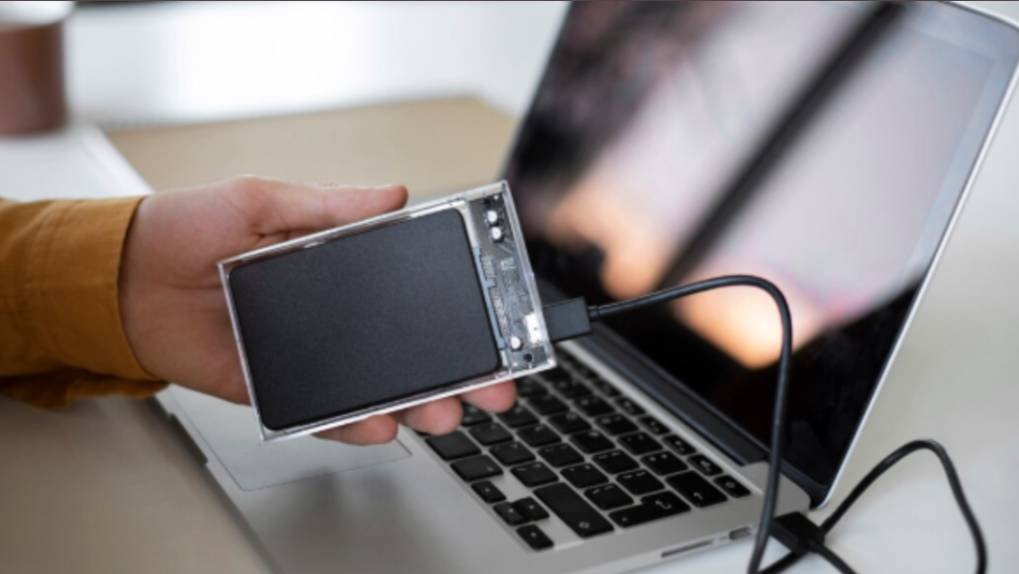
First, connect the new SSD to your computer.
You can do this using:
- USB-to-SSD adapter
- external SSD enclosure
- secondary internal slot
Your computer should recognize the new drive automatically.
Step 2: Install Cloning Software
Next, install cloning software on your system.
I usually recommend beginner-friendly tools because they guide you through the process step by step.
Once installed, launch the program and select the option to clone your existing drive.
Step 3: Clone the Existing SSD
Select the current system drive as the source and the new SSD as the destination.
The software will copy:
- Windows operating system
- installed programs
- personal files
- system settings
Depending on the drive size, the cloning process may take 20 minutes to an hour.
Step 4: Install the New SSD
After cloning finishes, shut down your computer. Open your laptop or desktop case and remove the old SSD.
Then install the new SSD in the same slot. Secure it using the mounting screw.
Step 5: Boot from the New SSD
Turn your computer back on. If everything worked correctly, the system should boot normally from the new drive. You now have a larger SSD with all your files and applications intact.
Upgrading SSD in Laptop vs Desktop
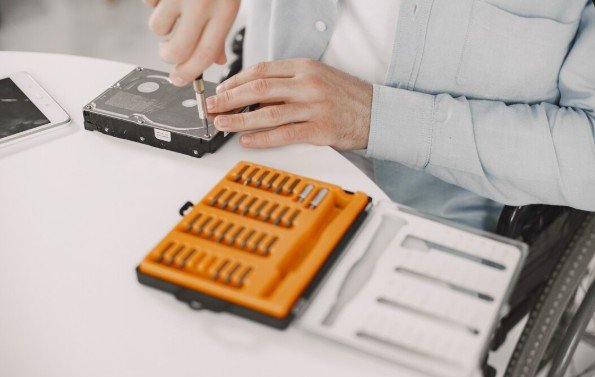
The process for upgrading SSD differs slightly between laptops and desktops.
Laptop SSD Upgrade
Laptop upgrades often involve:
- removing the bottom panel
- replacing the existing drive
- installing an M.2 or SATA SSD
Many modern laptops include NVMe SSD slots, which provide faster speeds.
Desktop SSD Upgrade
Desktop computers are easier to upgrade.
You can install the new SSD in:
- an available SATA port
- an M.2 motherboard slot
Desktops often allow multiple drives, so you can keep the old SSD as extra storage.
Common SSD Upgrade Mistakes to Avoid
When I upgraded my first drive, I nearly made a few mistakes that could have caused problems. Avoid these common issues.
Cloning to a Smaller Drive
Always ensure the new SSD has equal or larger capacity than the original drive.
Forgetting to Change Boot Priority
After installing the new SSD, check the BIOS settings to confirm the system boots from the correct drive.
Using Incompatible SSD Types
Before buying a new drive, check whether your computer supports:
- SATA SSD
- NVMe SSD
Using the wrong type may prevent installation.
Frequently Asked Questions
1. Can I upgrade SSD without reinstalling Windows?
Yes. You can upgrade SSD without reinstalling Windows by cloning your current drive using SSD migration software.
2. How long does it take to upgrade an SSD?
Most SSD upgrades take between 30 minutes and 90 minutes, depending on drive size and data transfer speed.
3. Do I need special software to upgrade SSD?
Yes. Cloning software helps copy your operating system and files to the new drive safely.
4. Can I upgrade my laptop SSD myself?
Yes. Many laptops allow easy SSD upgrades by removing the bottom panel and replacing the drive.
5. Is upgrading SSD worth it?
Yes. Upgrading to a larger or faster SSD improves system performance and provides more storage space.
The Smart Upgrade That Makes Your Computer Feel New Again
Learning how to upgrade SSD is one of the most valuable computer upgrades you can perform. Unlike many hardware changes, SSD upgrades deliver immediate results.
When I upgraded my drive, the difference was obvious. My system booted faster, programs launched instantly, and I never worried about running out of storage.
With a simple cloning process and careful installation, you can upgrade your SSD without losing data and give your computer a noticeable performance boost.
If your storage is almost full or your system feels slow, upgrading your SSD might be the easiest way to make your computer feel brand new again.