

If you suddenly lose internet access, the first question most people ask is why is the wifi router not working. I have dealt with this situation many times, especially when the connection suddenly drops in the middle of work or streaming.
In most cases, the problem is not as complicated as it seems. Router issues usually come from a few common causes such as temporary network glitches, loose cables, overheating hardware, or internet service outages.
Understanding how to diagnose the issue step by step can save a lot of time. In this guide, I will walk through the most common reasons why a wifi router is not working and explain how to fix the problem quickly.
Key Takeaways
- WiFi router issues often come from temporary network errors or power problems
- Restarting the modem and router solves many connection problems
- Device connectivity issues can sometimes appear as router problems
- Firmware updates and overheating can also affect router performance
Why Is the WiFi Router Not Working?
When a router stops working, the problem usually falls into one of three categories:
- internet service outage
- hardware or cable issues
- device or configuration problems
The first thing I always do is identify whether the problem affects all devices or only one device. If multiple devices cannot connect to the internet, the router or modem is likely the issue.
If only one device has connection problems, the issue may come from the device rather than the router. A well-structured network setup is a key part of what every office needs, especially for consistent connectivity.
Check if the Internet Service Is Down
Sometimes the router is not the real problem. The internet service provider may be experiencing an outage.
I usually test this by:
- checking whether the modem shows internet signal lights
- connecting another device to the network
- testing a wired connection directly to the modem
If none of the devices can access the internet, the issue may be outside the home network.
Restart the Router and Modem
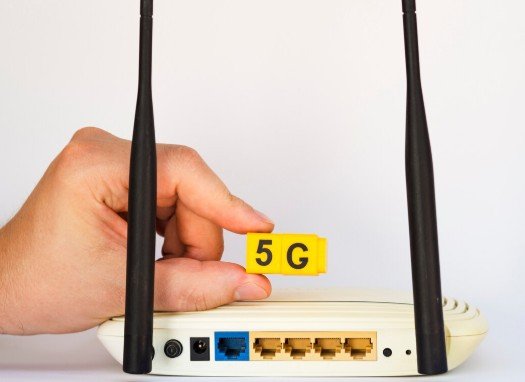
Restarting network equipment solves many connectivity issues. Routers run continuously and sometimes develop temporary software glitches.
I normally follow a simple restart process:
- Turn off the modem and router
- Wait about 30 seconds
- Turn the modem back on first
- Turn on the router after the modem connects
This refreshes the network connection and often restores internet access.
Check Router Cables and Power
Loose cables are another common cause of router issues.
I check the following connections whenever the router stops working:
- modem to router Ethernet cable
- router power cable
- wall internet connection
Even a slightly loose cable can interrupt the network connection.
Verify Device Connection Problems
Sometimes the router works correctly but a specific device cannot connect.
In these cases I usually check:
- WiFi settings on the device
- airplane mode or network settings
- saved WiFi passwords
For example, a device may show the network but fail to connect if the password is incorrect or the network configuration is corrupted.
Router Connected but No Internet
A common problem occurs when devices connect to the router but still cannot access the internet. If your device connects to WiFi but still shows no internet, this step by step guide to diagnose home network connection problems can help identify the root problem
When this happens, the router is working but the connection between the router and modem is failing.
Possible causes include:
- modem connection problems
- incorrect router configuration
- internet provider outages
Restarting both the modem and router usually resolves this issue.
Check Router Firmware and Settings
Routers run internal software called firmware. Outdated firmware sometimes causes connectivity issues. I occasionally log into the router settings and check for firmware updates. Updating firmware can fix bugs and improve stability. Router configuration settings can also cause problems if they are changed incorrectly.
Overheating or Hardware Failure
Routers run continuously and generate heat. If the router overheats, it may temporarily stop working. I make sure my router has proper airflow and is not placed in a confined space.
Signs of hardware problems include:
- router frequently disconnecting
- network speed suddenly dropping
- router requiring frequent restarts
If these problems happen often, the hardware may be failing. Understanding the common causes of home network connectivity problems can help determine whether the issue comes from the router or the broader network.
When You Should Replace the Router

Sometimes troubleshooting does not solve the problem because the router is simply too old. Routers typically last several years before performance begins to decline.
Replacing the router may be necessary if:
- the router frequently disconnects
- speeds remain slow despite troubleshooting
- the router does not support modern WiFi standards
Upgrading to a newer router can improve coverage and stability.
Frequently Asked Questions
1. Why is my wifi router not working even after restarting?
If restarting does not work, the issue may come from the modem, internet provider outage, incorrect router configuration, or hardware failure.
2. Why does my router randomly stop working?
Routers may stop working due to overheating, firmware bugs, network congestion, or aging hardware.
3. Why is my router connected but there is no internet?
This usually happens when the router cannot communicate with the modem or the internet provider.
4. How often should I restart my router?
Restarting a router occasionally helps refresh the connection, but frequent restarts may indicate deeper issues.
5. When should I replace my wifi router?
You should consider replacing the router if it frequently disconnects, cannot support modern speeds, or shows signs of hardware failure.
Final Thoughts: Fixing WiFi Router Problems Quickly
When I experience internet problems, the first thing I ask myself is why is the wifi router not working and then begin troubleshooting step by step.
Most router issues are simple and can be solved by checking cables, restarting the modem and router, or verifying device connections. Taking a systematic approach makes it easier to identify the real cause.
Once you understand the most common causes of router failure, you can restore your internet connection quickly and avoid unnecessary frustration.